12 Best Free Backup Software for 2026
Choosing a solid backup software doesn't have to come with a hefty price tag, especially when you don't need an enterprise-level multitenant backup. In this article we explore the best free backup software, with some reliable commercial-grade tools offering free and freemium tiers, as well as a number of open-source solutions, you can easily navigate these backup waters – and this roundup is here to help.
For home users and individuals looking for the best free backup software, MSP360 Backup Free stands out as the most complete cross-platform option: it combines an intuitive interface with CLI support, BYOS cloud storage, and both file-level and image-based backup on Windows. Though "free" does come with certain trade-offs, we've explored the best free backup software worth taking a closer look at in 2026.
Who can benefit the most from free backup software
- Home users and individuals;
- Freelancers and small businesses without dedicated IT;
- Power users and homelabs.
Personal users will find the most value in simple, GUI-driven tools with a small free storage tier: something that runs in the background and stays out of the way. Small businesses and freelancers will get more mileage from freemium editions and community releases, where the feature floor is higher and commercial use is permitted. Power users are better served by open-source solutions: more setup, but full control over storage, encryption, scheduling, and retention.
[content]
Criteria for Evaluating the Best Free Backup Software
- Backup type: file-level folder tracking, full image-based disk snapshots, and individual file extraction from full images.
- Backup method: support for full and incremental backups to speed up jobs and keep storage sizes down.
- Storage destinations: local external drives, NAS network paths, and bring-your-own cloud storage to bypass vendor markups.
- Commercial-use license: legal permission for business data, clear EULA boundaries, and compliance protection during IT audits.
- Scheduling and retention: automated task triggers, hands-off background execution, and historical version tracking.
- Recovery boot media: bootable USB builders, ISO creation tools, and bare-metal recovery environments for dead systems.
- Ease of setup: wizard-driven installation, quick initial configuration, and seamless file restore.
- Security and encryption: client-side zero-knowledge encryption, secure data transfers, and password-protected archives.
Best Free Backup Software at a Glance
| Tool | Best For | Backup Type | Cloud Support | Free Tier Limits |
|---|---|---|---|---|
| MSP360 Free Backup | Home users, personal cloud backup | File + image (Windows) | Yes – BYOS (S3, B2, Wasabi) | Personal use only, no domain-joined PCs |
| Kopia | Freelancers, power users, off-site backup | File-level (snapshot-based) | Yes – BYOS (S3, B2, Azure, SFTP) | None – fully free and open source |
| Restic | Developers, homelabs, terminal users | File-level (snapshot-based) | Yes – BYOS (S3, B2, SFTP, and more) | None – fully free and open source |
| EaseUS Todo Backup Free | Home users, simple local backup | File, partition, system image | No (trial only) | No cloud, no cloning |
| Veeam Agent for Windows Free | Single machine, near-enterprise recovery | File, full system image | Local / NAS (advanced cloud workflows require VBR) | One machine, no central management |
| Hasleo Backup Suite Free | Home users wanting full feature set | File, partition, system image | No | Home use only, no Enterprise/Server |
| Déjà Dup | Linux desktop beginners | File-level | Partial – Google Drive | GNOME only, no bare-metal restore |
| UrBackup | Small offices, centralized backup | File + image | Local / network storage only | Requires server setup |
| BorgBackup | Linux servers, homelabs, power users | File-level (dedup, snapshot-based) | No native cloud support (SSH/local storage) | CLI only, no GUI |
| Apple Time Machine | Mac home users, easy local recovery | Full system + file-level | No | No cloud, auto-deletes old versions |
| Kopia (Mac) | Freelancers, off-site backup on Mac | File-level (snapshot-based) | Yes – BYOS (S3, B2, Azure, SFTP) | None – fully free and open source |
| Vorta | Mac/Linux power users, BorgBackup GUI | File-level (dedup, snapshot-based) | No native S3/B2 support (SSH, BorgBase, local storage) | Requires own storage |
Best Cross-platform Free Backup Software
MSP360 Free Backup
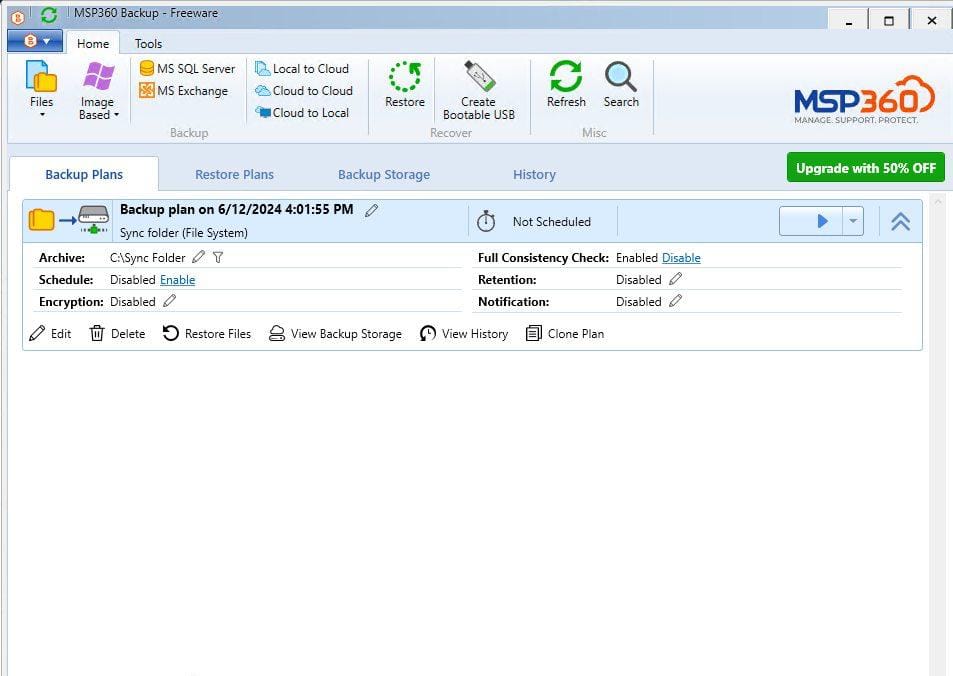
MSP360 Backup Free is the best free backup software for personal cloud backup in this roundup and the most accessible tool in this section. A simple configuration with an intuitive interface helps you set up your backup plan without forcing you into the terminal, though it still includes a fully-featured CLI for users who want to script or automate tasks.
It runs on Windows, macOS, and Linux, supports file-level backup across platforms, and adds image-based backup on Windows. It backs up to local drives, network shares, NAS, or to your cloud through the BYOS (Bring Your Own Storage) model, meaning total freedom of data ownership with no vendor-locked storage. The free edition has a 5TB limit for cloud storage and 5TB for local backup.
As MSP360's free tier is designed for personal use and standalone machines, it does not work on domain-joined corporate PCs. And though encryption, compression, Object Lock, and some business features sit in the paid editions, it's much more than a stripped-down demo. Users can build real backup plans, test the workflow, and upgrade without starting over – backup plans, schedules, and history carry over automatically.
Kopia
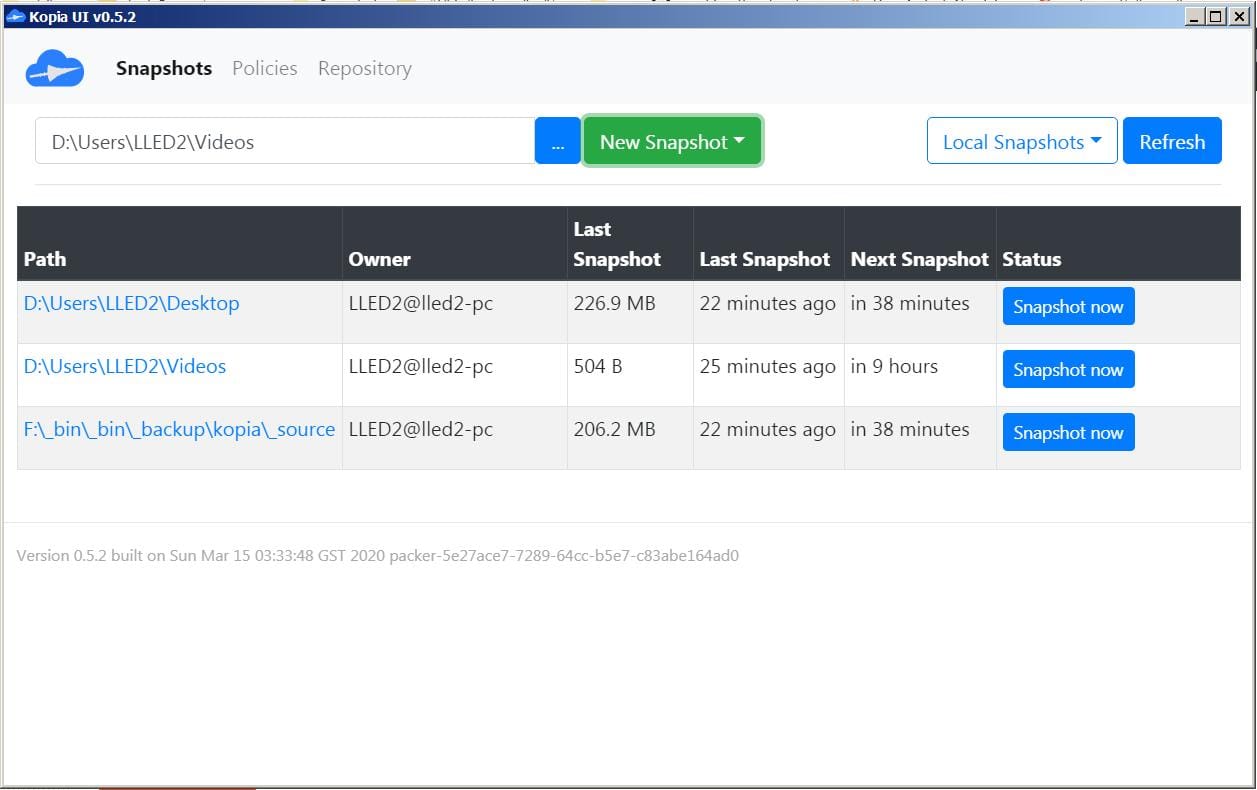
Kopia is open-source software licensed for commercial use, which makes it the right fit for freelancers and small teams. Available on Windows, macOS, and Linux with both a desktop GUI and CLI, it handles automatic scheduling, deduplication, and end-to-end encryption. Among the free tools reviewed, Kopia is the only one with built-in Object Lock support. It does so on S3-compatible storage and Azure for ransomware protection (vital note: Backblaze B2 users need to connect via Kopia's S3 engine rather than the native B2 option to use it). As for storage destinations, backups go to local drives, NAS, or any BYOS cloud provider.
The trade-off is complexity. Kopia is easier to approach than a pure CLI tool, but it still asks users to understand repositories, policies, and storage targets. It is also a younger project, so restore testing matters.
Restic
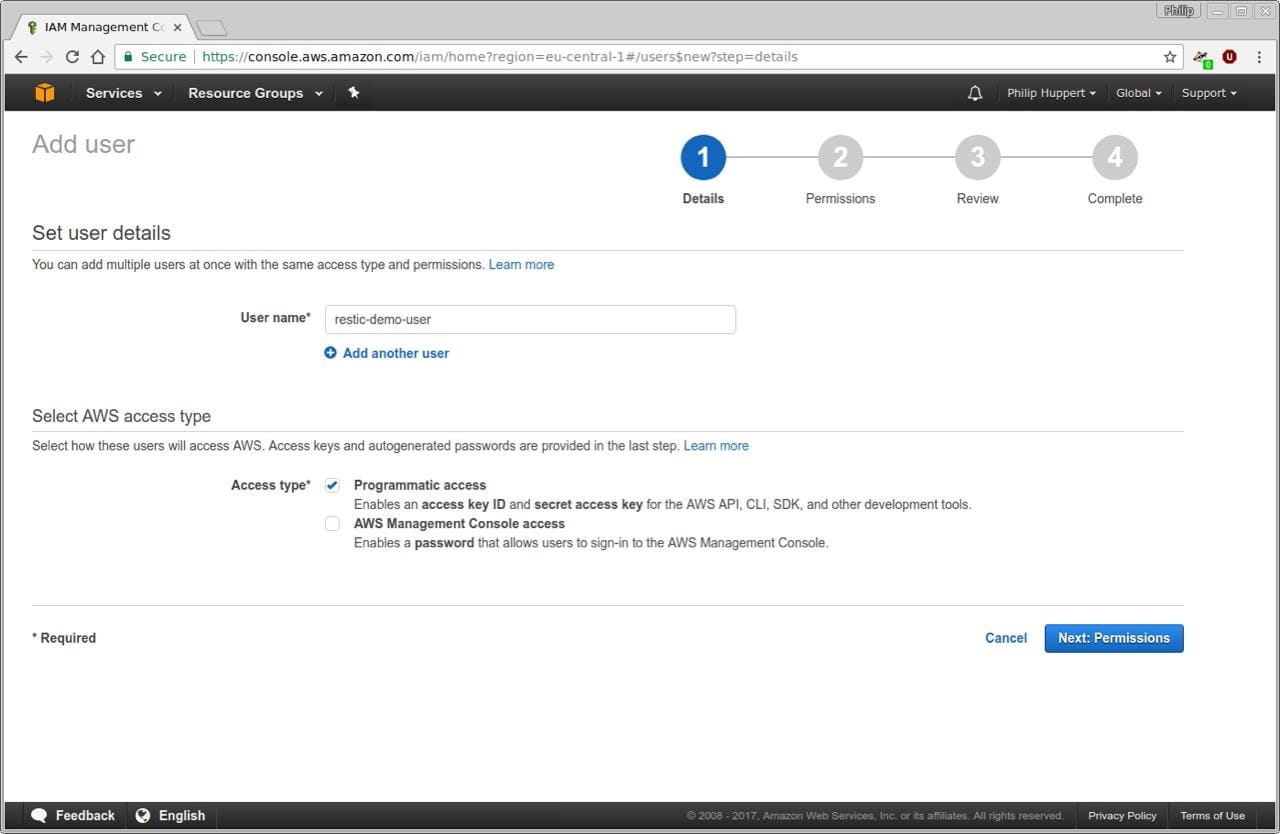
Restic is one of the strongest free backup tools for technical users. It is open source, runs on Linux, macOS, and Windows. A lightweight command-line tool that runs directly on the machine being backed up, it uses snapshot-based incremental backup: after the first full capture, later backups save only changes while remaining fully restorable. Restic uses cryptography throughout the backup process and supports many local drives, remote servers, and major cloud/object storage providers.
The catch is that Restic has no built-in desktop GUI and no all-in-one scheduler, so users usually set up automation through cron, systemd, Task Scheduler, or a wrapper such as Backrest. For homelab users and developers, that is normal. For anyone who avoids the terminal, it is probably the wrong starting point.
Best Free Backup Software for Windows
EaseUS Todo Backup Free
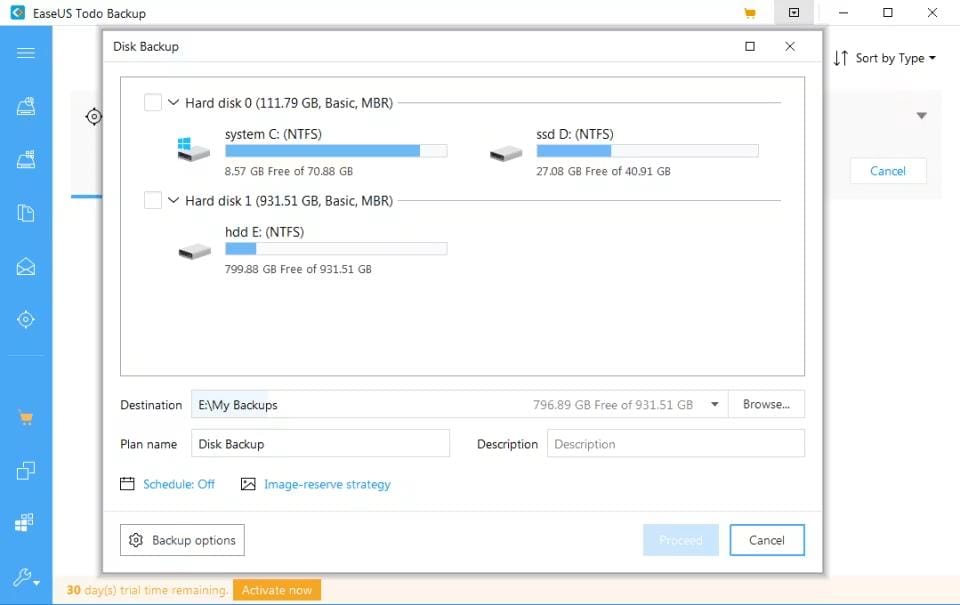
A well-known free Windows backup tool, EaseUS covers the basics for a home Windows machine: from file and partition backup to full system backup (full, incremental, differential) and basic continuous "Smart Backup" scheduling. The interface is clean enough for non-technical users, which is why it remains a common recommendation for simple local backup.
The free version has real limits. Sector-by-sector disk cloning, advanced file exclusion filters, email notifications, event-based triggers, and custom command executions are strictly paid-only. Cloud support is also not so straightforward: native integration with third-party cloud targets is locked, and EaseUS Cloud storage is usually offered only as a trial. Quite useful for basic local imaging – not so much for advanced automation or cloud workflows.
Veeam Agent for Windows Free
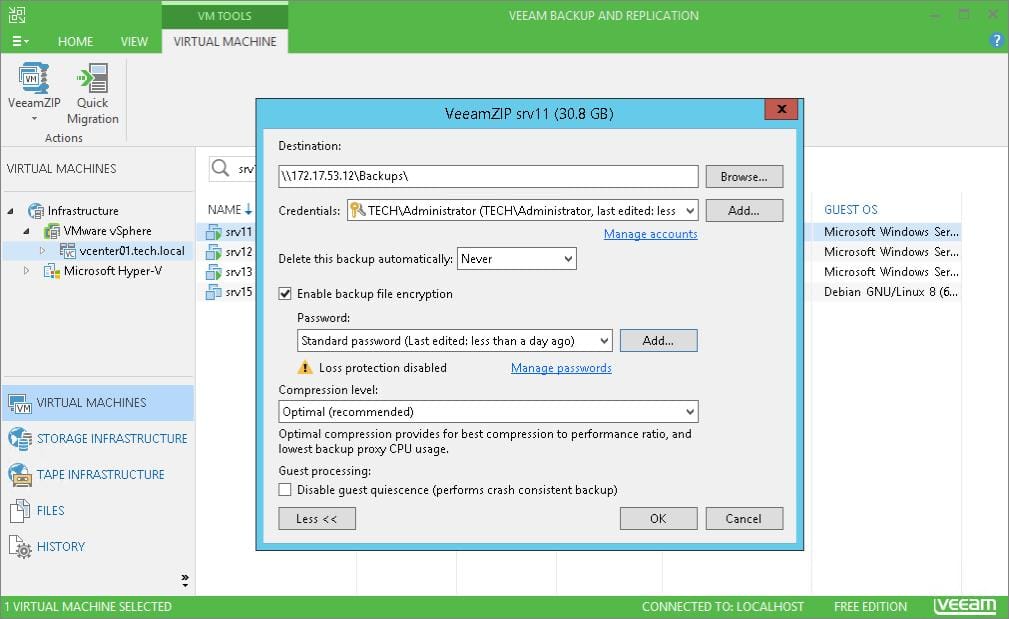
Veeam is mostly known as an enterprise backup vendor, which makes its free Windows agent more capable than a typical home backup utility. It covers file and folder backup, volume-level backup, and full system image with bootable recovery media for bare-metal restore. Backups go to an external drive, NAS share, or a Veeam Backup & Replication repository.
The free agent works well for one standalone machine with bare-metal and file-level restore included. The more advanced paths, Instant VM Recovery and direct restore to Azure or AWS, require Veeam Backup & Replication infrastructure. Without it, those features aren't on the table. Veeam's broader free option, Backup & Replication Community Edition, adds a full backup console and central job management across multiple machines – useful for a small office, overkill for a single laptop.
Hasleo Backup Suite Free
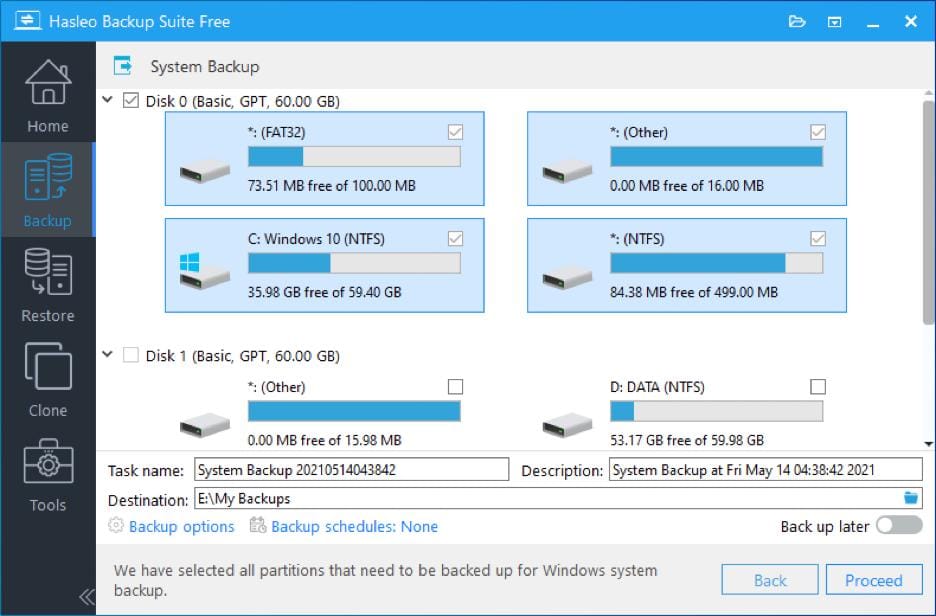
Hasleo Backup Suite Free is a Windows-only backup tool with a surprisingly complete feature set for a free home edition. It covers everything from selected files and partitions to full system backups, and supports full, incremental, and differential backup modes. It also includes the kind of recovery features many free tools hold back: bootable WinPE emergency media, backup image checking and mounting, scheduling, retention policies, compression, AES 128/256 encryption, command-line support, and delta restore.
The limitation is not the feature set, but the edition. Hasleo labels the free version as “free for home use,” while business usage is reserved for paid editions. The free tier also does not cover Windows Education, Windows Enterprise, or Windows Server editions. That makes it a very capable choice for Windows home users and homelabs, but a weaker fit for freelancers or small businesses that need backup software for work machines.
Best Free Backup Software for Linux
Déjà Dup
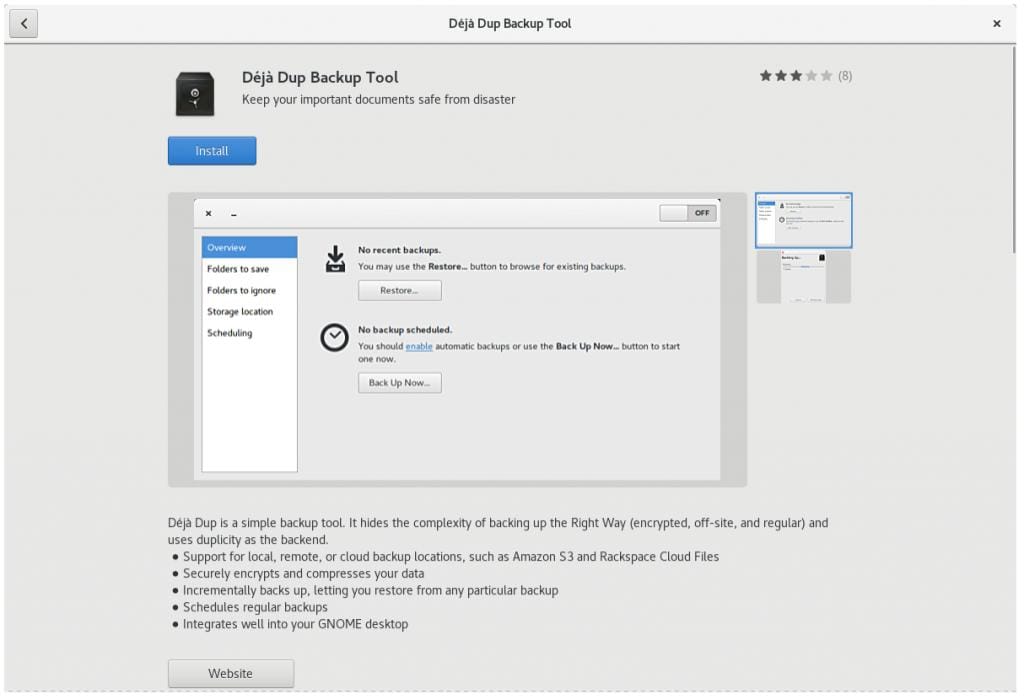
A simple open-source backup service for GNOME desktop on Linux. Mostly for basic everyday use, with Déjà Dup you choose what to back up, pick a destination, turn on automatic backups, and let it run. It supports local, remote, and cloud locations such as Google Drive. With Restic now used as its backend, Déjà Dup gives users encrypted, compressed, incremental backups without the usual CLI workflow overhead.
Yet it remains a personal file-backup tool, not a full-system recovery product. Déjà Dup is designed to protect files the user account can access, not system files, other users, server workloads, or bare-metal restore scenarios.
UrBackup
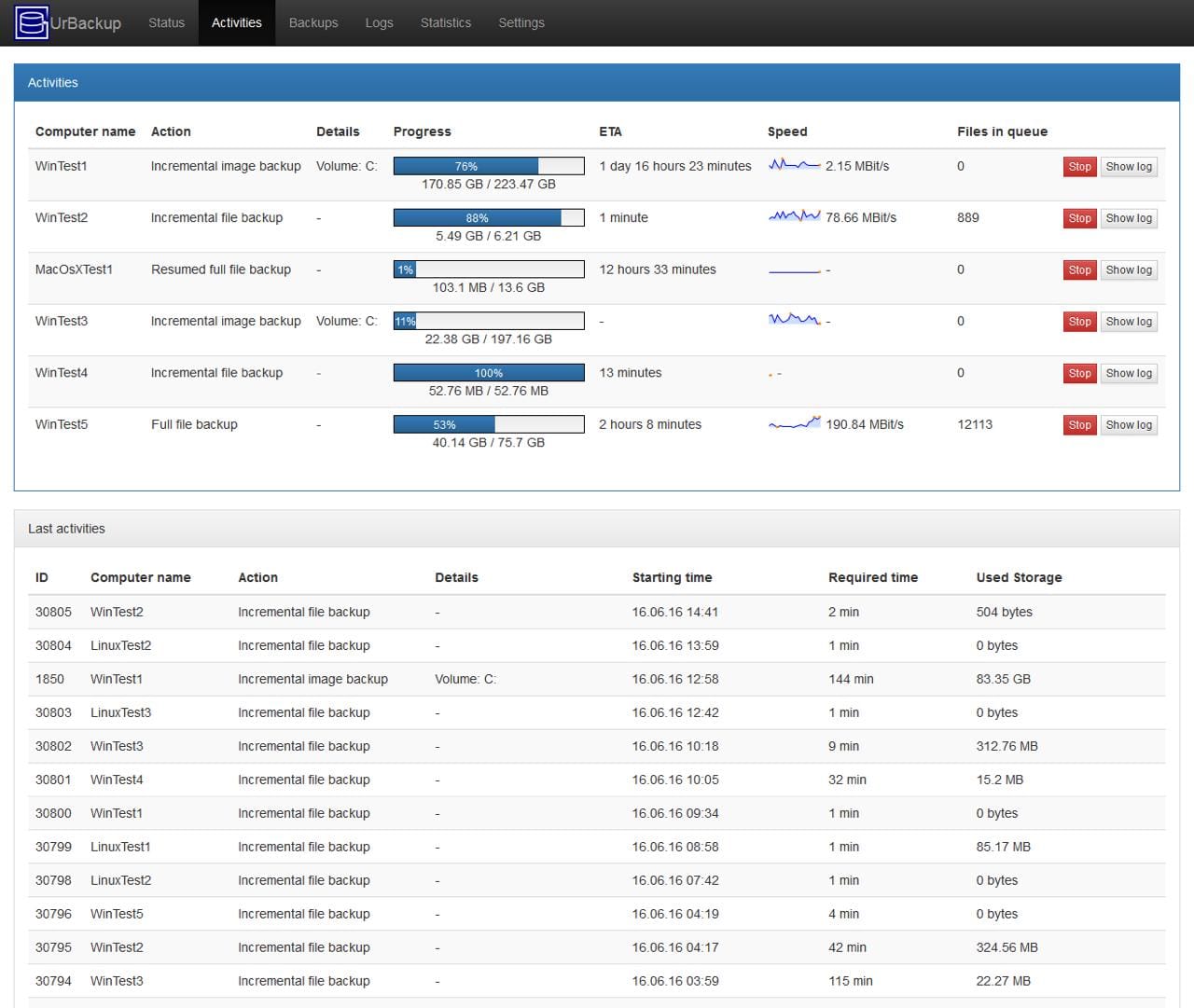
UrBackup is a free open-source backup system built for infrastructure rather than simple desktop backup. Instead of protecting one machine with one local app, it uses a central backup server with client agents installed on the machines you want to protect. The server can run on Linux, Windows, FreeBSD, or a NAS, while clients are available for Windows, macOS, Linux, and FreeBSD. From a web dashboard, users can manage file and image backups across multiple devices, with bare-metal recovery available for supported systems.
Setup is the price of admission. UrBackup expects a server, storage location, and client agents, so it is not as quick as installing a single desktop app. It also feels more natural with local or network storage than with direct S3/B2-style cloud backup. The interface is functional rather than pretty. For a small office that wants centralized backup without paying for software, though, it fits the brief better than most single-machine tools.
BorgBackup
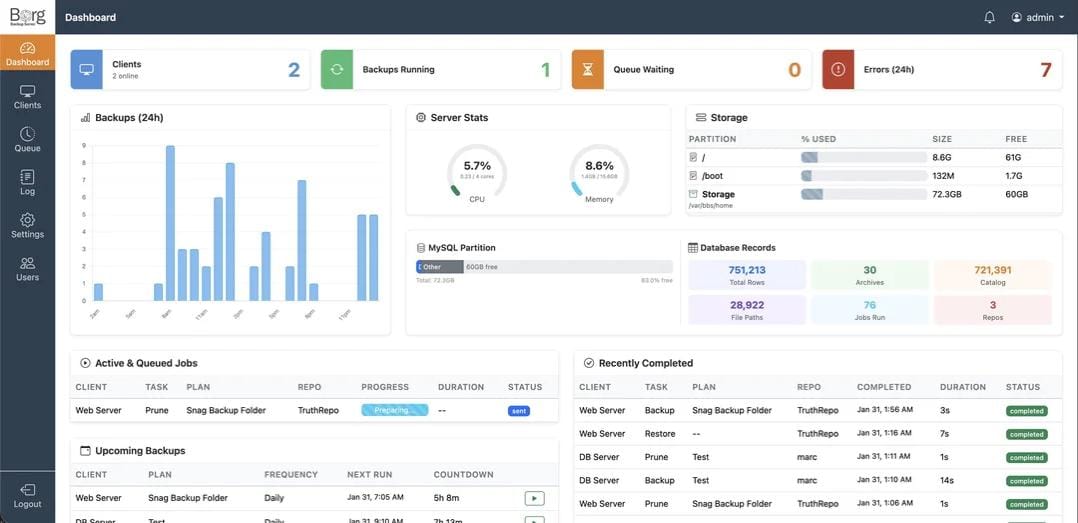
BorgBackup is one of the best free backup software, an open-source backup tool that feels especially at home on Linux. It fits the way many Linux users already work: terminal-first, scriptable, and easy to pair with SSH-based storage, cron, or systemd timers. That makes it useful for Linux servers, home servers, NAS-style setups, and homelabs where users want efficient backup without a heavy desktop app. Borg uses deduplication, compression, and authenticated encryption to keep backups secure and storage use under control. It also lets users mount backups and browse older snapshots like a filesystem, which makes recovery more practical.
The trade-off is that Borg expects technical confidence. It is CLI-first and works best with local drives or remote servers over SSH. Standard cloud object storage, such as S3 or Backblaze B2, usually requires extra tooling, a hosted Borg-compatible service, or a workaround. For Linux users who are already comfortable with the terminal, Borg is a strong fit.
Best Free Backup Software for Mac
Apple Time Machine
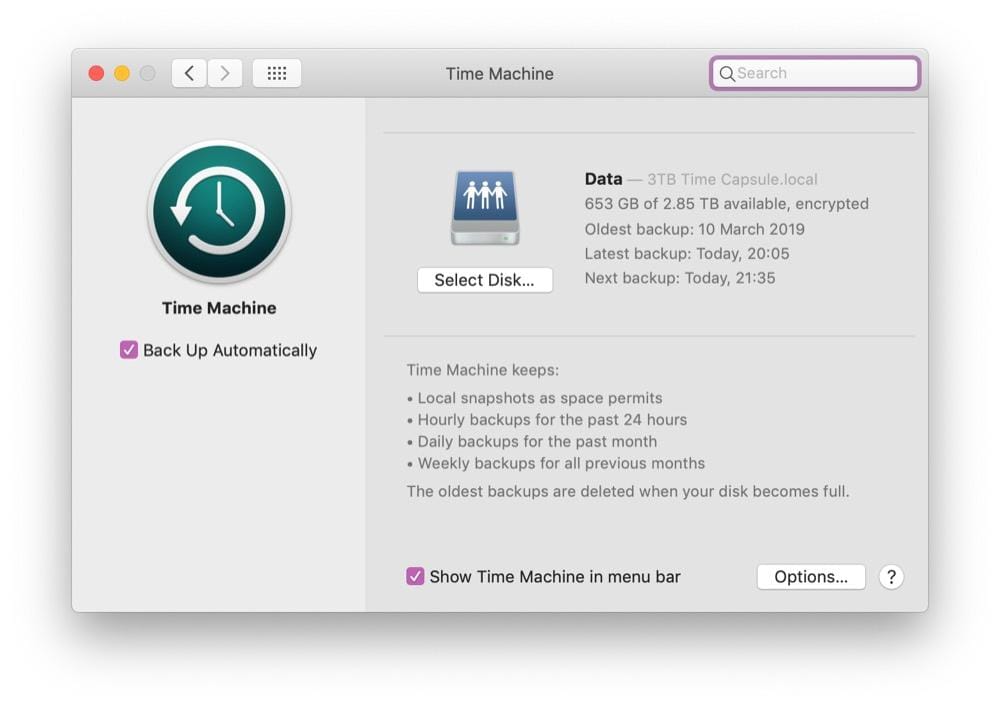
Mac’s native Time Machine requires no introduction. All you need is an external drive, and macOS will handle the backups automatically: hourly for the past 24 hours, daily for the past month, and weekly beyond that as space allows. Users can recover individual files or restore a Mac through macOS Recovery without installing separate backup software.
The limitation is quite obvious. Although excellent for simple Mac recovery, Time Machine gives users very limited control over how backups are stored and retained. Older versions are deleted automatically when the backup destination fills up, and there is no native support for cloud or object storage.
Kopia
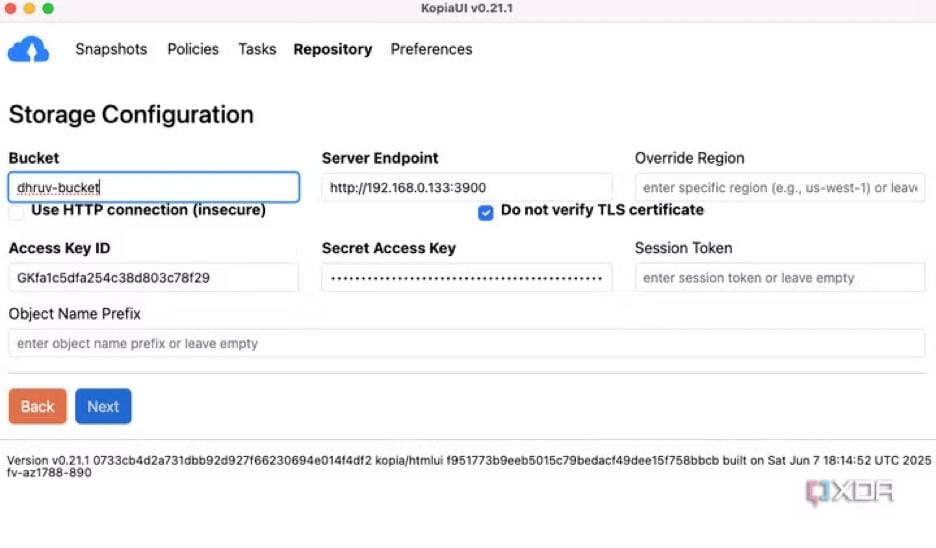
Free Mac backup options become thinner once commercial use and off-site cloud backup are part of the requirement. Time Machine is excellent for local backup, but Kopia is a stronger fit as one of the best free backup software for macOS, when a freelancer or small team needs an encrypted off-site copy without paying for backup software. It runs on macOS, offers a desktop GUI and CLI, and supports local, network, and cloud storage targets including S3-compatible storage, Backblaze B2, Azure Blob Storage, Google Cloud Storage, SFTP, and WebDAV.
Kopia still asks more of the user than Time Machine does. KopiaUI is not a classic Apple-style app, and users need to understand repositories, passwords, policies, and restore testing. Used alongside Time Machine, though, it makes sense: Time Machine covers easy local recovery, while Kopia handles encrypted off-site backup.
Vorta
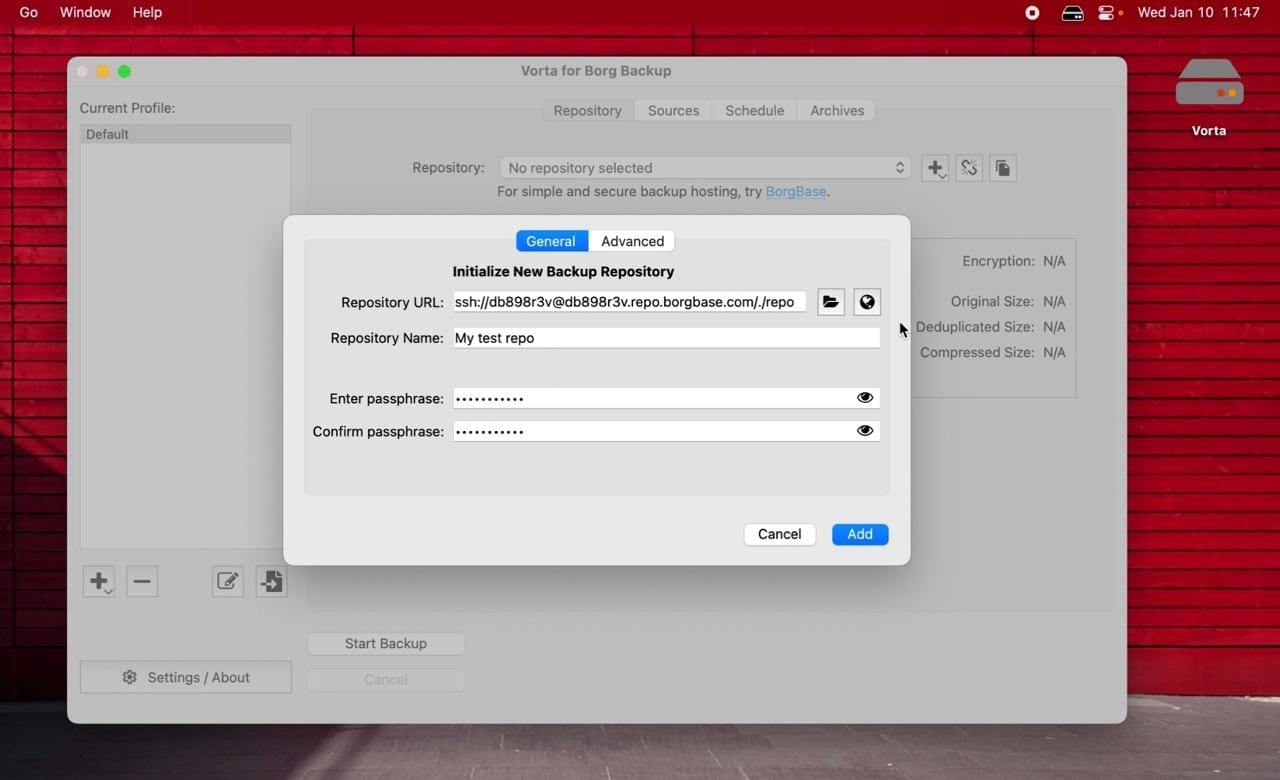
Vorta gives macOS power users a desktop GUI for BorgBackup. That means scheduled backups, profiles, archive browsing, and individual file restore on top of Borg’s deduplication, compression, and authenticated encryption. For users who like Borg’s storage efficiency but do not want to run every backup from the terminal, Vorta is one of the cleanest ways to use it on a Mac.
The limits come from Borg itself. Vorta works best with local drives, your own server, or BorgBase-style storage rather than direct S3 or Backblaze B2 buckets. It is also not a general consumer cloud-backup app. For Mac users comfortable managing storage, SSH keys, and backup destinations, it is strong. For users who want straightforward cloud backup with fewer moving parts, Kopia or MSP360 is easier.
How We Selected These Tools
To identify the best free backup software these tools were selected based on their ability to meet core backup requirements across several criteria, including backup type (file-level and image-based), supported platforms, storage destinations, scheduling and retention options, encryption, and ease of setup. License terms were reviewed against official vendor documentation and EULAs to verify whether free use is permitted in commercial environments. We also considered feedback from technical communities such as Reddit (including r/sysadmin, r/homelab, r/backup and r/selfhosted) and review platforms like G2, Capterra, Gartner and AlternativeTo to better understand common user experiences around setup complexity, restore workflows, reliability, and support. This roundup is based on publicly available information at the time of writing. Product features, licensing terms, and limitations may change over time.
Best Free Backup Software FAQs
Is free backup software safe to use for business data?
It can be, but check the license first. Some free tools are for personal or home use only, even if the features look suitable for work. For business data, also check whether the tool supports scheduling, retention, encryption, and reliable restore.
What’s the difference between free backup software and open source?
Free backup software is usually a limited version of a paid product. It may be easier to use, but some features are reserved for paid plans. Open-source backup software gives users more control over storage, encryption, and automation, but setup is usually more technical.
Should I use more than one backup tool?
Sometimes. One tool may be better for local recovery, while another is better for off-site backup. For example, you might use an image-based tool for full-system recovery and a cloud-capable tool for important files.
Which free backup tool is best for beginners?
For Mac users, Time Machine is the easiest starting point. For Linux desktop users, Déjà Dup is the simplest option. For a cross-platform GUI tool, MSP360 Backup Free is more approachable than command-line tools like Restic or BorgBackup.
Is cloud sync the same as backup?
No. Sync tools mirror changes across devices, including accidental deletions or corrupted files. Backup tools keep restore points, so users can recover an earlier clean version when something goes wrong.
Are free backup tools enough for ransomware protection?
Not by themselves. A backup is much safer if ransomware cannot delete or overwrite it. For better protection, keep at least one offline copy or use storage with immutability/Object Lock. Scheduling backups is useful, but recoverability matters more: always test that you can restore a clean version.
Discover More Resources for MSP360
As managed service providers look to streamline their operations, building a strong IT management stack starts with powerful, cost-effective tools. If you are just starting out, it's the perfect time to meet MSP360 RMM Community Edition, a free RMM, the platform enables you to effortlessly level up IT support with free patch management, monitor critical system reliability using the RMM Watchdog, and leverage the expanded capabilities we highlighted when introducing MSP360 RMM 2.5. However, robust remote management is only half the equation; securing your clients' data is equally crucial. Whether you are searching for aBackup Exec alternative migration guide to replace clunky legacy systems, or eagerly anticipating our upcoming instant restore and backup features, we have you covered. Navigating cloud environments has also never been simpler thanks to our insights on Microsoft 365 cost optimization, which pair perfectly with our comprehensive Office 365 backup complete guide and our roundup of the best SharePoint backup solutions. Ultimately, we are committed to your long-term success, a promise firmly backed by the MSP360 price guarantee for MSPs.
[readmore] Best Microsoft 365 Backup Solutions
[readmore] Best Google Workspace Backup Solutions
Final Thoughts on the Best Free Backup Software
A last-minute recap. For personal use, a great start can be MSP360 Free Backup Software or taking a look at Time Machine for Mac and Déjà Dup for Linux. Freelancers and small teams should look at Kopia first – open-source, commercially licensed, and the only free tool with Object Lock support for ransomware protection. Power users and homelabs: Restic if you live in the terminal, BorgBackup if you're on Linux and want maximum efficiency.
But as we said in the beginning, even the best free backup software comes with a caveat. Be it a complex setup, limited destinations, backup type or storage options – the best software is ultimately the one that does its job for you. We do encourage you to test two or three from our list, especially since it comes at no cost and with no strings attached.