MSP360 Backup for Microsoft 365 / Google Workspace 4.8
We are happy to introduce MSP360 Backup for Microsoft 365 and Google Workspace 4.8, which brings a major addition to the storage experience – built-in managed cloud storage.
With this release, the need for third-party storage setup is entirely eliminated, configuration time is reduced, and administrators can start protecting Microsoft 365 and Google Workspace data immediately upon sign up.
[content]
Overview of Built-in Managed Cloud Storage
Until now, MSP360 SaaS Backup solution for M365/Google operated on a bring-your-own-storage model only, where users were required to configure their storage account manually and enter permissions and access credentials. With version 4.8, storage configuration becomes significantly easier. Administrators can now choose MSP360 built-in managed cloud storage directly within the product interface, without creating or linking external accounts. At launch, built-in managed cloud storage is available through two trusted providers:
Both storage types are fully integrated into the MSP360 Backup console and available for all backup components across Microsoft 365 backup and Google Workspace backup, including Exchange Online, OneDrive backup, SharePoint backup, Teams backup, Gmail, Google Drive backup, and Shared Drives.
Wasabi Managed Storage
The Wasabi option provides a predictable cost model with easy setup and minimal management overhead.
Key details:
- Free Trial: Includes free 1 TB of storage for 15 days
- Cost: $0.0079 per GB per month ($7.99 per TB per month)
- Billing model: Monthly post-payment / per tenant
- Minimum usage: The first TB is billed in full, even if less than 1 TB is used; data above 1 TB is charged per actual GB used
- Retention: A 30-day minimum retention policy applies
- Cancellation: Deleting the storage destination automatically cancels the plan.
- Discounts: Not available for managed storage but it can be applied for backup subscription
Amazon S3 Managed Storage
The Amazon S3 option offers flexible, consumption-based pricing based on actual GB usage for customers who prefer a pay-per-use model.
Key details:
- Free Trial: Includes free 1 TB of storage for 15 days
- Cost: $0.023 per GB per month ($23 per TB per month)
- Billing model: Monthly post-pay per tenant
- No minimum usage: Payment is based on actual GB usage
- Retention: A 30-day minimum retention policy applies
- Cancellation: Deleting the storage destination automatically cancels the plan.
- Discounts: Not available for managed storage but it can be applied for backup subscription
[readmore] Best Microsoft 365 Backup Solutions
[reamode] Best Google Workspace Backup Solutions
[hubspot type=cta portal=5442029 id=761dc0f3-19c9-403d-a99e-670c329ec4a1]
How Managed Cloud Storage Works
During initial setup of the MSP360 Backup for M365/Google, administrators will be asked to specify a Backup Destination which is made of 2 fields:
- Storage account: Select a Storage account from MSP360 build-in managed cloud storage (MSP360-Wasabi or MSP360-Amazon S3) or to Configure your own cloud storage as Amazon S3, Wasabi, Backblaze B2, or any other supported compatible provider.
- Region: Built-in managed cloud storage allows you to select a region from a dropdown.
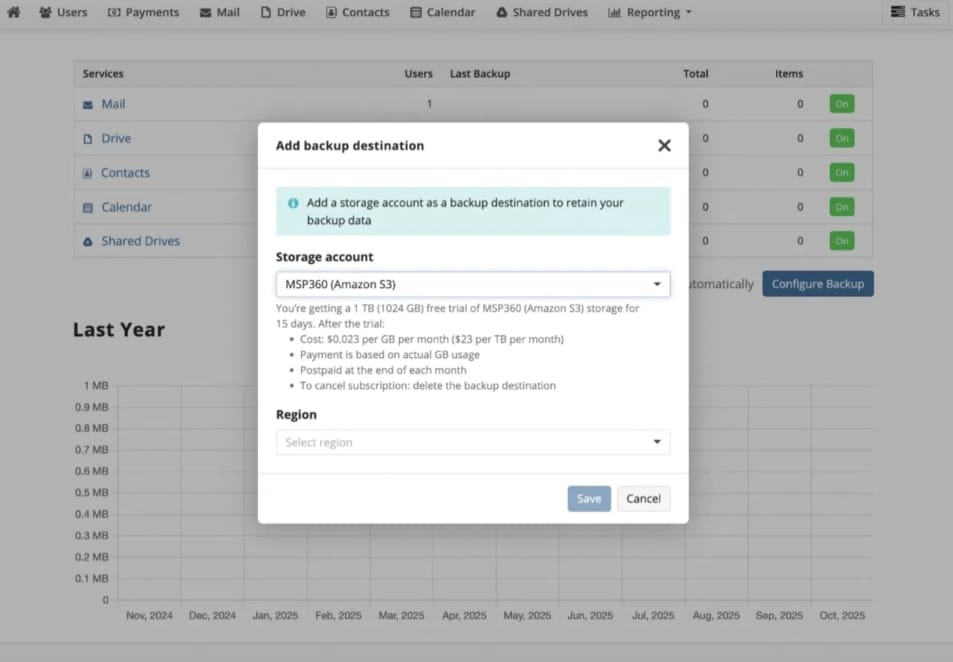
After you select a built-in storage provider and region, the system provisions storage automatically, with no credentials or other manual configuration required. If you Bring Your Own Storage, you need to configure it manually first.
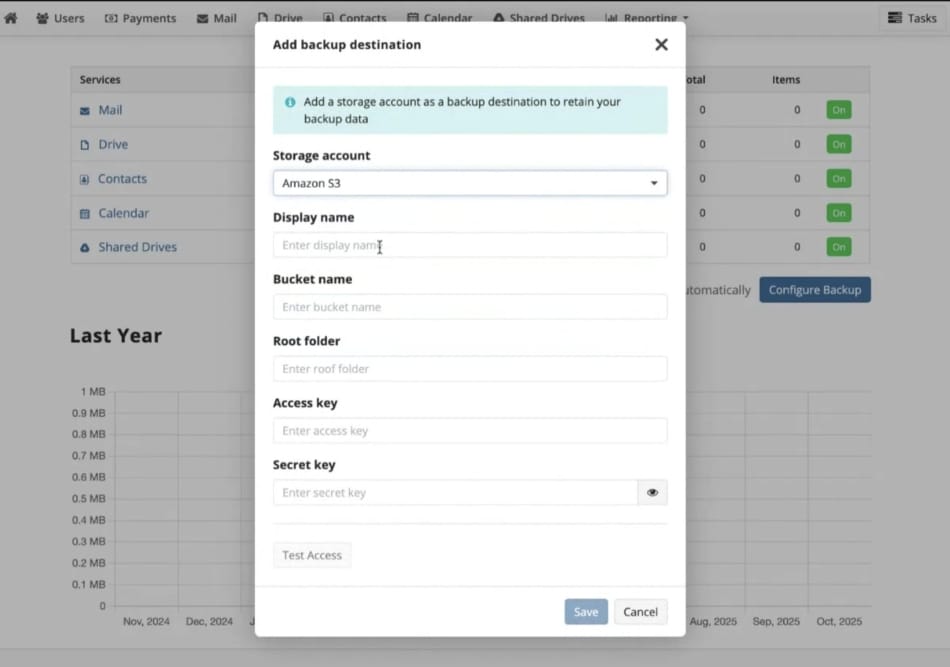
Note
[readmore] Learn more about how to setup built-in managed cloud storage
Managing and Changing Storage
To manage storage operations go to Backup Destination Window through the following steps:
- Click on the Account Menu in the top right-hand corner
- Choose My account from the menu
- In the modal window choose Backup Destination tab
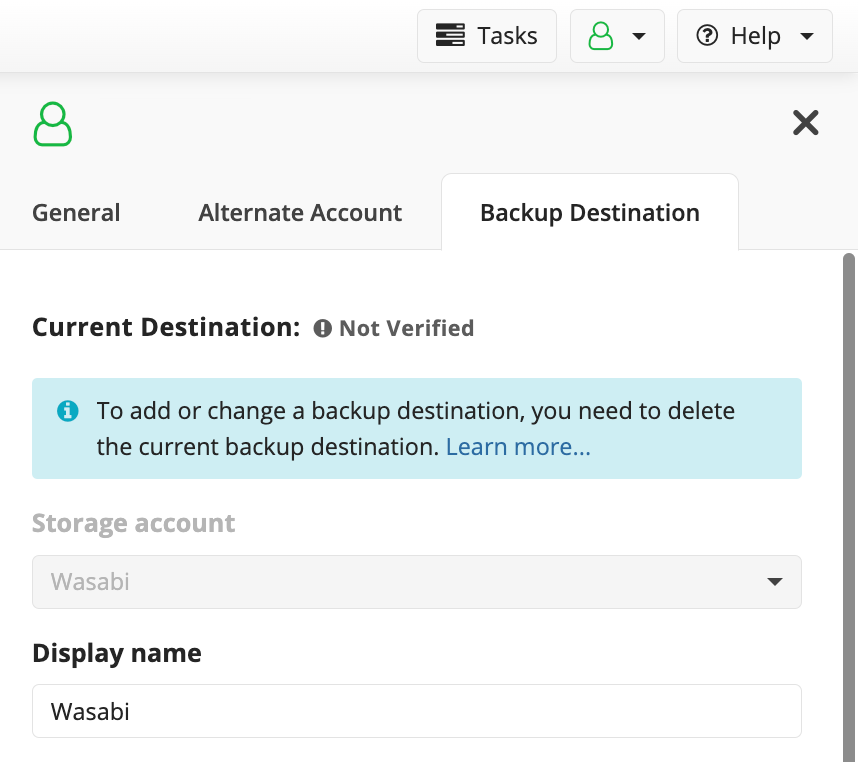
Alternative way to find the Backup Destination window (available for built-in managed storage only)
- Click Payments on the menu in the Backup console
- Click “Select Your Plan” Button
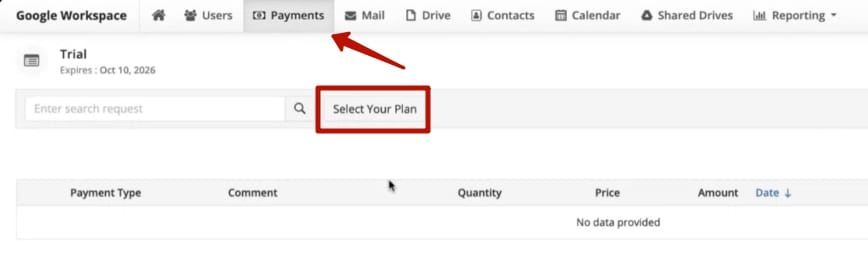
- In the modal window click on your Storage in Backup Destination block
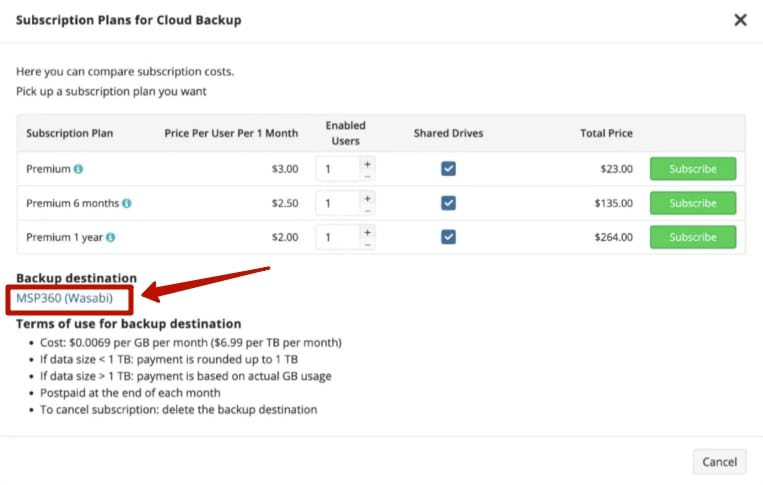
Here, administrators can review details, delete existing storage, or switch to another storage provider at any time.
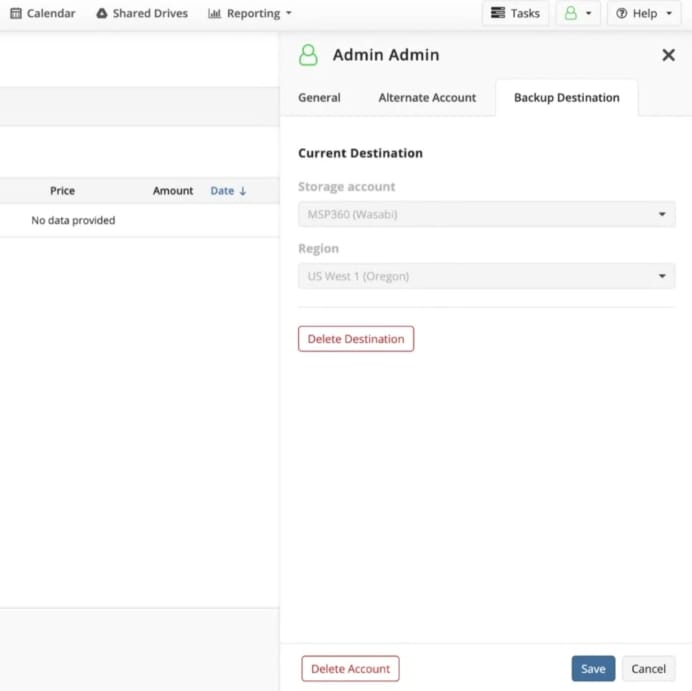
- To change storage, you should Delete current Destination, then select a new storage provider.
Note
[readmore] Check out the complete list of updates and features of our previous releases
What’s new with 4.8 version
The built-in managed cloud storage in MSP360 Backup for Microsoft 365 and Google Workspace 4.8 version gives you these benefits:
- Fast onboarding: Begin backups without first configuring external storage.
- Simplified configuration: Choose Amazon S3 or Wasabi directly from the MSP360 console.
- Reduced setup errors: Removes manual credential and permission management.
- Flexible choice: Use MSP360-managed or bring-your-own storage as needed.
- Improved user experience: Guided workflow, clear warnings, and audit visibility simplify day-one configuration.
[readmore] How proprietary backup storage requirements kill your ROI