Restore Directly to Hyper-V and Proxmox with MSP360 Backup
MSP360 Backup Agent 8.7.1 for Windows expands recovery options for virtual workloads. It supports direct image-based restore to Hyper-V or Proxmox, cross-hypervisor restore from VMware and Hyper-V to Proxmox, and virtual disk recovery for Proxmox VM and LXC container backups.
[content]
These restore paths reduce intermediate disk creation and conversion steps. They simplify recovery and migration from VMware or Hyper-V to Proxmox with MSP360 backup software
Direct Image-Based Backup Restore to Hyper-V and Proxmox
Previously, restoring an image-based backup to a virtual environment could involve creating a virtual disk and then importing it into the target hypervisor. The new restore options let the Backup Agent create the target virtual machine as part of the restore workflow.
Important: Direct restore is currently supported only on the original computer where the backup was created.
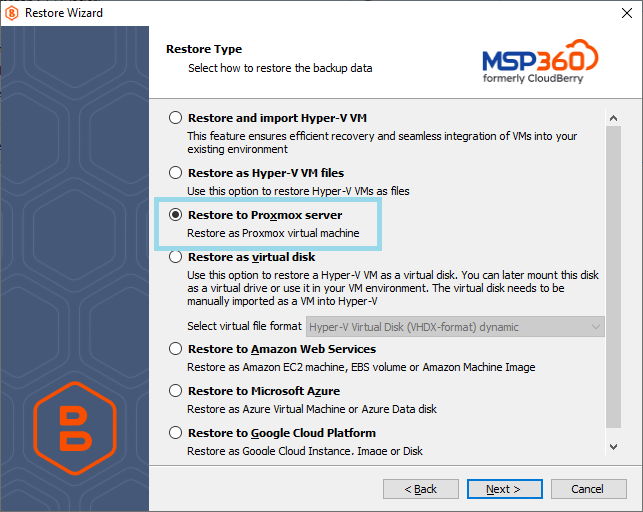
The available options include:
Restore to Hyper-V
For image-based backups that use the new backup format, the Restore Wizard can restore a physical Windows computer as a Hyper-V virtual machine on that same computer.
In version 8.7.1, this workflow is limited to the original computer.
Run the restore on the original Windows computer where the backup was created, with the Hyper-V role enabled. The restored backup can run as a Hyper-V virtual machine on that computer. See the Restore to Hyper-V instructions for prerequisites and the restore workflow.
Learn more about MSP360 Hyper-V backup software.
Restore to Proxmox VE
The Restore Wizard restores an image-based backup directly as a virtual machine on a Proxmox VE host. The restore must be initiated from the original computer where the image-based backup was created.
Learn more about MSP360 Proxmox backup software.
Direct image-based restore to VMware vSphere remains available alongside these options.
Cross-Hypervisor Restore to Proxmox
Backup Agent 8.7.1 for Windows also supports direct restore from VMware and Hyper-V VM backups to Proxmox. These restore scenarios require backups created in the new backup format.
Hyper-V to Proxmox
Restore an MSP360 Hyper-V VM backup directly to a Proxmox host.
VMware to Proxmox
Restore an MSP360 VMware VM backup directly to a Proxmox host.
These restore options also support disaster recovery when the original VMware or Hyper-V environment is unavailable.
The same workflow simplifies migrations to Proxmox. The Restore Wizard creates the VM directly on the target host, removing the need for separate disk conversion and import steps.
Restore Proxmox Backups as Virtual Disks
Backup Agent 8.7.1 for Windows can now restore Proxmox VM and LXC container backups as virtual disk files.
For Proxmox VM backups, the restored disk works as a virtual drive or as a disk for another virtual machine environment. Available formats include VHD, VHDX, and RAW, among others.
This option lets you recover the disk without restoring the complete workload directly to a Proxmox host. Learn more about MSP360 VM backup software.
Availability and Requirements
The restore capabilities described above are available in MSP360 Backup Agent 8.7.1 for Windows and later and require backups created in the new backup format.
Direct restore limitation: Direct image-based restore to Hyper-V and Proxmox must be initiated from the original computer where the backup was created.
For direct restore to Hyper-V, the original computer must also have the Hyper-V role enabled.
For Standalone MSP360 Backup Users
Existing customers can update MSP360 Backup Agent for Windows to version 8.7.1 or later and access the new restore options from the Backup Agent.
New users can download the latest MSP360 Backup Agent for Windows and select the edition appropriate for the workloads they need to protect.
For MSP360 Managed Backup Users
Existing Managed Backup customers should deploy or update Backup Agent for Windows 8.7.1 or later on the computer used for the restore workflow. Use the Backup Agent to access the restore options described in this article.
New to MSP360 Managed Backup? Start a free trial and deploy Backup Agent for Windows from the Management Console.
For a separate overview of the web-based Restore Wizard in MSP360 Managed Backup, see Making Restore Configuration Easier in MSP360 Managed Backup. The web wizard is a different workflow from the Backup Agent restore options described in this release.