MSP360 Managed Connect

Remote Support Software for MSPs and IT Teams

Support Windows and macOS computers from one web console. Organize customer environments, manage technician permissions, and track remote sessions while helping users and troubleshooting devices with MSP360’s remote support software.
quality-choice-2025
trusted-vendor-2025
highest-user-adoption-summer-2025
high-performer-summer-2025-emea
high-performer-summer-2025
Remote Support Software for MSPs and IT Teams
Remote Support Software for Windows and macOS

Remote Support Software for Windows and macOS

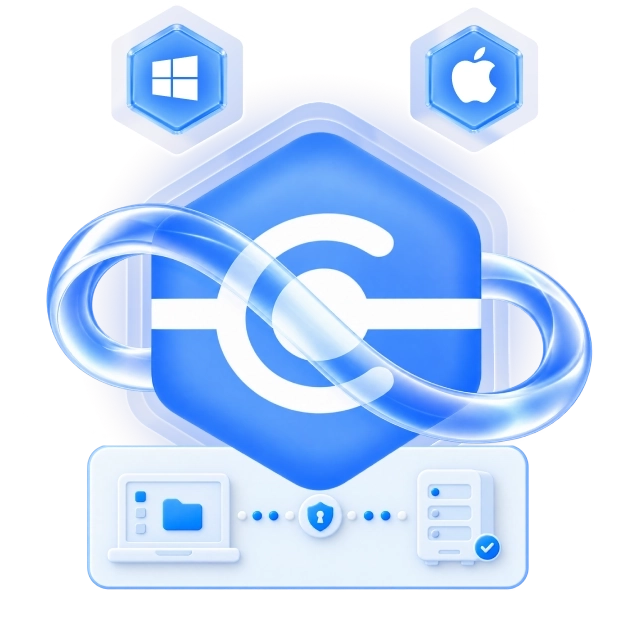
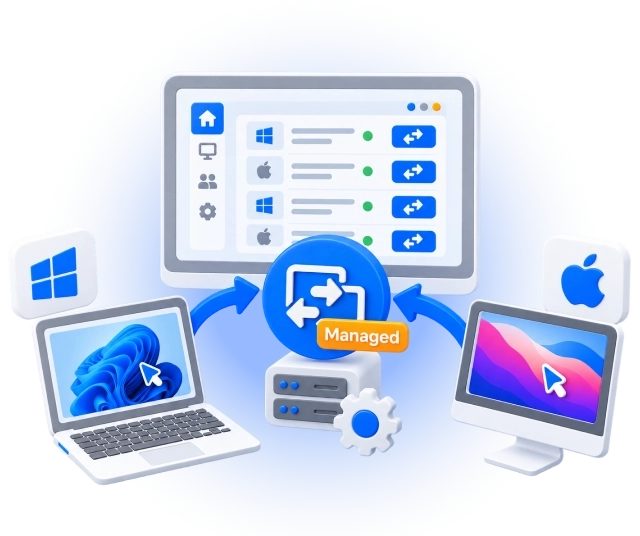
Support Windows and Mac computers from the same management console, without maintaining a separate remote support workflow for each operating system.

Remote Support for Windows

Connect to Windows workstations and servers to troubleshoot applications, investigate errors, and perform hands-on maintenance. Help users during attended sessions or connect to configured Windows computers when nobody is available to approve the connection.

MSP360 Managed Connect for Windows

Connect from:

Windows 10/11
Windows Server 2012 R2/2016/2019/2022

Connect to:

Windows 10/11
Windows Server 2012 R2/2016/2019/2022
macOS 13.0 (Ventura) and higher

Remote Support for macOS

Connect to Mac computers to view the screen, control the desktop, and assist the user. Start remote sessions from the MSP360 Management Console using your browser or the Connect desktop application.

MSP360 Managed Connect for macOS

Connect from:

macOS 13.0 (Ventura) and higher

Connect to:

Windows 10/11
Windows Server 2012 R2/2016/2019/2022
macOS 13.0 (Ventura) and higher

MSP360 Managed Connect Features

MSP360 Managed Connect provides the tools MSPs need to deliver remote support across multiple customer environments, including:

Centralized management and access controls

Manage remote connections to customer computers from one web console. Control which administrators can establish connections and configure approval requirements, so your team can provide support with the appropriate access permissions.

Bulk deployment and centralized configuration

Deploy Connect agents across customer computers in bulk and manage connection settings centrally. Reduce repetitive setup when onboarding a customer or adding computers to an existing environment.

Session reporting

Review your team’s remote support activity from the management console. See which technician connected, the customer company and remote computer involved, when the session started, and how long it lasted.

HaloPSA integration

With the native HaloPSA integration, start browser-based remote sessions directly from mapped HaloPSA assets. Move from a customer’s asset record to the affected computer without switching consoles to locate it again.

Attended and unattended access

Help customers during attended sessions or access configured Windows PCs and servers when nobody is there. Carry out maintenance outside working hours without asking a customer to stay at the computer.

Concurrent sessions and technician collaboration

Work with multiple remote computers at the same time. Bring another technician into an attended session when a case needs additional expertise, without disconnecting or asking the customer to explain the problem again.

Fast, stable, and secure remote sessions

Connect with minimal delay using WebRTC-based remote desktop technology. Encrypted connections protect the data transmitted during your remote support sessions.

Multi-monitor support

Switch between the remote computer’s displays or view them in separate tabs. Investigate issues across a customer’s multi-screen setup without asking them to move everything onto one monitor.

File transfer

Transfer installation packages, documents, and troubleshooting files to and from remote Windows computers during a support session.

Text and voice chat

Communicate with the customer while you work. Ask questions, explain changes, and confirm the result without moving the conversation to another application.

Session recording

Record Windows remote sessions and replay them with the built-in Session Player. Review troubleshooting steps or keep a reference for similar customer support cases.

Black screen and input control

Temporarily hide the display on a remote Windows computer and disable local keyboard and mouse input during authorized unattended work.

Remote printing

Print a document from a remote computer using your local printer, without first transferring the document to your workstation.

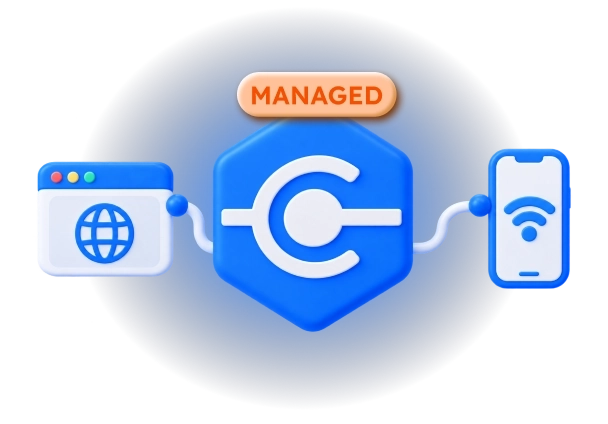
Connect from Your Browser or Mobile Device

Your support work does not have to stay tied to one technician workstation. Choose the connection method that fits where you are working.
Remote Support Software for MSPs and IT Teams

Browser-based remote support

Sign in to the web console, select a computer, and start a remote session in your browser. There is no need to install a separate application on the computer you are connecting from.

Remote support via mobile devices

Use the MSP360 mobile app for iOS or Android to connect to managed computers from your phone or tablet. Investigate a problem or assist a user when you are away from your desk.

MSP360 Managed Connect Pricing

Licensed per endpoint.
$1
per endpoint/month*
Main Features:
  • Centralized management and access controls
  • Attended and unattended access
  • Browser and mobile connections
  • Bulk agent deployment
  • Black screen and input control
  • Session reporting and remote printing
  • Support: 24/7/365 live technical support

Remote Support for Everyday IT Tasks

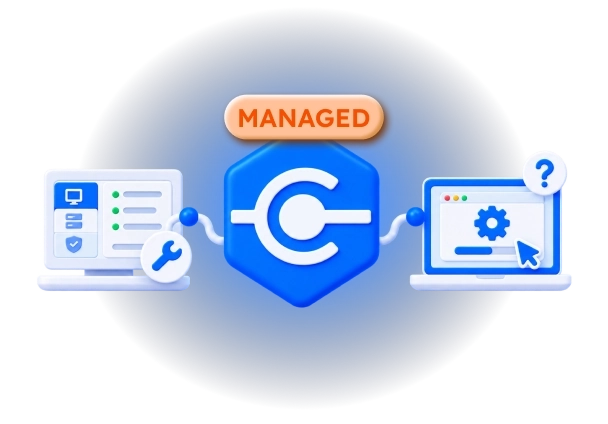
Not every support request needs a site visit. Connect to the affected computer to troubleshoot issues, help users, or carry out maintenance from another location.
Free Remote Access

Use it to:

  • Help customers and employees get back to work
    An application is not working, a setting has changed, or a user cannot complete a task. Connect to the remote computer to see the problem in context, investigate it, and help the user confirm the result.
  • Maintain computers outside working hours
    Access configured Windows workstations and servers when the regular user is unavailable. Carry out hands-on maintenance or troubleshooting without arranging for someone to remain at the computer.
  • Escalate difficult support cases
    A technician does not have to disconnect when a case needs more expertise. Another administrator can join the attended session, inspect the same problem, and help determine the next step.
Built for MSPs

MSP Platform

MSP360 Managed Connect is a part of the MSP Platform.

The best choice for MSPs and IT departments to resolve issues efficiently and securely without on-site visits, MSP360 Managed Connect delivers fast and reliable remote access with centralized management, unattended access, and robust security features.

MSP Platform Features

  • Centralized management
  • Quick unattended access
  • Web-based remote access
  • Black screen
  • Mass deployment
  • HaloPSA integration
  • Support: 24/7/365 live technical support

Get Started with MSP360 Managed Connect

To explore more valuable insights for enhanced cybersecurity, cloud storage best practices, and IT management, visit our Resource Center.

Guide

Getting Started with MSP360 Managed Connect

Read Now
Guide

Quick Start Guide

Read Now
Whitepaper

Make the Most of MSP360 Managed Connect

Download Now
Asset

Product Datasheet

Download Now

Product Reviews and Customer Feedback
quality-choice-2025
trusted-vendor-2025
highest-user-adoption-summer-2025
high-performer-summer-2025-emea
high-performer-summer-2025
connect-getapp-2025
connect-capterra-2025
connect-softwareadvice-2025
connect-techradar

Remote Support Software FAQ

What is remote support software?

Remote support software lets IT technicians view and control a computer from another location to investigate problems and assist its user. MSP360 Managed Connect combines remote desktop sessions with centralized management, technician permissions, deployment options, and connection reporting for MSPs and IT teams.

How do I start providing remote support with MSP360 Managed Connect?

Start a free trial. You will be redirected to the MSP360 Management Console, where you can add the computers you need to support, and install the appropriate Connect agents. Configure remote access and administrator permissions, then select a computer in the management console to start a browser or desktop session. Mac computers also require local screen capture and computer control permissions.

Does MSP360 Managed Connect support Mac computers?

Yes. You can connect to macOS computers from the management console using a browser or the Connect desktop application. Before the first connection, the necessary screen capture and computer control permissions must be granted on the remote Mac. These permissions cannot be configured remotely through the Connect installation process.

Can I connect when nobody is at the remote computer?

Yes. You can configure unattended access to supported Windows PCs and servers and connect using authorized credentials.

Can I provide remote support without installing an application on my computer?

Yes. Browser-based connections let you start a session from the management console without installing the Connect desktop application on your own computer. The remote computer still needs the appropriate MSP360 software and access configuration.

Can I provide remote support from a phone or tablet?

Yes. The MSP360 mobile app for iOS and Android lets you connect to managed computers from a mobile device. Remote control must be enabled in your account, and your administrator must grant the appropriate access.

How does MSP360 Managed Connect protect remote access?

Managed Connect supports encrypted sessions, two-factor authentication, and administrator permissions. You can configure remote-user approval requirements, custom passwords, and authorized access settings to control how technicians connect to computers.

Can multiple technicians join the same support session?

Yes. Multiple administrators can join an attended session to work on the same issue. This allows a technician to involve a colleague without ending the original connection or asking the user to explain the problem again.

Do I need MSP360 Backup or RMM to use Managed Connect?

No. Managed Connect can be licensed separately. However, MSP360 RMM includes Managed Connect license at no cost, and MSP360 Managed Backup includes web-based remote connections using Connect Web, so check your existing licenses before purchasing additional Connect coverage.

How is MSP360 Managed Connect licensed?

Managed Connect is licensed per endpoint. Request a quote for your environment.

What is the difference between Connect Pro and Managed Connect?

Connect Pro is a desktop remote access application with an address book for up to 25 computers. Managed Connect is designed for MSPs and IT teams that need a central web console, browser-based connections, centralized configuration, deployment, and session reporting.

Can I manage several customers and control technician access?

Yes. Manage multiple customer environments from one MSP360 Management Console and organize access by company. Create individual accounts for your technicians and give each access to all customers or only selected companies. You can also control who can establish remote connections and who is authorized to join active sessions without additional user confirmation. This lets you assign support responsibilities without giving every technician access to every customer.

What happens after the trial, and what is the minimum monthly charge?

To continue using standalone Managed Connect after the trial, you need paid endpoint licenses and an active payment method. Billing is monthly based on license usage, with a $25 minimum monthly payment for MSP360 licenses. This minimum applies to your account’s license spending, rather than separately to each technician or customer. You can review your license status, renewal settings, and upcoming payment in the Management Console.

How does MSP360 Managed Connect differ from MSP360 RMM?

MSP360 Managed Connect focuses on hands-on remote support: connecting to a customer’s computer, working with its desktop, and helping the user resolve a problem. It provides centralized access management and session tools for your support team.

MSP360 RMM provides ongoing endpoint monitoring and management, including health monitoring, alerts, patch management, scripting, and actions across multiple computers. Choose Managed Connect when you need remote support software; choose RMM when you also need to monitor systems and automate routine maintenance. MSP360 RMM includes Managed Connect remote access at no additional cost, so check your existing RMM coverage before purchasing separate Connect licenses.

Try MSP360 Remote Support Software

Support Windows and macOS users, manage your team’s connections, and investigate computer problems without an on-site visit. Start your MSP360 Managed Connect free trial.

quality-choice-2025
trusted-vendor-2025
highest-user-adoption-summer-2025
high-performer-summer-2025-emea
high-performer-summer-2025
Remote Support Software for MSPs and IT Teams