
In our roundup for the best Google Workspace backup solutions, we focus on backup solutions that protect Google Workspace data beyond what Google already offers. We compare vendors on their approach to backup architecture, storage options and capabilities, flexibility of recovery options, and long-term retention.
Featured post
Change layout
Azure Stack Support in MSP360 Backup 6.1
MSP360 Backup 6.1 fully supports Azure Stack as a storage destination.
Azure Stack is an extension of Microsoft Azure that provides an on-premises environment for delivering Azure services within customers' own computing facilities. It offers a consistent cloud infrastructure, providing businesses with a wide range of computing solutions and services, without the latency that can impact remotely hosted, cloud-based applications.
To Add Azure Stack as a Storage Destination
- Open the application menu, then click Add New Account.
- In Select Cloud Storage dialog box, select Azure.
- In the Azure Account dialog box, fill in your Azure credentials. Select AzureStack item in the Account type drop-down menu.
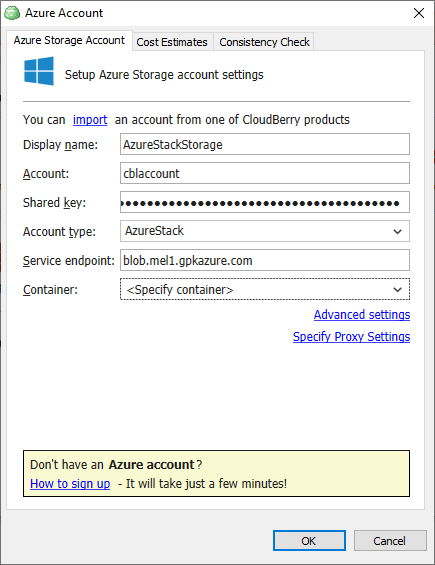
- Specify the Service endpoint.
- In the Container drop-down menu, select the Azure container for your backups or select Create New Container to create a new one.
- When you are finished, click OK.
Hyper-V Virtual Disks Exclusion in MSP360 Backup 6.1
MSP360 Backup 6.1 features updated Hyper-V support that allows users to exclude virtual disks on a virtual machine within a Hyper-V backup plan. This feature serves as an efficient tool for backup size optimization. The updated Backup Wizard offers a separate step for virtual disk selection. Continue reading
Restore Verification in MSP360 Backup 6.1
About the Restore Verification Feature
For Image-based backups, MSP360 Backup 6.1 provides the restore verification feature (beta version). When using this feature, MSP360 Backup creates and runs a test restore plan that downloads a part of the backed up data required to start a test Windows VM created with Windows Hyper-V.
The restore verification feature lets you check the backup integrity before restoring the full backup to a real Windows machine.
Hyper-V is built into Windows as an optional component that is available in Windows 8 or higher. For Windows Server versions, Hyper-V is available in Windows Server 2008 or higher.
For instructions on how to enable the Hyper-V role for your version of OS, see Microsoft documentation. For example, appropriate instructions for Windows 10 are available - click the link to learn more.
Before Using This Feature
Before using the restore verification feature, consider the following limitations:
- The Hyper-V role cannot be installed on Windows 10 Home.
- For Windows Server versions, you can use the Restore Verification feature on computers running Windows Server 2012 or higher.
- For the test VM, in the current user temporary folder, Windows creates the Virtual Hard Drive file (.vhdx file). By default, the user temporary folder is located on the C: drive. For the test VM to work properly, ensure that the C: drive has enough space.
Using the Restore Verification Feature
To check an image-based backup integrity, perform the following steps:
- In the Home menu, navigate to the Backup Storage tab.
- In the list of backups, select an image-based backup to check.
- Right-click the backup, then select Restore Verification (BETA):
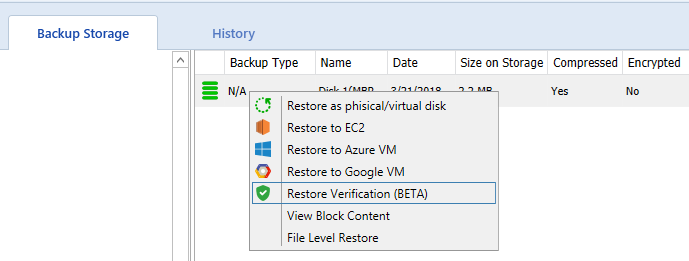
This creates and runs a test restore plan that will start a Windows VM using a part of the backed up data downloaded from the cloud storage. The virtual machine state is displayed in the preview screenshot:
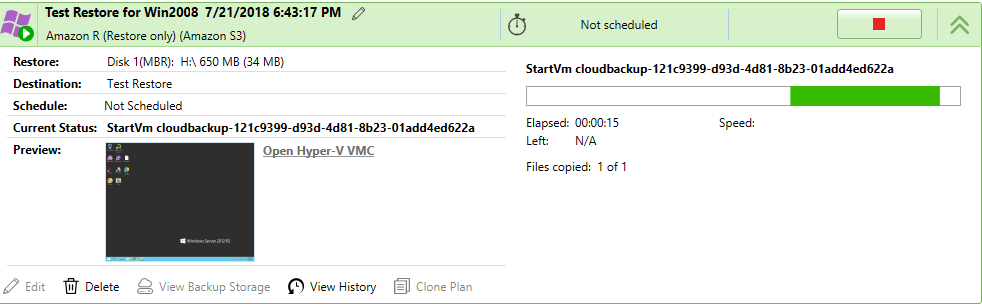
TIP: Optionally, to log on into VM, click the Hyper-V Console link.

MSP360 Backup Now Supports AWS Asia Pacific (Hong Kong) Region
MSP360 Backup has been updated to include support for storing data in Amazon's Asia Pacific (Hong Kong) region. Now, you have the option of creating Amazon S3 Asia Pacific (Hong Kong) region storage buckets from MSP360 Backup. Continue reading

How to Back Up VMware ESXi Free
In this article, we overview how you can back up VMware ESXI free edition using MSP360 Backup. We will also review the limitations of the VMware ESXI free. Continue reading
How to Activate MSP360 Products Offline via a Command Line Interface
In case that you don’t have the opportunity to activate your copy of MSP360 Explorer, MSP360 Backup, or MSP360 Drive online, you can use the offline activation.
Offline activation can be done via the command-line interface of the product, as well as via a graphical interface (check out this article for instructions). Continue reading
Introducing MSP360 Backup 2.9 for macOS & Linux
We are proud to announce MSP360 Backup 2.9 for macOS & Linux, the latest version of our product. Version 2.9 introduces a number of important features and enhancements. Learn more below.
Continue reading
Amazon S3 Glacier Deep Archive Support in MSP360 Backup and Explorer
With Amazon S3 Glacier Deep Archive now available, MSP360 is pleased to announce the release of the latest version of MSP360 Backup, the company's major product, which now features support for Glacier Deep Archive storage. Continue reading
MSP360 Backup for Office 365 Updates: Point-in-Time Restores and More
Today, we’re delighted to introduce a significantly updated version of MSP360 Backup for Office 365. We have listened to your feedback and implemented the features you were asking for -- and even a few extra.
Below, we explain what’s new in the latest version of MSP360 Office 365 backup solution.
Initial Data Upload with BackBlaze Fireball
BackBlaze B2 cloud storage has launched a data import program - the BackBlaze Fireball. It helps to upload large volumes of data using a physical appliance, shipped to the customer. This is a step-by-step guide on how to set up BackBlaze B2 Fireball and synchronize data with it. Continue reading
Introducing MSP360 Backup 6.0
We've been hard at work on the next major release of MSP360 Backup and today we're excited to announce version 6.0 which brings several, highly-anticipated new features and performance improvements to the product.
Load more