MSP360 9.6: Proxmox Backup, Web Restore & Fast Search
We are excited to announce a release of Managed Backup 9.6. With this release we introduce host-level backup for Proxmox VE along with two big improvements that make the restore process much easier and faster.
Managed Backup 9.6 Version: Proxmox VM Backup (Beta)
Proxmox backup is now available, requiring Backup Agent 8.7 and an active VM Edition license. The agent installs on a Windows machine with network access to your Proxmox VE host and connects via the Proxmox API – this can be a separate machine, or a guest VM running on the same Proxmox host. Backups run at the hypervisor level, allowing you to protect the entire host or a specific selection of VMs, capturing complete VM disk images, including all attached virtual disks.
The workflow is the same as for Windows Server and Hyper-V backup with MSP360. Scheduling supports Full, Incremental, and Forever Forward Incremental backup types, as well as flexible retention settings including the GFS approach. Object Lock is also available if immutability is a requirement. Compression is handled automatically, and AES encryption with a customer password can be enabled during plan setup.
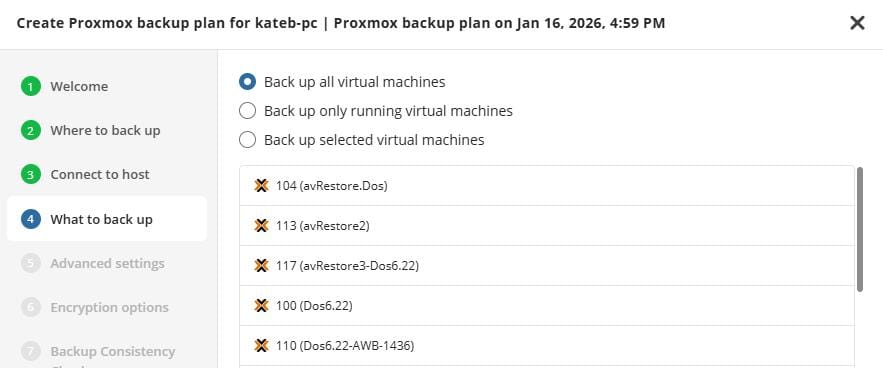
On the restore side, you can restore VMs back to a Proxmox server, pick the target datastore, rename VMs if needed, and power them on automatically after restore.
A few things to have in place before you start: a VM Server license, an open port for the agent, and a dedicated Proxmox user with the right permissions. Full setup requirements are in our Knowledge Base.
Being a beta, it comes with a few current limitations, and we're actively looking for real-user feedback to help shape what's next.
Restore files and folders to your device, straight from the web browser
File-level restore is now easier with browser-based item-level restore. Browse your backup storage, select the file or folder you need, and restore it directly from your web browser – no restore wizard or agent installation required. It works across Windows, Linux, and macOS.
When you click Restore in the Backup Storage Browser, the destination modal now includes a new option alongside the existing ones: My device (download via browser). Pick it, hit Restore, and the files come down directly to wherever you're sitting. The limit is 2 GB per restore; for larger restores, the Quick Restore app option is still there for Windows.
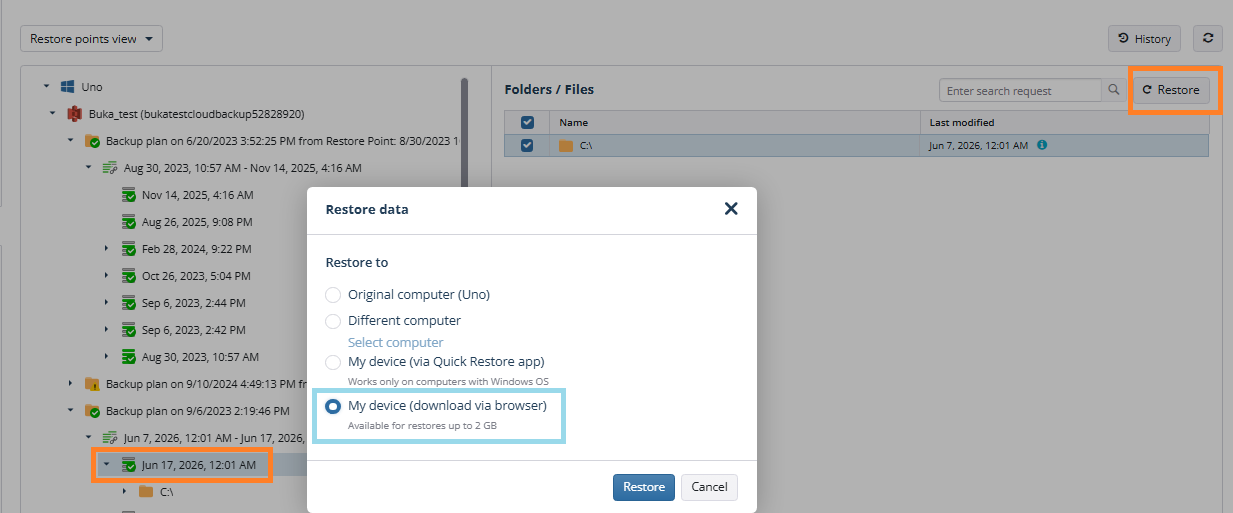
This comes in especially handy when the source machine isn't available – it's been replaced, it's offline, or it's sitting in a datacenter three time zones away. You can get to the data from any device, without touching the source machine at all.
File search in Backup Storage Browser (NBF only)
Finding a specific file inside a large backup has always been a bit of a dig. You know roughly where it should be, you start expanding restore points, and five minutes later you're still not there.
In the new version, the Backup Storage Browser gets a search input. Type a file name, get results – without manually navigating the tree. The scope adjusts depending on where you start the search: at the plan level, it searches across the latest generation; drill into a specific generation first, and the search covers all generations, returning the latest version of each matching file.
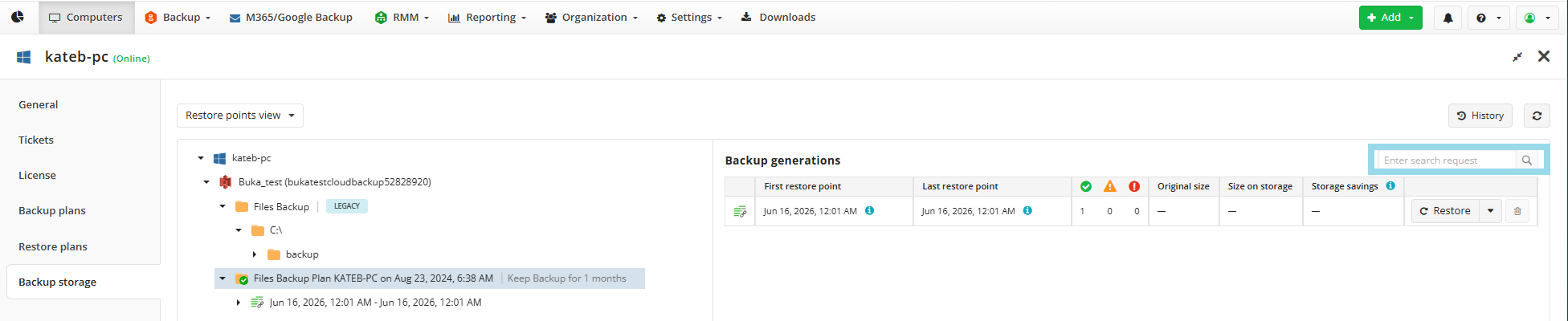
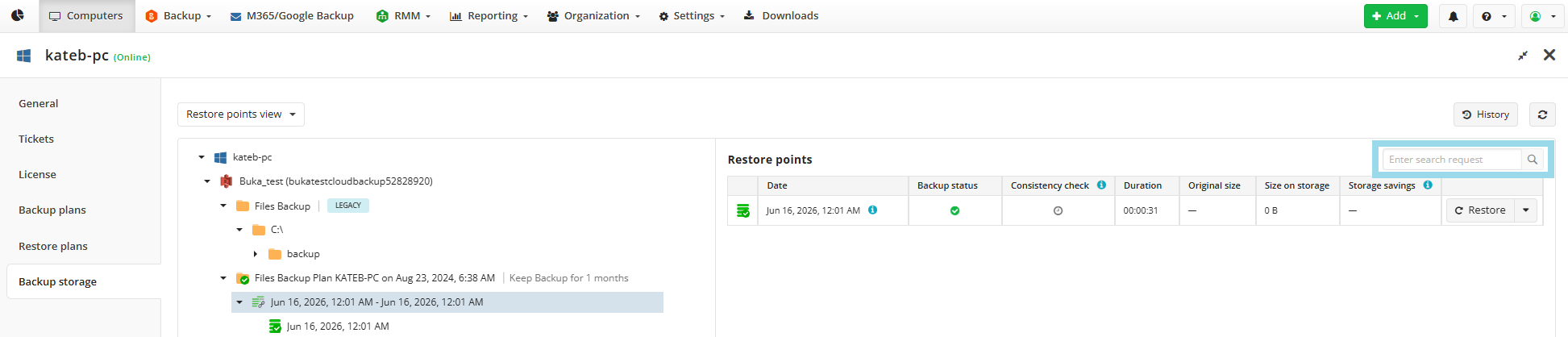
One detail worth knowing: the results modal stays open. If you navigate away to check something else in the console and come back, you don't have to run the search again – your results are still there.
This works for NBF (New Backup Format) file-level backups only.
NTFS permission restore improvements
NTFS permissions are now restored properly with the files (updated for NBF) – exact permission entries and inheritance flags, restored to newly created objects. Existing folders at the destination aren't touched (that's by design, not a bug), and Override Existing only applies to files, not folders.
Impossible Cloud is now supported as a standalone destination
Impossible Cloud joins the list of S3-compatible providers you can connect directly to MSP360 Backup. Setup follows the same flow as other S3-compatible storage: add the storage account, provide the access and secret keys tied to the specific endpoint/region you're working with, then set up the bucket.
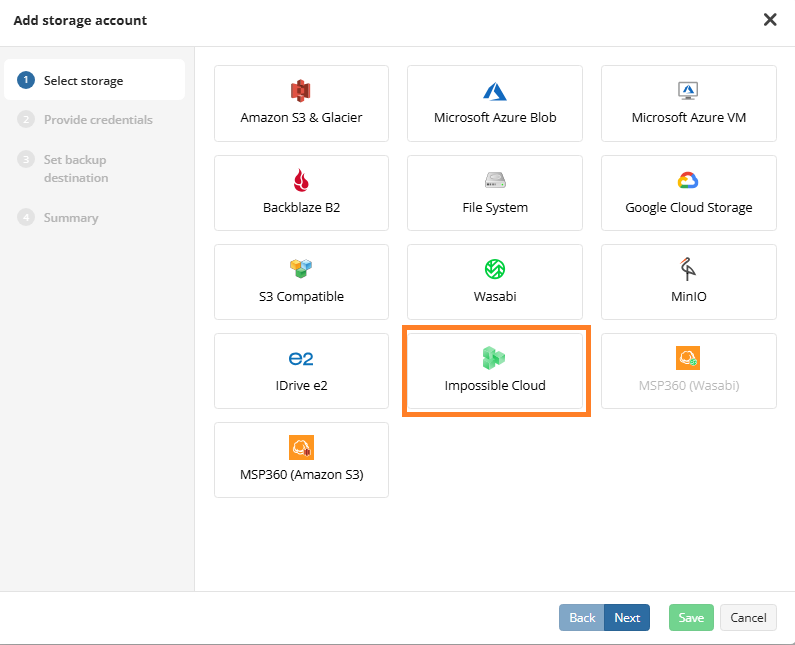
Creating a new bucket now means choosing its region. Bucket creation includes an explicit region picker, so the bucket goes where you tell it to – this was specifically called out as a requirement for this release, rather than leaving the bucket's location to whatever the credentials happened to default to.
Attaching an existing bucket works too, including buckets you didn't create yourself but have access to. If that bucket already has Object Lock enabled, you can turn on Object Lock (Immutability) for it inside MSP360 as well – but it's a now-or-never decision: if you don't enable it at this step, it can't be turned on later for that storage account.
One naming rule applies either way: bucket names containing a dot (.) aren't supported.
Behind the scenes, license/trial activation and notifications now correctly identify Impossible Cloud as its own storage type, instead of misreporting it.
AWS GovCloud (US-East)
AWS GovCloud (US-East) is now supported as a backup destination. Some customers backing up into GovCloud's East region were running into connection errors that didn't show up in GovCloud West – that's fixed, and both regions now work consistently.
Requirements: Backup Agent version 8.7
[readmore] 6 Common Questions MSP360 AI Assistant Can Help With