

In our roundup for the best Google Workspace backup solutions, we focus on backup solutions that protect Google Workspace data beyond what Google already offers. We compare vendors on their approach to backup architecture, storage options and capabilities, flexibility of recovery options, and long-term retention.
Featured post
Change layout

Introducing MSP360 Backup 6.3
The new MSP360 Backup 6.3 is out! The new version brings a set of new features and improvements.

How to Activate Trial License for MSP360 Backup Pro
Learn how to start the trial of MSP360 Backup Pro for Windows.
Continue reading
MS Exchange Backup in a Virtual Environment Using MSP360 Backup
This article will explain why and how to back up the virtualized MS Exchange server instance with MSP360 Backup. Continue reading
Introducing MSP360 Backup for Linux&MacOS 2.10
MSP360 Backup for macOS&Linux 2.10 is released. The new version features new functionality and enhanced performance.

Expanded Item-Level Restore Support for MS Exchange Server
In MSP360 Backup for Windows 6.2, the item-level restore feature is expanded with the support of item-level restore for Microsoft Exchange Server 2013, 2016 and 2019. For now, this feature improvement is available as BETA for all supported Microsoft Exchange Server versions. Continue reading
Introducing MSP360 Backup 6.2
MSP360 Backup 6.2 comes with another major update which contains a number of new features and improvements.

Real-Time Backup Functionality is at Your Service
MSP360 Backup's new real-time backup feature, called Near Continuous Data Protection (Near CDP), has been released! We warmly thank everyone who took the survey and shared their feedback with us to help create this feature.
Over the past few months, we have carefully studied our customers' use cases and started a work scope to improve the real-time backup feature. Now, the fruits of that work are ready to use.
Previously, using the Real-Time Backup feature was not recommended, but times have changed. The following issues have been worked out and solved:
- Shared folders
- NAS storage
- Microsoft Office files.
The updated functionality has already been released within the latest version of MSP360 Backup for Windows. To learn more about the changes, read this blog post.
Azure Blob Rehydration Support in MSP360 Backup 6.1.3
MSP360 Backup 6.1.3 offers the full support of the Azure blob rehydration feature which enables the prompt restore of your data from archived blob to online tier within 1 hour.
Update your MSP360 Backup to the latest version and use your Azure storage more efficiently than ever.
Introducing MSP360 Backup 6.1.1
MSP360 Backup 6.1.1 minor release adds important new features, including:
- Master password security improvement
- Storage providers revision
- Performance improvements.
Continue reading
Master Password Feature Improvement in MSP360 Backup 6.1.1
MSP360 Backup 6.1.1 is equipped with the improved master password feature.
With a master password feature enabled, all storage credentials, backup and restore plan configurations, settings are encrypted and secured with a signature. Any unauthorized actions will require to provide the master password.
The feature provides the following improvements:
- Command Line Interface is now can be protected with a master password
- Unauthorized copying of configuration files is protected with PStore (Protected storage)
- Manual setting changes will require to provide the master password
- Password reset feature is introduced.
To Configure Master Password Settings
1. In the application menu, select Options.
2. Switch to the General tab.
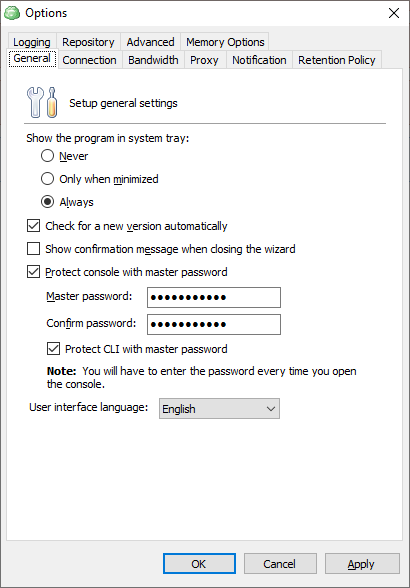
3. To specify the master password for accessing the application on each run, select the Protect console with master password check box.
4. Specify the password in the Master Password field, then in confirm in the Confirm password field.
5. To expand the master password protection for CLI usage, select Protect CLI with master password check box.
6. Click Apply.
Using Master Password in Command Line
Once a master password protection feature is expanded to CLI usage, you must use a master password to execute any CLI command.
To do it, use the -mp argument in any command.
To request the trial license under master password protection, use the following command:
cbb activateLicense -email "email" -edition "ultimate" -trial -mp [yourpass]where [yourpass] is a master password.
Reset Master Password
If you forgot your master password, you can reset it.
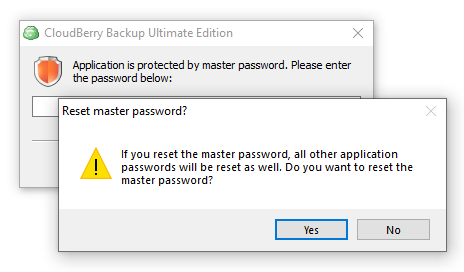
Once you run the Backup for Windows protected with a master password, in the dialog box, click Reset master password, then click Yes.
Note that once a master password is reset, all other passwords used in MSP360 Backup (for example, passwords for storage destination access), will be reset as well for security reasons.
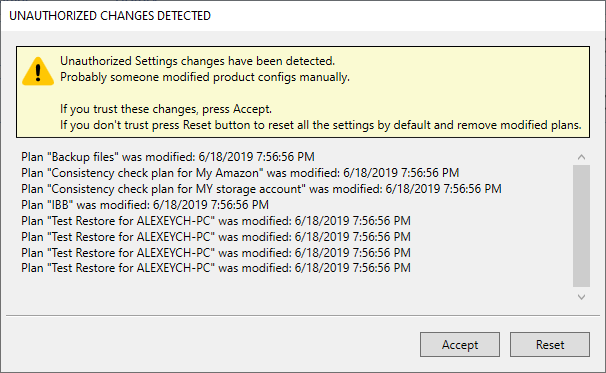
In case of setting modifications are detected, accept them or decline in the Unauthorized Changes Detected dialog box:
Introducing MSP360 Backup 6.1
The new MSP360 Backup 6.1 is out! The new version brings a set of new features and improvements.
Load more