MSP360 RMM Alerts: Profiles, Notifications, and Automated Actions
In the previous lesson, we covered optimal installation and deployment scenarios for MSP360 RMM. Now that your environment is set up, let's explore RMM alerts.
Alerts are the base of proactive IT management: they flag a problem early, and with post-actions, the fix starts before anyone logs in.

RMM Alerts and Their Core Capabilities
Continuous Monitoring and Automatic Alerts
The RMM Agent tracks CPU load, memory, disk space, services, hardware, and installed software on every managed computer. SNMP monitoring adds network devices such as printers and switches. When a value crosses its threshold, or a state changes (a service stops, a drive reports S.M.A.R.T. errors), MSP360 RMM raises an alert.
Alert Thresholds You Control
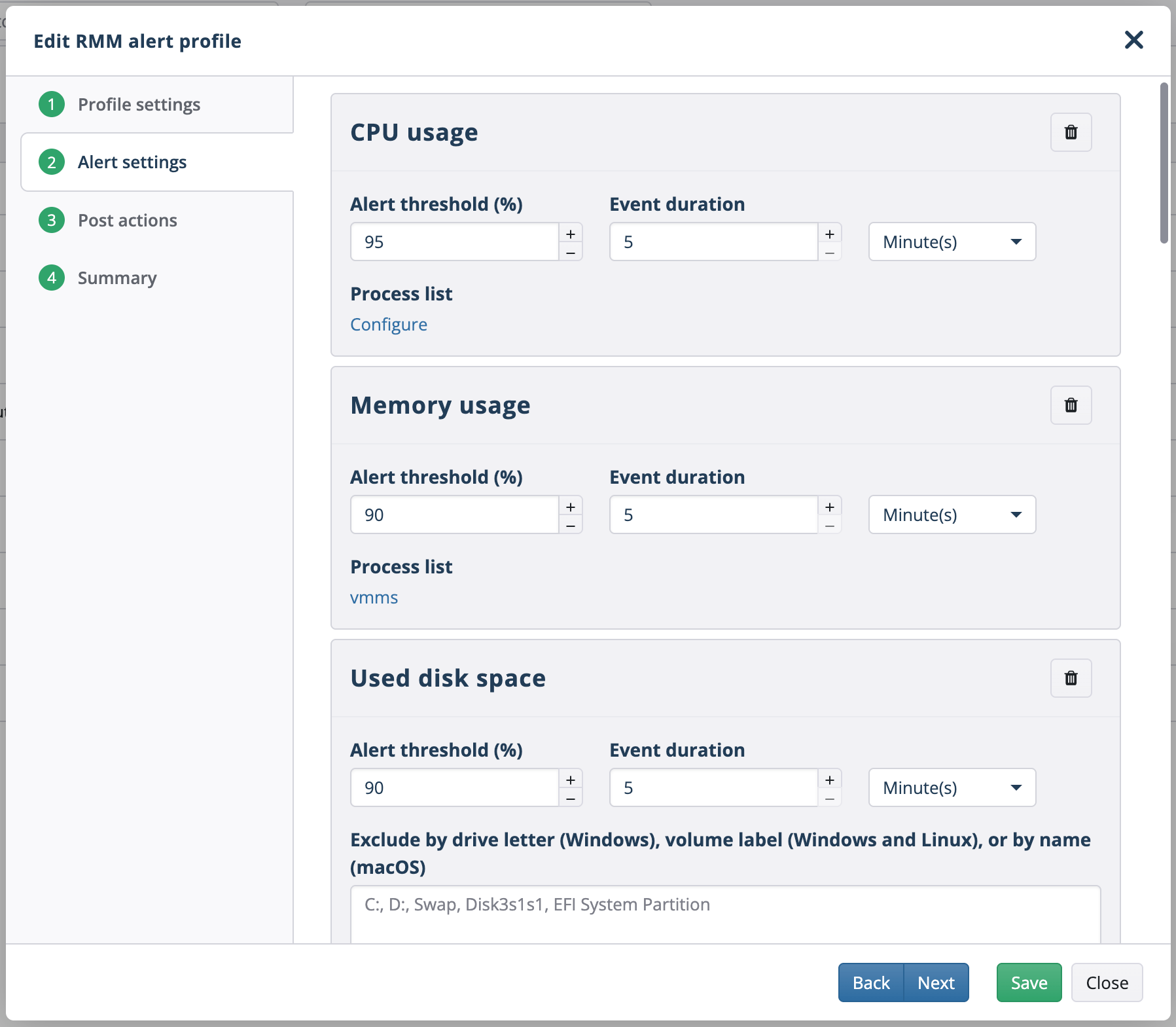
Each metric has two thresholds: Warning and Problem. Default values: CPU and memory usage go to Warning above 70% and to Problem above 90% for 5 minutes. Used disk space has the same 70% and 90% marks, without the time window.
You can change the threshold values and observation periods in any profile. A build server that sits at 85% CPU all day needs different numbers than a front-desk laptop. Connection loss alerts can fire after as little as one minute offline.
Notification Channels
Set up alerts to reach your team by email, as push notifications in the MSP360 Control app for iOS and Android, or create a ticket automatically in the free built-in ticketing system MSP360 Tickets. With ConnectWise PSA and HaloPSA integrations, alerts can create tickets in these PSAs, too.
Automated Remediation
A post-action can run a script the moment an alert fires. Use a script from the MSP360 Script Library or upload your own to clear temp files, restart a stopped service, or start a backup.
Alert History
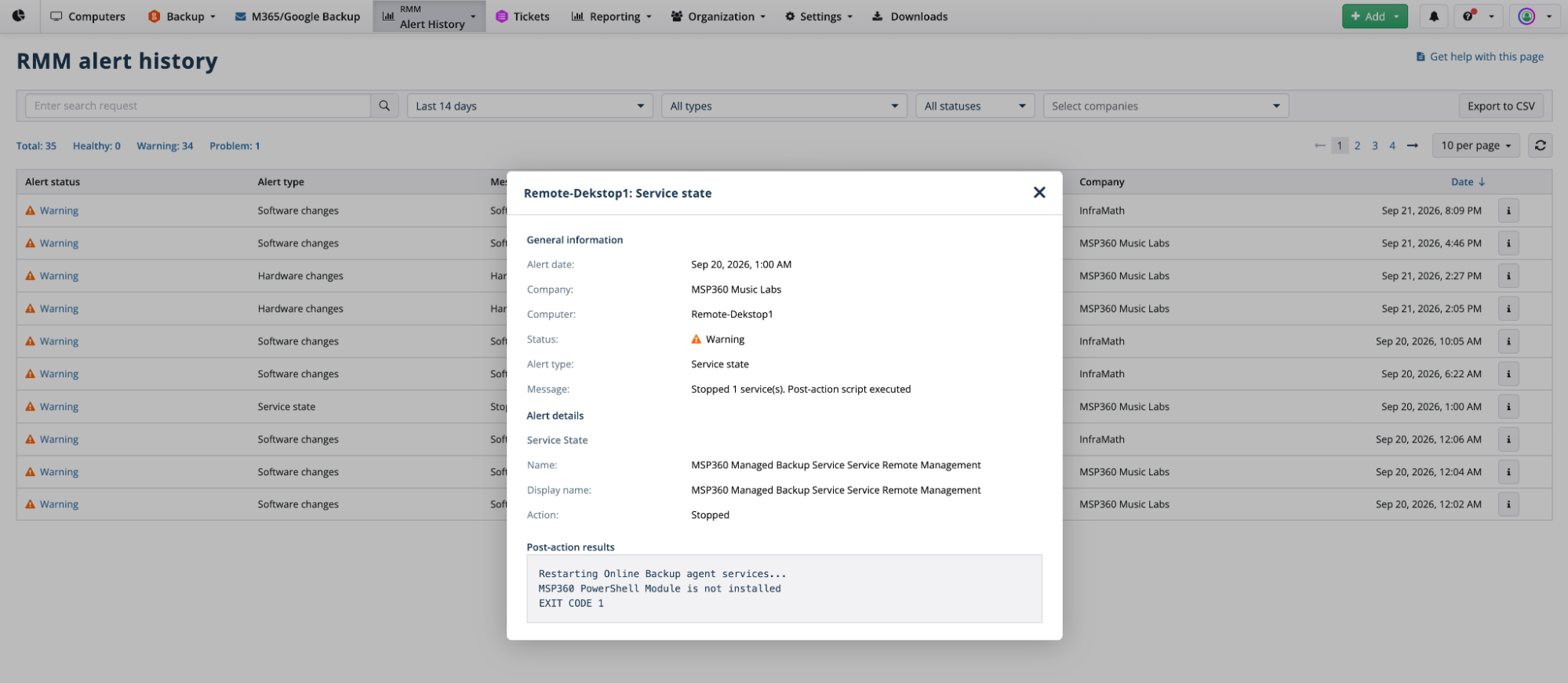
Under RMM > Alert History, you can see logs of every alert. On this page, you can:
- Search by computer name, alert type, or tag
- Filter by date range, alert type, status, or company
- Export the list to CSV
- Read the output of scripts that post-actions ran (saved with the alert, up to 1,000 characters)
Available MSP360 RMM Alerts
To create an alert profile, go to RMM > Alert Profiles and click “+”. A profile can include these alert types:
- CPU usage
- Memory usage
- Used disk space
- Process resource usage (CPU and Memory)
- CPU temperature
- S.M.A.R.T. issues
- Incorrect system time
- Connection loss
- Services and daemons
- Service fails to start after reboot
- Software changes
- SNMP devices
- Windows Update not found or not running (Windows only)
- Antivirus issues (Windows only)
- Hardware changes (Windows only)
RMM Alert Profile Levels
One alert profile can cover all of a client's computers, or your whole account, so notifications never have to be set up one computer at a time.
MSP360 RMM has three profile levels. A level sets the scope of a profile: the computers it covers, not the alerts inside it. Choose the level by how wide a rule should apply.
Global Level
Scope: all companies.
A global profile applies to every company by default, so it works as the baseline for new clients and new computers. Managing a global profile requires the “All Companies” administrator permission.
Company Level
Scope: selected companies, with an optional tag filter.
A company-level profile takes priority over global profiles. You can also exclude specific computers. When a computer is added to a selected company (and gets the tag, if the profile uses one), the profile applies automatically.
Computer Level
Scope: selected computers.
A computer-level profile takes priority over all other profiles. Use it for exceptions, such as a database server that needs a stricter disk space threshold than the rest of the client's machines.
At any level, you can build a profile from scratch or copy the alert set from an existing global, company, or computer profile.
Resolving RMM Alert Profile Conflicts
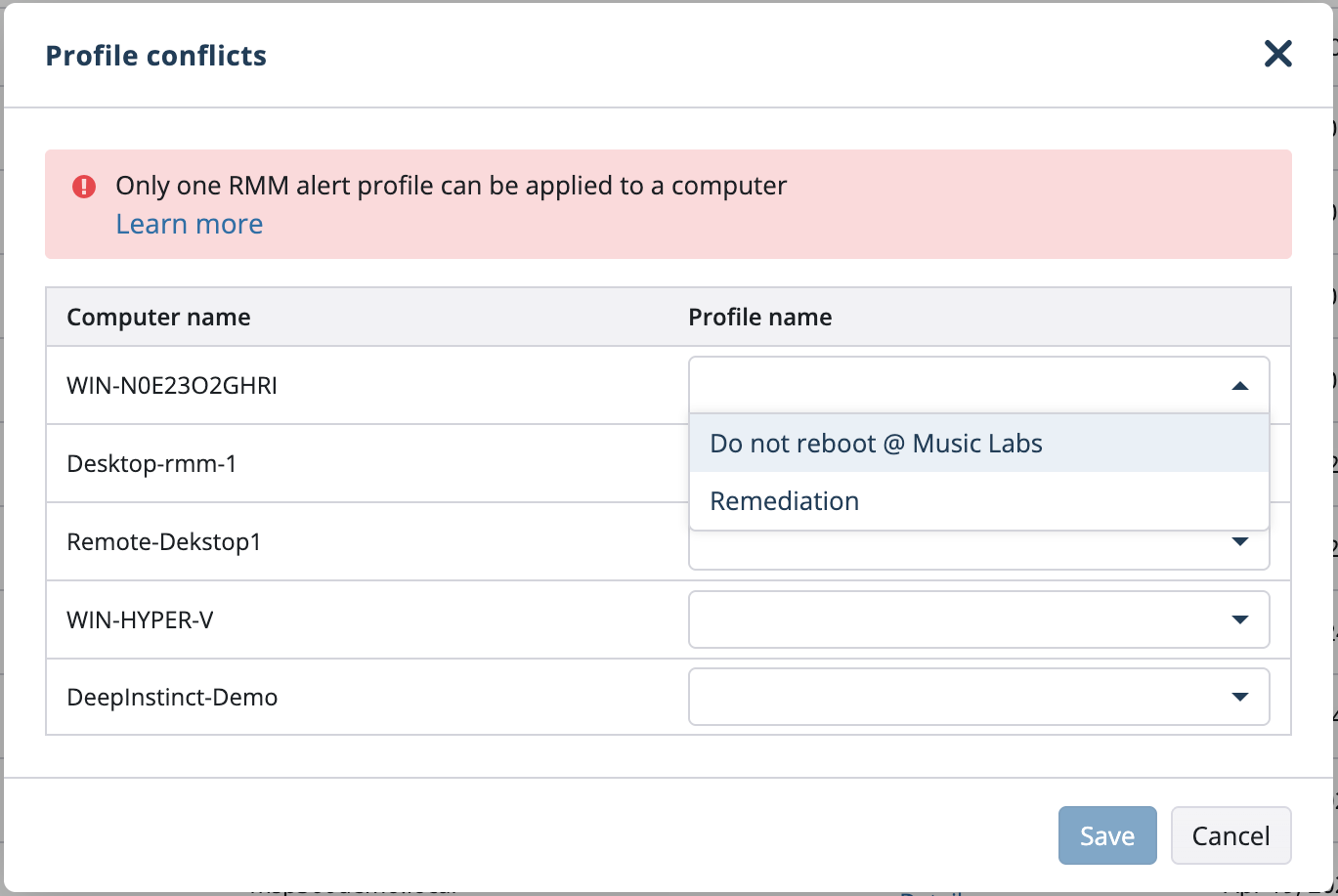
A computer can have only one active alert profile. When profile scopes overlap:
- MSP360 RMM applies the profile with the highest priority automatically.
- If you create or edit a profile that overlaps another one, the system displays a notification. Select “View Profile Conflicts” to see which profile takes precedence, then exclude computers or tags to remove the overlap.
Alert priority, from highest to lowest:
- Computer level
- Company level
- Global level
When profiles overlap within the same priority category, the latest profile takes precedence. A profile that loses a conflict does nothing for the overlapping computers: no notifications and no post-actions.
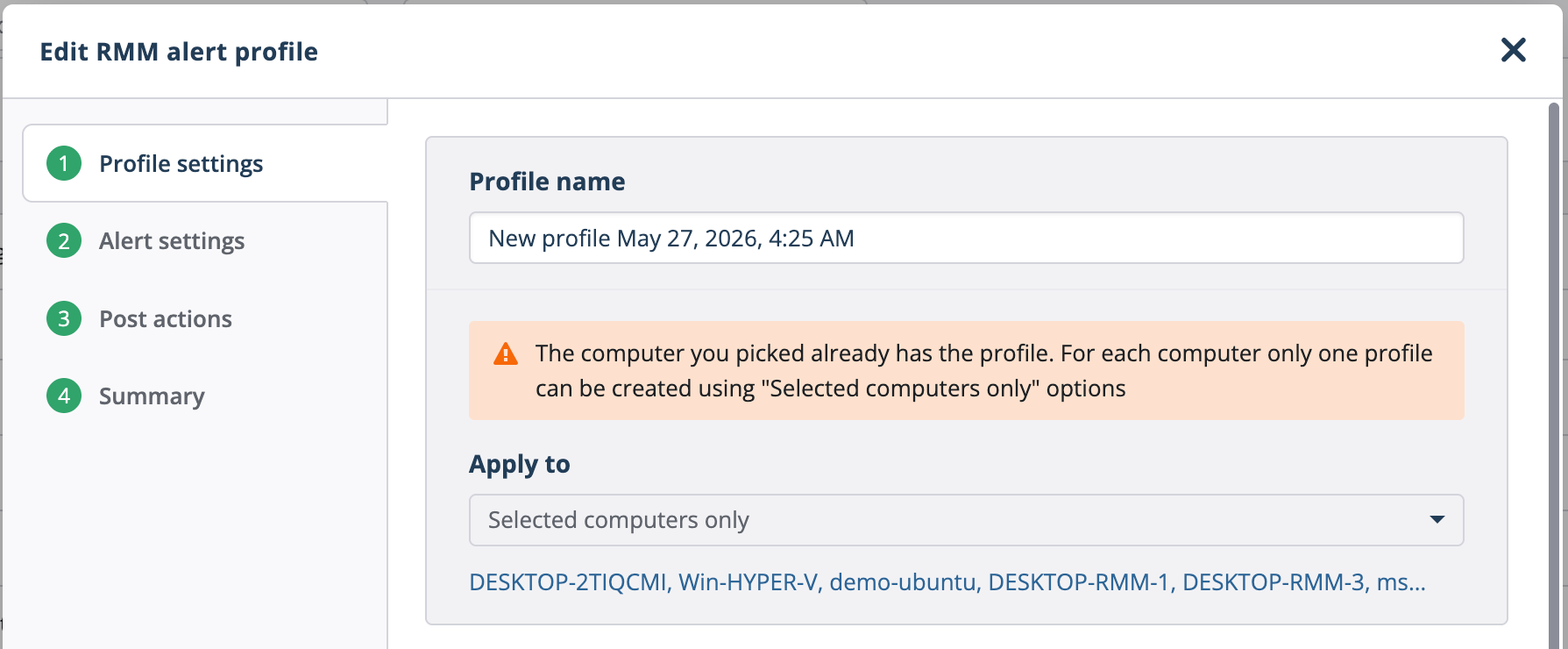
It’s best to check for potential conflicts in advance. You can do this directly from the Management Console:
- Go to RMM > Alert Profiles
- Click 'Check for profile conflicts'
- If a conflict appears, review which profile takes precedence and adjust the computer or tag scope of the affected profiles where necessary.
[readmore] To learn more about handling conflicts, read this article.
Post-Actions in Alert Profiles
MSP360 RMM allows you to extend alert functionality by configuring post-actions that define what happens after an alert fires. Set them once for all alerts in a profile (Global options for all alerts), or separately for each alert type (Custom options per alert).
The following post-actions are available:
- Scripts execution: Execute custom environment-specific scripts automatically in response to specific alerts. Add separate scripts per operating systems in scope, for example one for Windows and one for macOS.
- Email notifications: Send an email to the provider address, to recipients you add, or both.
- Push notifications: Send a push notification to selected administrators in the MSP360 Control mobile app.
- Ticket creation: Create a ticket automatically in MSP360 Tickets, or through native integrations with ConnectWise PSA and HaloPSA. Follow the MSP360 Tickets getting-started guide.
Let’s take a look at a couple of examples of remediation post-actions.
Clean Up Disk Space Automatically
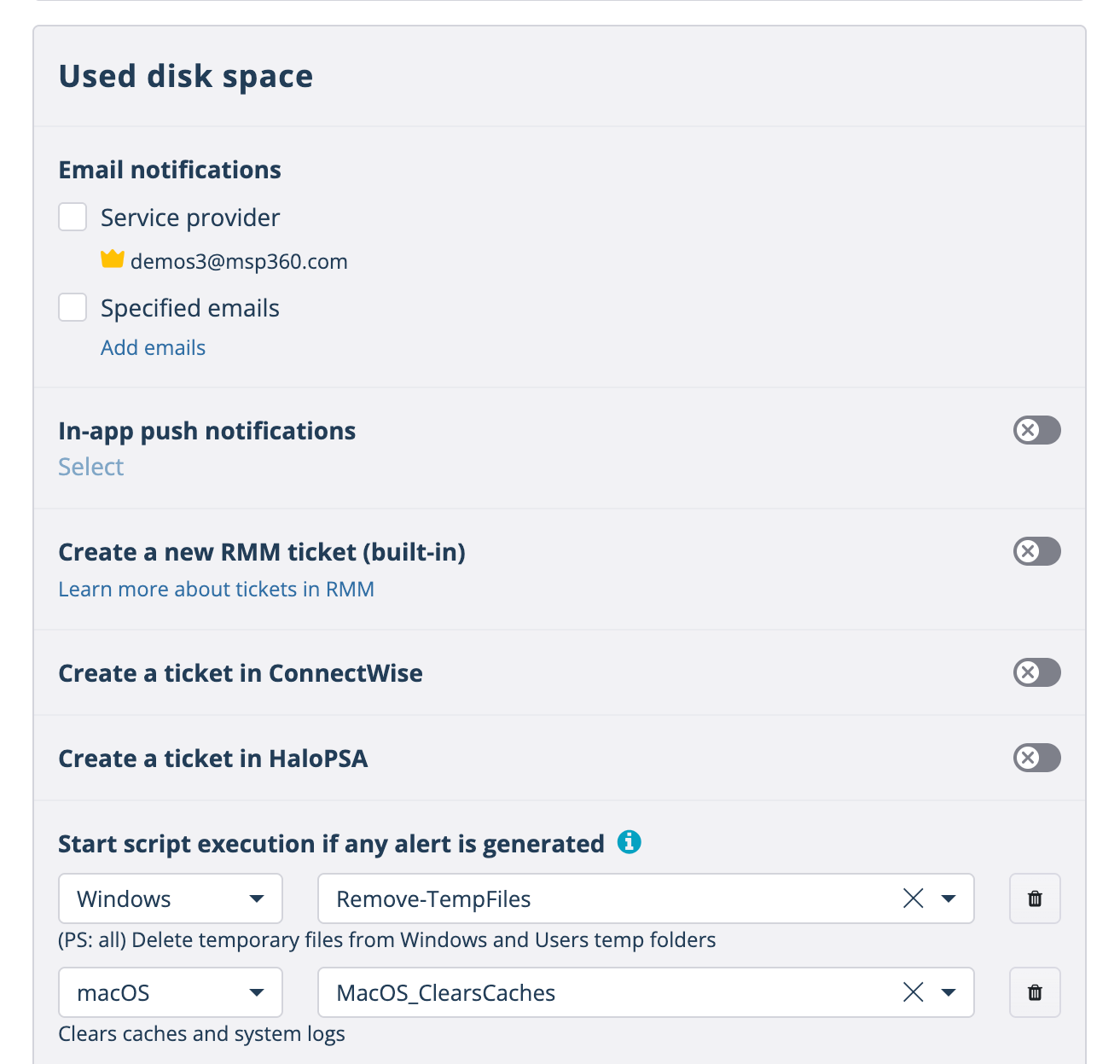
A computer crosses the used disk space threshold. The profile runs a cleanup script right away: Remove-TempFiles on Windows, which deletes files from the Windows and user temp folders, and [macOS script name] on Macs. Add a ticket post-action if you want a record of each cleanup.
The script frees up space before an administrator opens the alert. Nobody logs in for a routine cleanup.
Start an Emergency Backup on S.M.A.R.T. Alert
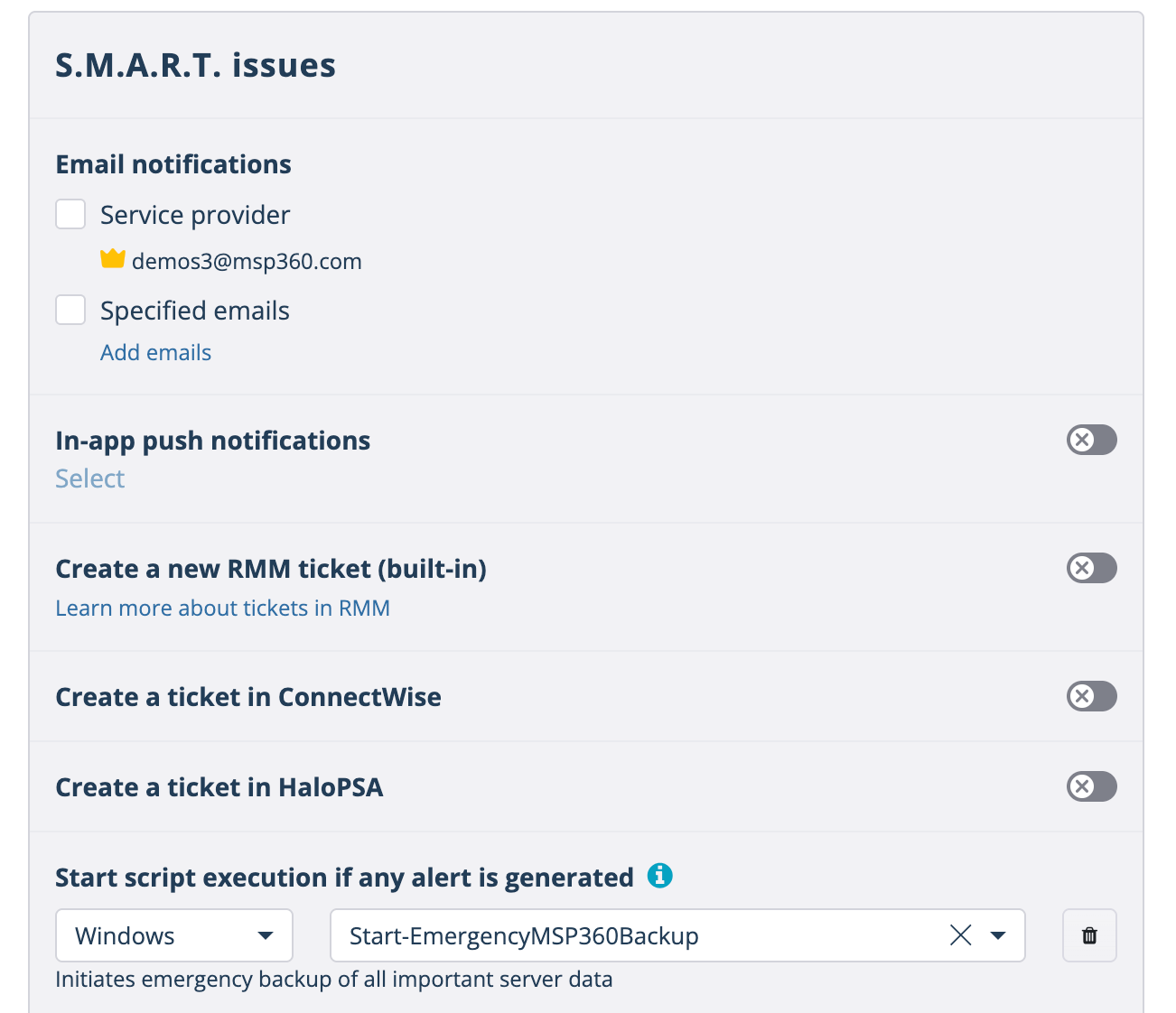
A S.M.A.R.T. alert means a drive may fail soon. Add a script that starts a backup, and the newest data gets copied while the drive still works, often before anyone reads the alert. The computer needs MSP360 Backup for this to work.
Automation with the RMM API
For workflows beyond built-in post-actions, the RMM API lets you build integrations that create tickets in another PSA, update dashboards, or automate reporting—reducing manual exports and data entry. The API provides read-only monitoring data; your external tools perform the actions.
For alert-driven workflows, poll the Summary endpoint every 10 minutes, matching the alert-data refresh interval. The API does not currently support webhooks or push delivery.
See the RMM API documentation for setup instructions and the 10 integration scenarios guide for practical examples.
Manage All Alert Profiles in One Place
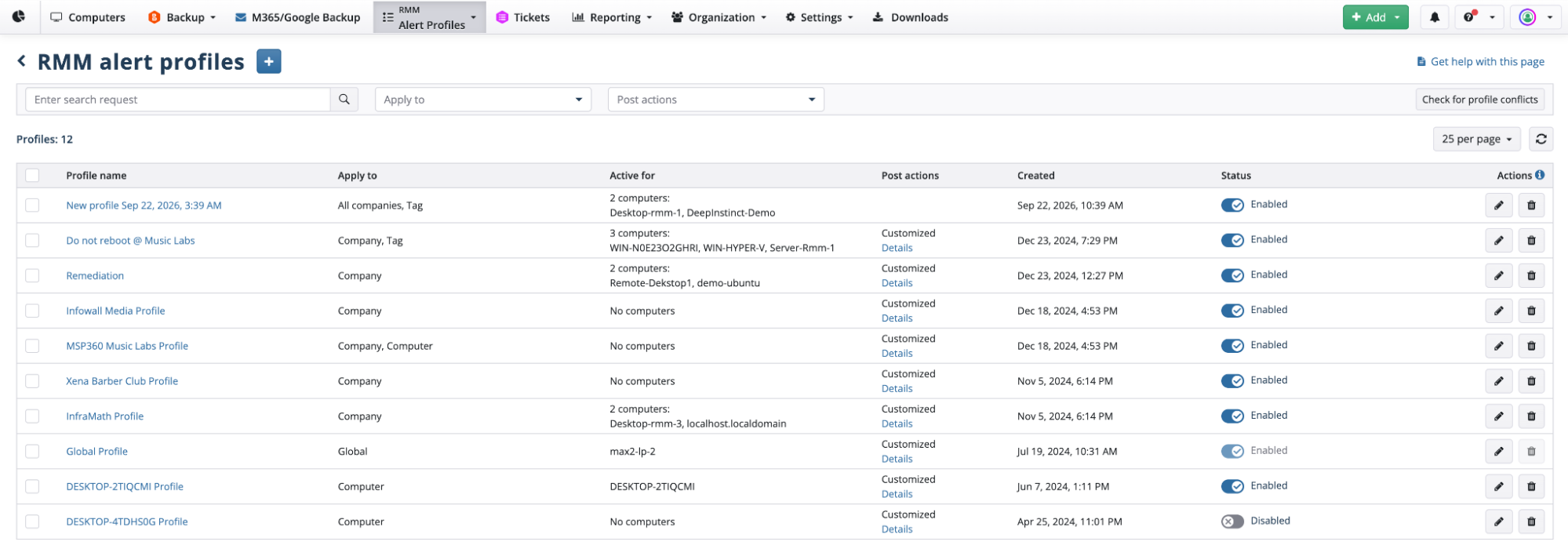
RMM alert profiles are designed to simplify administration by providing a single place where all configurations can be created, applied, and reviewed. RMM > Alert Profiles lists every profile with its scope, the computers it's active for, its post-actions, and its status. You can also get there from Settings > Notifications > Manage RMM alert profiles.
On this page, you can:
- Apply one profile to many companies or computers instead of building copies
- Check each profile's post-actions in the Post actions column
- Find overlaps across all profiles with Check for profile conflicts
- Turn a profile off with the Status toggle, or edit / delete it
Customized Action Settings for Different Alert Types
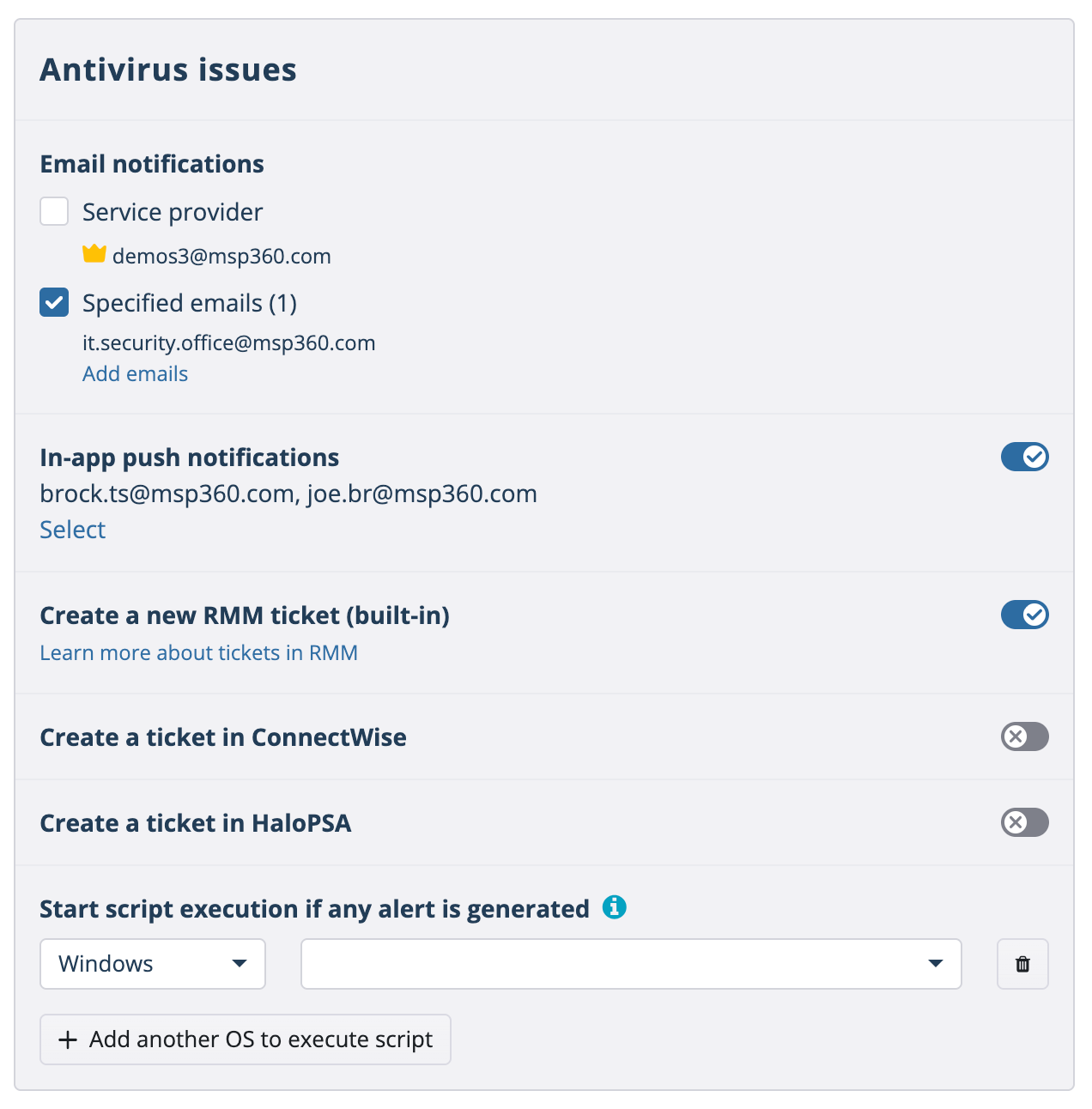
Not every alert is the same, and depending on its type, it may require attention from different specialists or a different response method. To make alert handling more efficient, MSP360 RMM allows you to customize action settings for each alert type.
With custom options per alert, each alert type in a profile gets its own post-actions:
- Hardware change alerts go to the engineer who manages hardware.
- Service alerts go to the engineer who owns that application.
- Urgent alerts, like connection loss on a server, send a push notification to the on-call tech.
- Non-urgent alerts go by email or open a ticket in MSP360 Tickets, ConnectWise PSA, or HaloPSA.
Each tech gets only the alerts they can act on, at the right urgency.
Conclusion
Effective alert management is one of the cornerstones of proactive IT operations. By creating structured alert profiles, defining post-actions, and customizing settings based on alert type and urgency, MSP360 RMM software gives MSPs and IT teams the ability to detect issues early, respond automatically, and notify the right people at the right time.
With these capabilities in place, you can reduce downtime, minimize manual effort, and ensure that incidents are always addressed with the appropriate level of priority. Mastering alerts not only strengthens your technical workflows but also helps you deliver more reliable and consistent service to your clients.