MSP360 Backup with Object Lock for Immutable Backup Protection


A backup is supposed to help when something goes wrong. But that only works if the backup data is still available, when recovery is required. That is exactly why Object Lock for immutable backup protection matters.
In MSP360 Backup, Object Lock, also called immutability, protects backup data in cloud storage from being modified or deleted for a defined period of time. In simple terms, it helps make sure the most critical backup data stay intact and protected against unwanted alteration.
With the release of MSP360 Backup 8.6 we have significantly reworked and expanded Object Lock support for such cloud storage services as Amazon S3, Wasabi, Backblaze B2, and other S3-compatible storage services.
Object Lock and what’s new in MSP360 Backup 8.6
This release brings Object Lock for immutable data protection to a broader set of backup types and storage destinations. Previously it was supported only for file and image-based backup plans in the new backup format, and now extends to:
- FFI (Forever Forward Incremental) backups
- SQL Server backups
- Legacy Backup Format
Storage destination coverage also expands significantly, adding support for MSP360 storage powered by Wasabi and Amazon S3, any S3-compatible storage supporting Object Lock, such as MinIO and IDrive E2, also Azure and Google storage services are supported for self-configuration.
Two implementation rules apply across all of these:
- Object Lock can only be enabled during bucket creation,
- Default Object Lock period can only be changed if Object Lock is already enabled on the bucket.
Azure and Google Cloud storage are not available for Object Lock configuration via MSP360 Management Console. Instead you need to configure object lock retention in your storage account manually and then specify the retention period for the object lock in the storage settings in MSP360 Management Console.
Availability
Available in MSP360 Managed Backup and MSP360 Backup PRO standalone products for Windows, macOS, and Linux.
What is Object Lock
Object Lock puts a time-based lock on backup data in storage. If a backup is covered by that lock, it cannot be changed or deleted until the lock period ends. The underlying mechanism is WORM (Write Once, Read Many), which means backup data can be read and restored at any point but cannot be altered or removed while the lock is active.
That does not mean every backup automatically becomes immutable. In MSP360 Backup, Object Lock and retention settings need to be configured for each storage destination. The exact requirements depend on which backup flow you are using.
Why Object Lock matters
Creating backups is only half the job. Object Lock protects them after the fact: making sure backup data remains trustworthy and available when recovery depends on it. Backup data can be lost in more than one way.
Ransomware
Ransomware does not always stop at production systems. Backup data can be targeted too. Immutability adds a strong layer of protection against ransomware, unattended access, and human factors. If protected backup data cannot be changed or deleted during the lock period, there is always a guaranteed untouched copy for recovery.
Accidental deletion
Not every destructive event is malicious. A policy that is too aggressive, someone removing the wrong data or unexpected storage-side changes can all put backup data at risk. Object Lock reduces that risk by keeping selected backup data protected for the configured period.
Retention, legal and compliance requirements
Some backup data needs to remain intact for a specific period because of policy, legal requirements, or regulations. Object Lock is well suited for these cases and supports different retention modes (including a strict Compliance mode) for environments where tighter enforcement is required.
Object Lock retention settings in MSP360 Backup
Object Lock in MSP360 Backup can be configured in two different modes: Default Object Lock (storage level) and Object Lock for GFS backups (backup plan level). Each works differently depending on the backup configuration.
- Default Object Lock period (storage level)
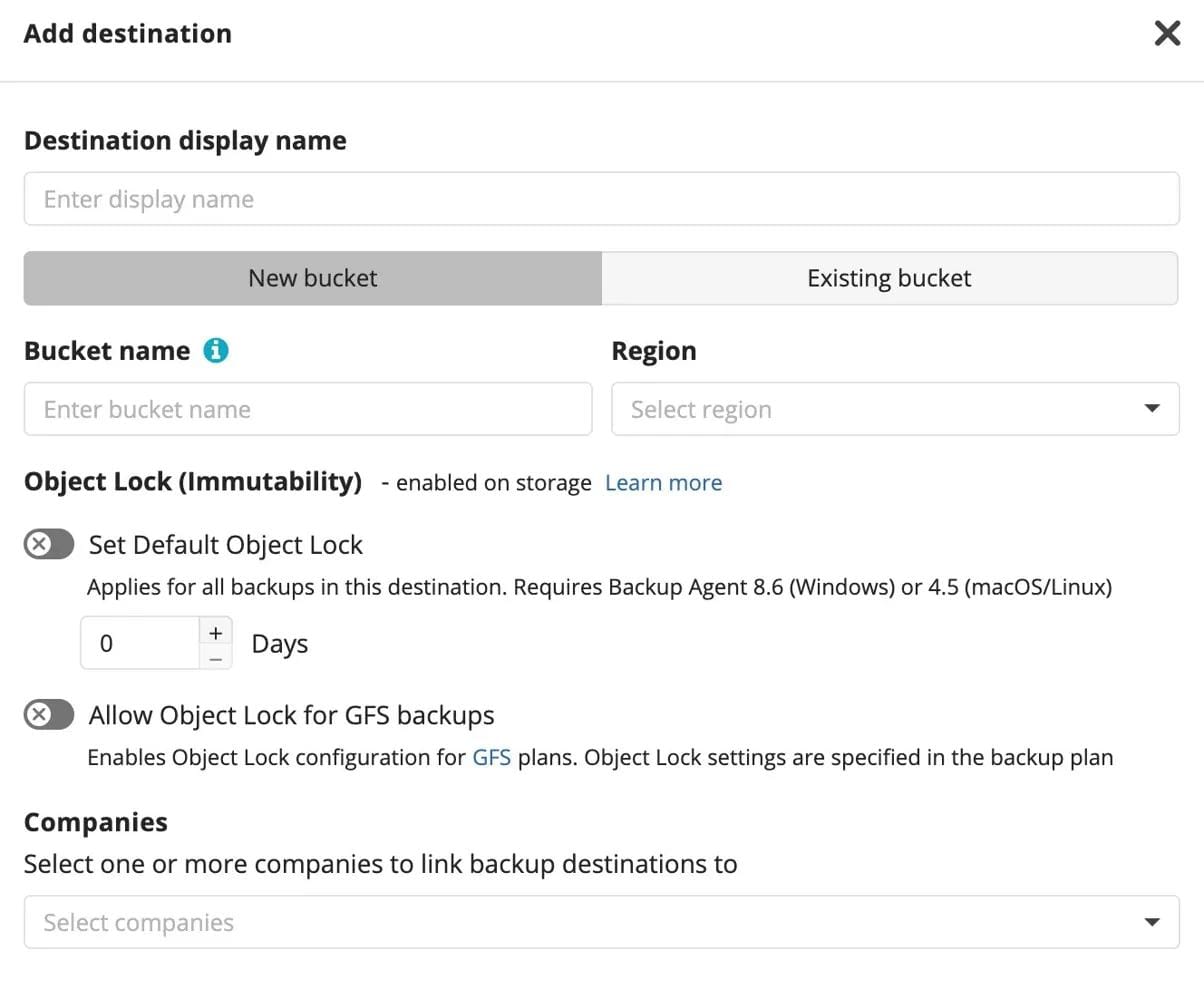
Default Object Lock is configured at the storage destination level when a new bucket is created. For the new bucket you need to first enable it and then specify the default Object Lock period. After the storage destination is created, every backup plan using it will only allow you to set the Default retention period on the backup plan level that is equal or longer than the Default Object Lock period. It acts as the minimum value for plan settings.
Note: For Microsoft 365 Backup and Google Workspace Backup, Object Lock works together with retention policies assigned per user or domain. If Object Lock is enabled on the storage and a retention policy is assigned, the backup is locked for the retention period. If no retention policy is assigned, the backup is not locked even if Object Lock is enabled on the storage destination.
[readmore] Best Microsoft 365 Backup Solutions
[readmore] Best Google Workspace Backup Solutions
- Object Lock for GFS backups (backup plan level)
The other option available in MSP360 Backup is Object Lock for backup data stored according to the GFS backup retention settings. It works for file-level, image-based and other plan types in the new backup format.
In this mode each object comes with an individual retention period assigned according to the specified GFS retention period. This mode can be used in combination with the Default Object Lock retention or separately.
To configure Object Lock for GFS backups, make sure to check the "Allow Object Lock for GFS backup" box in the storage destination settings
On the backup plan level, specify GFS backup retention settings.
All GFS backups will then be locked on storage according to their individual Object Lock period and cannot be deleted or modified until it expires.
- Default Object Lock + GFS
These two modes can be used together. You can specify the default Object Lock period that will lock all backup data according to the default retention period on the plan level, and all GFS backups will additionally have their individual Object Lock periods assigned according to the GFS retention settings.
Available Object Lock modes
Governance mode
This is the default mode. In Governance mode, protected backup data cannot be overwritten, deleted, or have its lock settings changed through Management Console or Backup Agent. These objects can still be deleted using cloud storage provider tools. Governance mode is a practical compromise between stronger protection and operational flexibility: it protects backups from accidental changes and unauthorized actions through MSP360 tools, while still allowing deletion through provider-side tools when needed.
Compliance mode
Compliance mode is the stricter option. Protected objects cannot be overwritten or deleted by any user, including the root user in the storage provider account, until the retention period ends. The retention mode cannot be changed and the retention period cannot be shortened. There is no emergency escape path: the only way to remove immutable data before the period expires is to terminate the storage account entirely.
If Compliance mode is needed for your environment, contact the MSP360 support team. Because of the severity of its restrictions, careful planning is essential before enabling it.
Legal Hold
Object Lock also supports Legal Hold, which allows an administrator to keep backup data locked without depending on a fixed time-based expiration. A Legal Hold prevents data from being deleted until the hold is explicitly removed – useful in situations where the required retention period is not yet known or is subject to change.
Important requirements and conditions
New buckets only
Object Lock can only be enabled at bucket creation time. It cannot be activated for an existing bucket after the fact. For Backblaze B2, an existing bucket can be used only if Object Lock was already enabled when that bucket was originally created.
Versioning is required
Buckets with Object Lock enabled must also have versioning enabled. For AWS S3 and Wasabi, versioning is automatically enabled when Object Lock is turned on through MSP360.
Permissions matter (S3-compatible storage)
For S3 destinations, the storage connection must have the required permissions, including GetBucketObjectLockConfiguration. Object Lock must also be enabled through Backup Agent or Management Console – enabling it through the storage provider’s own console is not supported. For S3-compatible destinations, use the S3 Compatible Checker to verify whether the target storage supports Object Lock.
Plan retention settings carefully
Once backup data becomes immutable, the only way to remove it before the retention period expires is to terminate the storage account entirely. This makes retention planning critical, particularly in Compliance mode. Misconfigured settings can also lead to significant storage cost increases, since immutable data continues to occupy storage regardless of whether it is still needed.
Final thoughts on Object Lock for Immutable Backup Protection
Backup answers one question: do we have a copy of data to restore? Object Lock answers the harder one: will that copy still be there, unchanged, when recovery time comes?
For environments where that guarantee matters (whether for ransomware resilience, compliance, or simply reliable recovery) Object Lock is what turns a backup from a promise into a certainty.
To help MSPs spend less time switching between tools, MSP360 offers an all-in-one platform. Built for managed service providers, businesses, and IT teams, MSP Platform combines backup, secure remote access, remote monitoring, and management in a single web console.
Simple. Reliable.