New Domain Setup Wizard for M365 and Google Workspace
We’ve enhanced Microsoft 365 Backup and Google Workspace Backup configuration to improve the overall setup and management experience.
This release includes a new domain setup and management wizard to make the onboarding easier, minimize administrative tasks, and simplify everyday backup management.
New Domain Setup and Management Wizard
Originally settings related to domains were managed throughout the console. Administrators needed to navigate to different pages to edit companies, backup destinations, storage limits, licensing options, and more. This complicated the setup process and made it easy to miss certain settings.
With the recent update to the MSP360 Management Console, adding and editing domains is now available through a single guided process. Our new domain setup wizard consolidates all major domain settings. This new workflow minimizes clicks and makes onboarding and domain management more intuitive.
The wizard allows you to:
- Create a company and backup destination from the wizard
- Add one or more domains
- Validate domain storage limits against existing company and backup destination storage limits
- Choose your preferred default prepaid license option
- Automatically activate SharePoint / Teams and Shared Drives trials
How to set up the Domain Setup Wizard
Upon accessing the domain wizard, administrators are guided through the entire process of adding or editing a domain.
Step 1: Add Domain
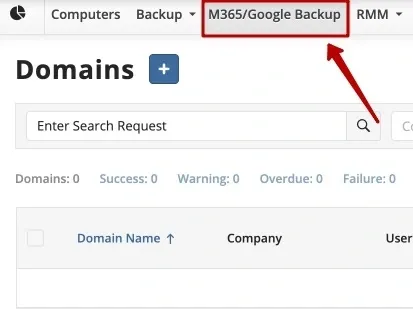
Navigate to the M365/Google Backupmenu and then click +
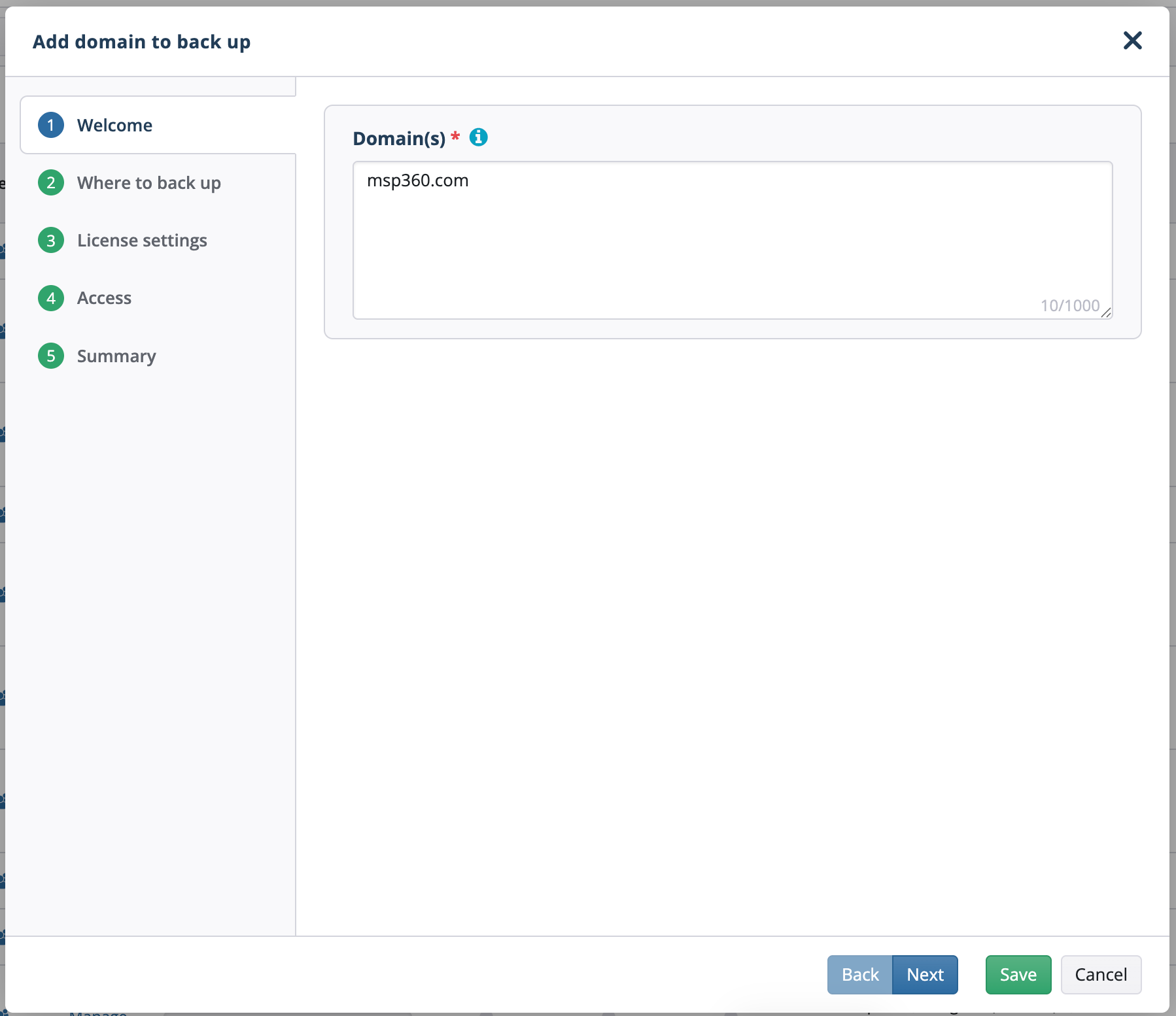
Type one or more Microsoft 365 or Google Workspace domains.
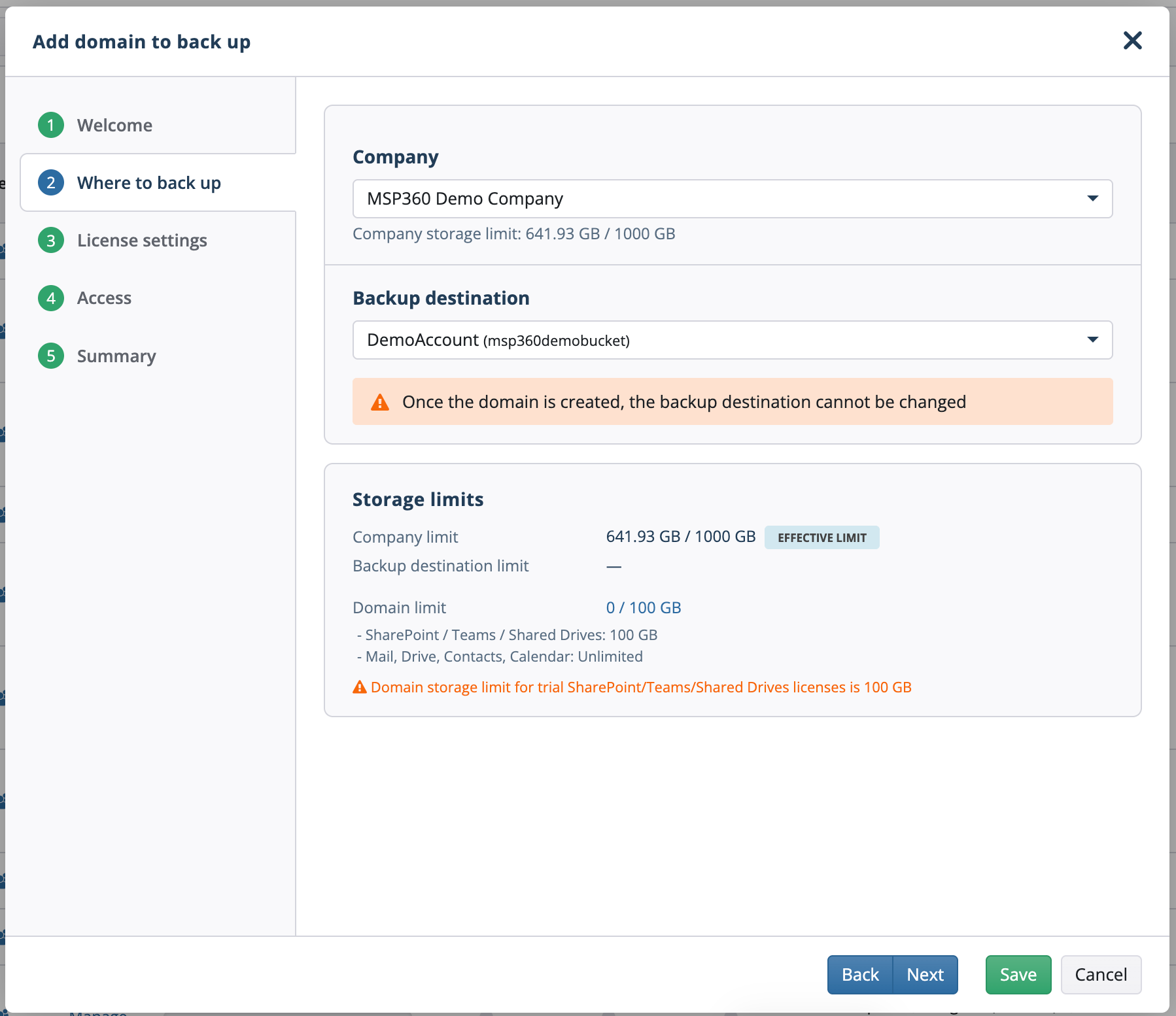
Step 2: Select Company and Backup Destination
Choose an existing company and backup destination. If the company or backup destination does not exist, administrators can create them directly from the wizard.
Step 3: Configure Storage Limits
Review and set storage limits for all workloads you would like to protect.
Step 4: Configure Licensing Preferences
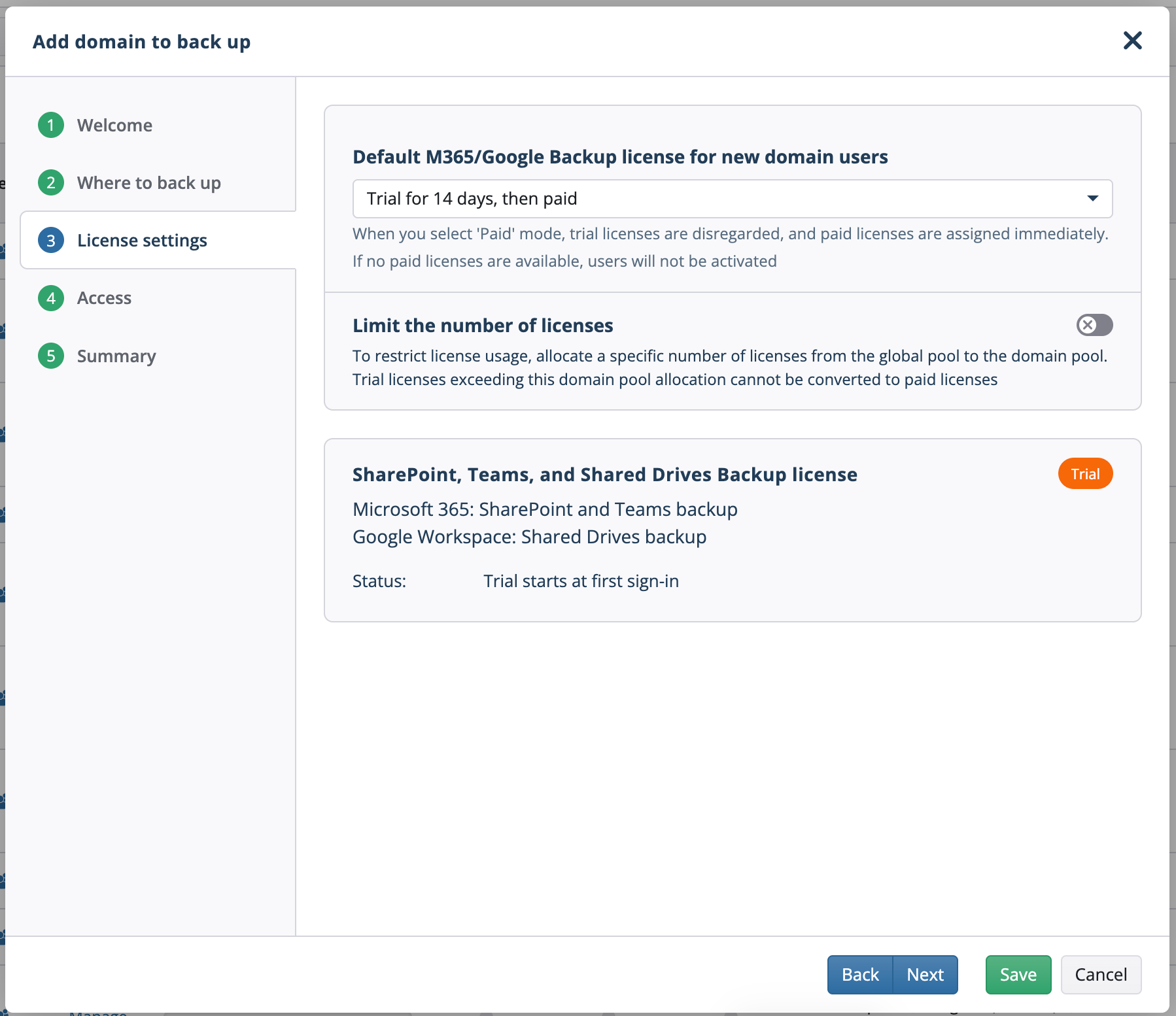
Choose your license preferences. Administrators can define how they would prefer licenses to be allocated.
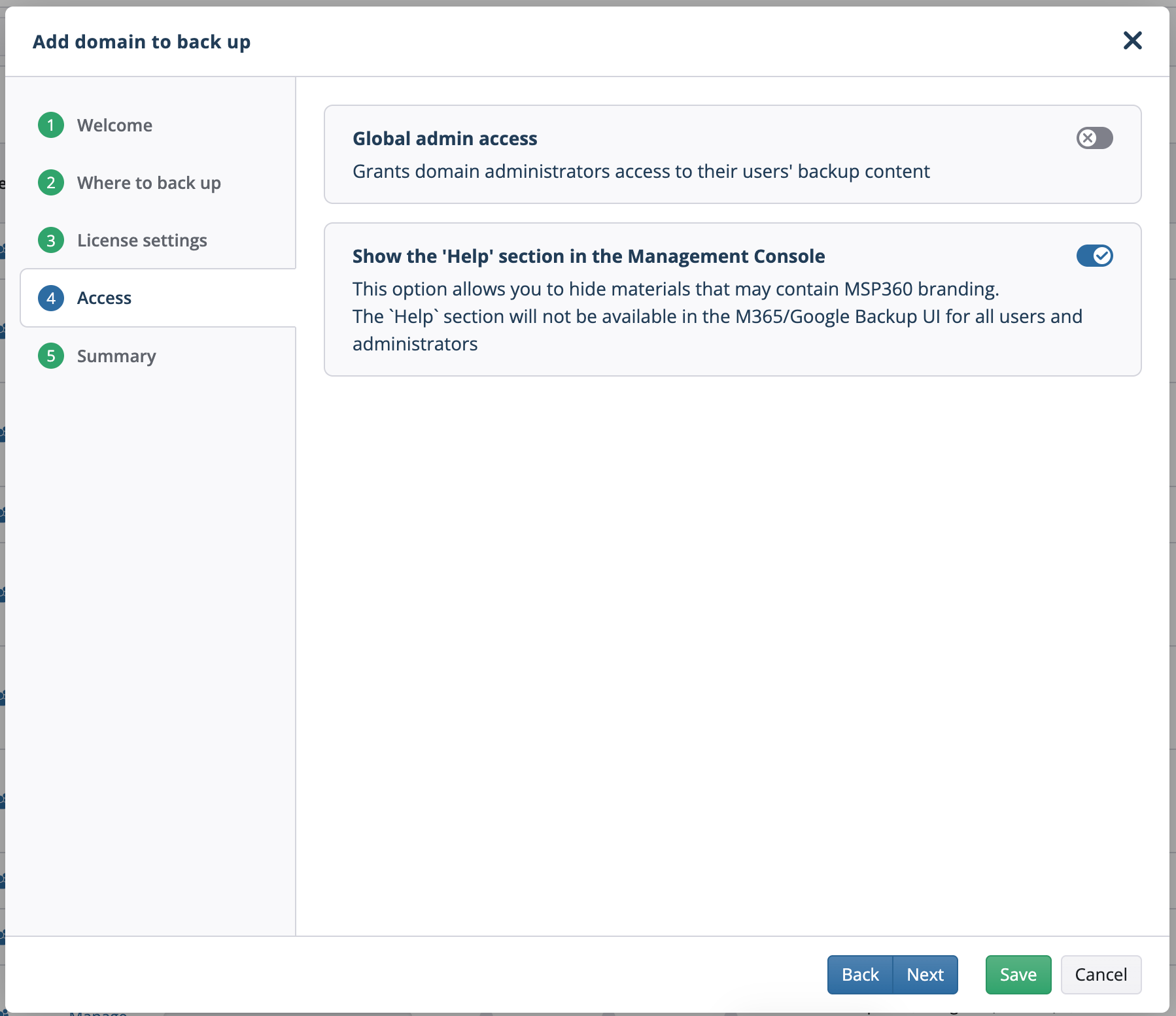
Step 5: Configure Access Options
Configure Global Administrator access settings. Administrators can also choose to hide or show Help materials.
Step 6: Review and Save
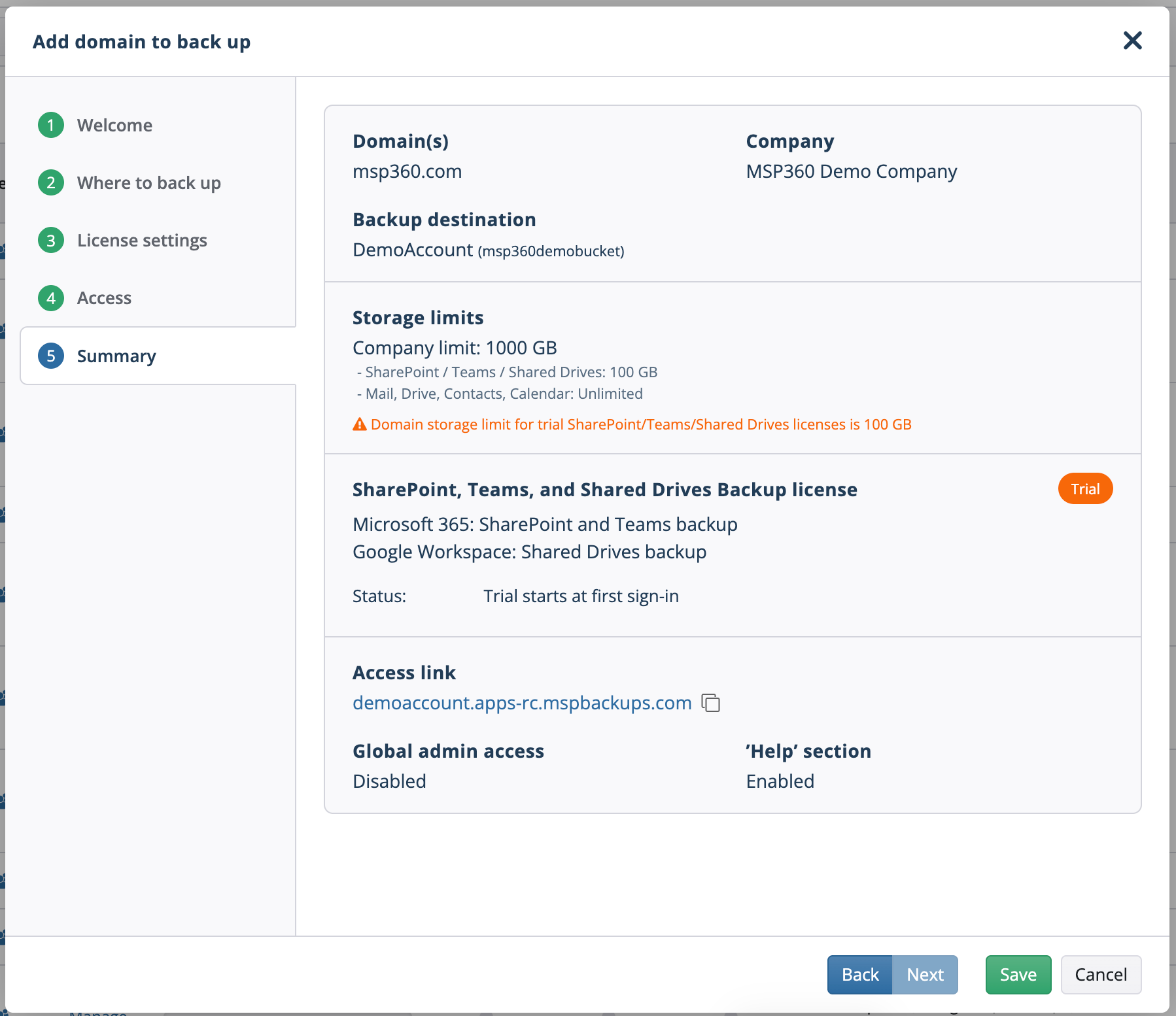
Review your settings. Once you’ve validated the information is correct you can click Save to create a new domain or Update to save your changes to an existing domain.
Storage Limit Validation
When configuring a new domain, the wizard now validates storage limits at 3 different levels:
- Domain limit
- Company limit
- Backup destination limit
Domain storage limits cannot exceed the company or backup destination storage limit. If an invalid storage limit is detected administrators will be shown a warning. A shortcut menu will allow you to quickly navigate to the limit that needs adjustment.
This validation logic helps prevent storage limit misconfiguration across companies and ensures consistency.
Enhanced License Configuration
During setup, administrators can choose their preferred option for allocating licenses:
- Trial licenses first
- Paid licenses first
Enabling “Trial licenses first” will automatically apply trial licenses to new users until no more trials are available. Selecting “Paid licenses first” will change the default license allocation logic to apply paid licenses instead.
Automatically Activate SharePoint and Shared Drives Trials
SharePoint / Teams Backup and Shared Drives Backup trials will begin automatically when users access the Backup portal for the first time.
Administrators no longer need to manually assign a trial license. Removing this manual step allows backups to begin as soon as the domain has been added.
Benefits of the New Wizard
- Create domains easier: Manage all domain settings through a single intuitive wizard.
- Onboard faster: Create companies and backup destinations without leaving the wizard.
- Better control over storage limits: Ensures domain storage limits do not exceed your company's configured storage quota.
- Hide MSP branding: Manage the visibility of Help materials.
- Greater flexibility with prepaid licenses: Select whether trial licenses or paid licenses should be used by default.
- Reduce time to first backup: SharePoint and Shared Drives trials will automatically begin when users first visit the Backup portal.