MSP360 Free Backup Software Adds Encryption and Object Lock Support
MSP360 Free Backup Software now includes client-side encryption and expanded Object Lock support for Windows, strengthening both file-level and image-based cloud backups without requiring a paid software license.
Ransomware can put more than the files on your computer at risk. If an attack reaches a connected backup drive, or storage credentials are compromised, the recovery copy you planned to rely on may also be exposed, changed, or deleted. Free backup software has traditionally come with trade-offs in security functionality. This release removes two of those trade-offs by adding client-side encryption and expanding Object Lock support. .
MSP360's free cloud backup software is for personal use on standalone, non-domain-joined computers, with file-level backup and image-based backup on Windows, and file-level backup on macOS and Linux.
Additional Security Controls for Backup Data
With this release, Free Backup adds client-side encryption and expands Object Lock support, providing additional security controls for backup data.
Encryption joins Free (Windows). Backup contents can now be encrypted client-side with AES using a password defined and retained by you. Encryption takes place before backup data leaves the source machine. If someone gains unauthorized access to the storage destination or copies the encrypted backup objects, the contents remain unreadable without the password. The encryption password is not stored in the backup plan configuration. Without it, encrypted backups cannot be restored, so make sure to keep the password in a secure location.
Previously available in MSP360’s cloud backup solution for small business, client-side encryption is now included in the free version.
How to enable client-side encryption
- In the Backup Agent, create a new backup plan or edit an existing one.
- Go to the Compression and Encryption step of the plan wizard.
- Select Enable encryption.
- Choose the AES key length (128-, 192-, or 256-bit) in the Algorithm menu.
- Enter and confirm an encryption password, then finish the plan.
Learn more: Encryption setup
Object Lock support expands (Windows). With this release, Object Lock support in Backup Free extends to protect a broader range of backup data. When Object Lock is configured, it restricts deletion or overwriting of protected backup data during the defined retention period. The protection is set at the storage level, so it applies to any backup plan writing to that destination - configured once, rather than plan by plan.
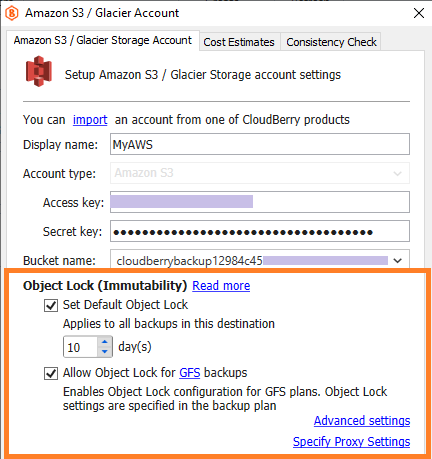
How to configure Object Lock in Free Backup Software
- In the Backup Agent, open the application menu and click Add Storage Account.
- In the Select Cloud Storage dialog, choose your provider. Object Lock works with Amazon S3, Wasabi, Backblaze B2, and IDrive e2. Microsoft Azure and Google Cloud also support Object Lock, but the lock must be configured manually in the storage account, then the retention period set separately in MSP360.
- Enter your credentials and select or create a bucket. Object Lock must be enabled when the bucket is created: it cannot be added to an existing bucket afterward, so choose a new bucket if you want Object Lock protection.
- Set the protection period, then click OK.
Object Lock requires bucket versioning and appropriate storage permissions, and exact requirements vary by provider. You can check whether your S3-compatible storage supports Object Lock using MSP360's S3 storage checker.
Learn more: Object lock documentation
Encryption and Object Lock protect against different risks
Client-side encryption and Object Lock address different backup security risks. Encryption protects data confidentiality by helping keep backup contents unreadable if storage access is compromised. Object Lock supports immutability by restricting deletion or overwriting of protected backup data during a defined retention period. Together, they help keep backup contents private and preserve protected recovery points.
Free backup software doesn't mean limited backup
Security is only part of the Backup Free story. MSP360 Backup Free provides:
- File-level backup on Windows, macOS, and Linux
- Image-based backup for Windows
- Client-side encryption on Windows
- Expanded Object Lock support on Windows
- Backup to compatible cloud or local storage
This means personal users can build a cloud backup strategy that combines flexible backup types with controls designed to protect both the confidentiality and integrity of their recovery data without a software subscription.
Client-side encryption and expanded Object Lock support are available now - no upgrade, no trial, no credit card. If you're already running Backup Free, both are ready to turn on in your existing backup plans and storage destinations.