MSP360 Affiliate Program: How to Join Through Impact
Who Is the Program For?
The program is a good fit for:
- Technology bloggers, software reviewers, and tutorial creators who help their audiences evaluate IT products.
- MSPs and IT professionals already using MSP360 who recommend its products to other MSPs, IT teams, or business contacts.
- Consultants and business publishers who share software recommendations through their websites, newsletters, or other channels.
What Do Affiliates Get?
Affiliates earn 15% of the order sale amount on qualifying purchases of eligible products. The program uses last-click attribution with a 30-day window: a purchase can earn you a commission when your referral is the last eligible click within 30 days before the sale.
The eligible products include:
- MSP360 Backup Pro – cloud backup software for small businesses, with support for desktops, servers, databases, and virtual machines.
- MSP360 Connect Pro – remote desktop software with unattended access to computers and support.
- CloudBerry Explorer Pro – a file manager for transferring and managing files across local and cloud storage.
- CloudBerry Drive – software for Windows that maps cloud storage as a network drive.
After approval, you can create affiliate links pointing directly to the products you recommend. Impact’s dashboard shows your earnings, pending amounts, and balance. Approved commissions follow the payout schedule in MSP360’s offer, which you can review before registering.
How to Register and Apply
1. Open the Signup Page and Review the Terms
Go to the MSP360 Affiliate Program signup page.
Open MSP360’s offer to review the commission conditions, referral rules, and payout schedule. If you agree, select the acceptance checkbox.
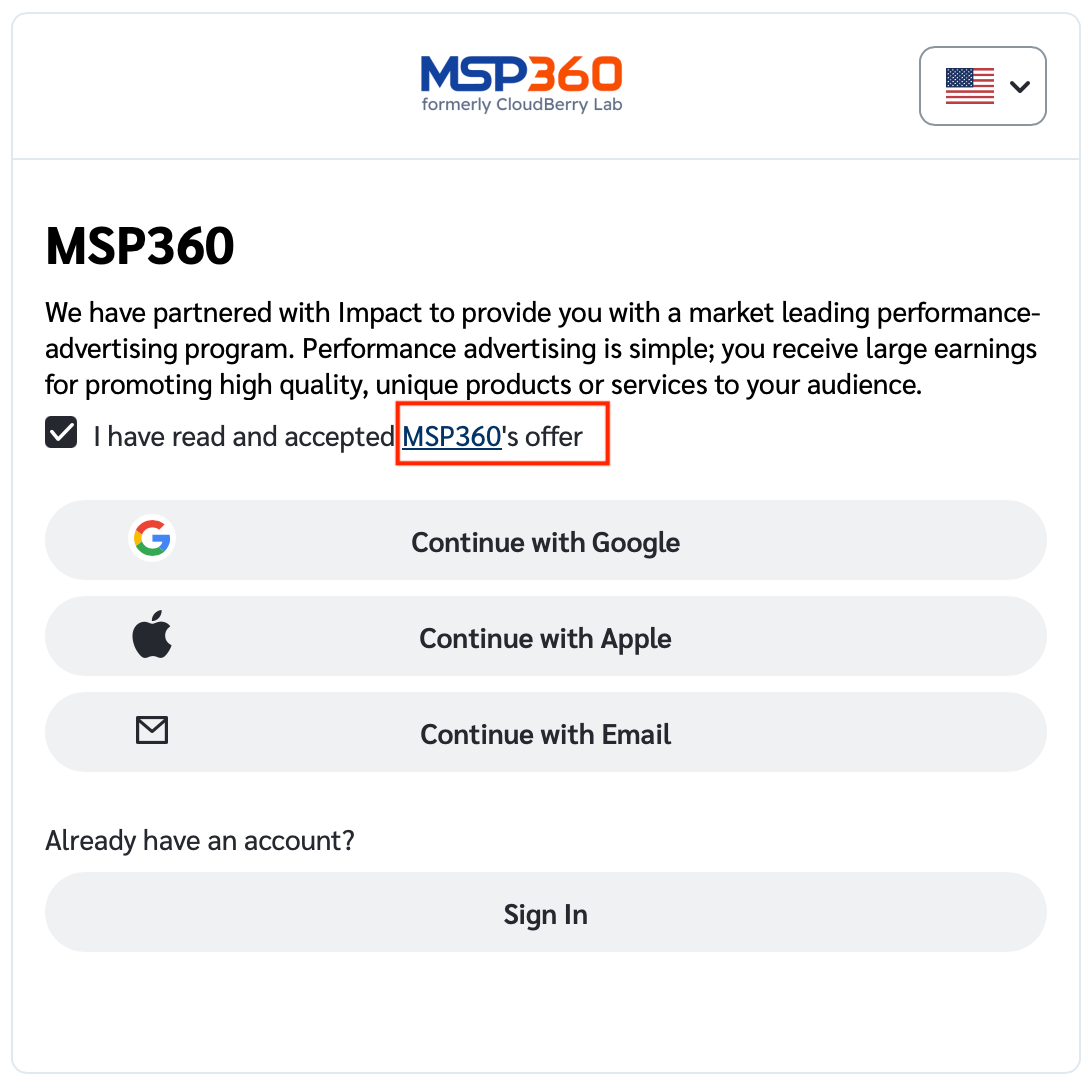
2. Create an Impact Account or Sign In
Create an Impact account or sign in to your existing one. If you register by email, verify your email address before continuing.
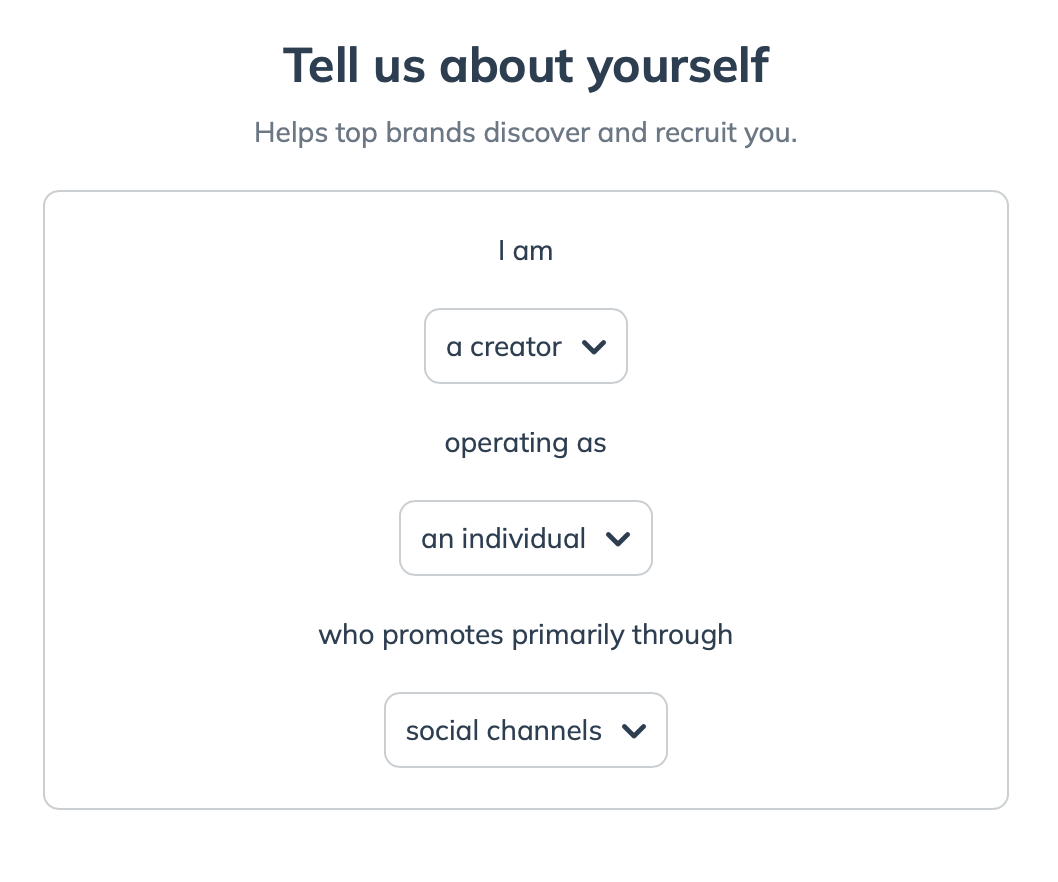
3. Tell Impact About Yourself
Provide some background on your work, whether you operate as an individual or a company, and your preferred promotional channels.
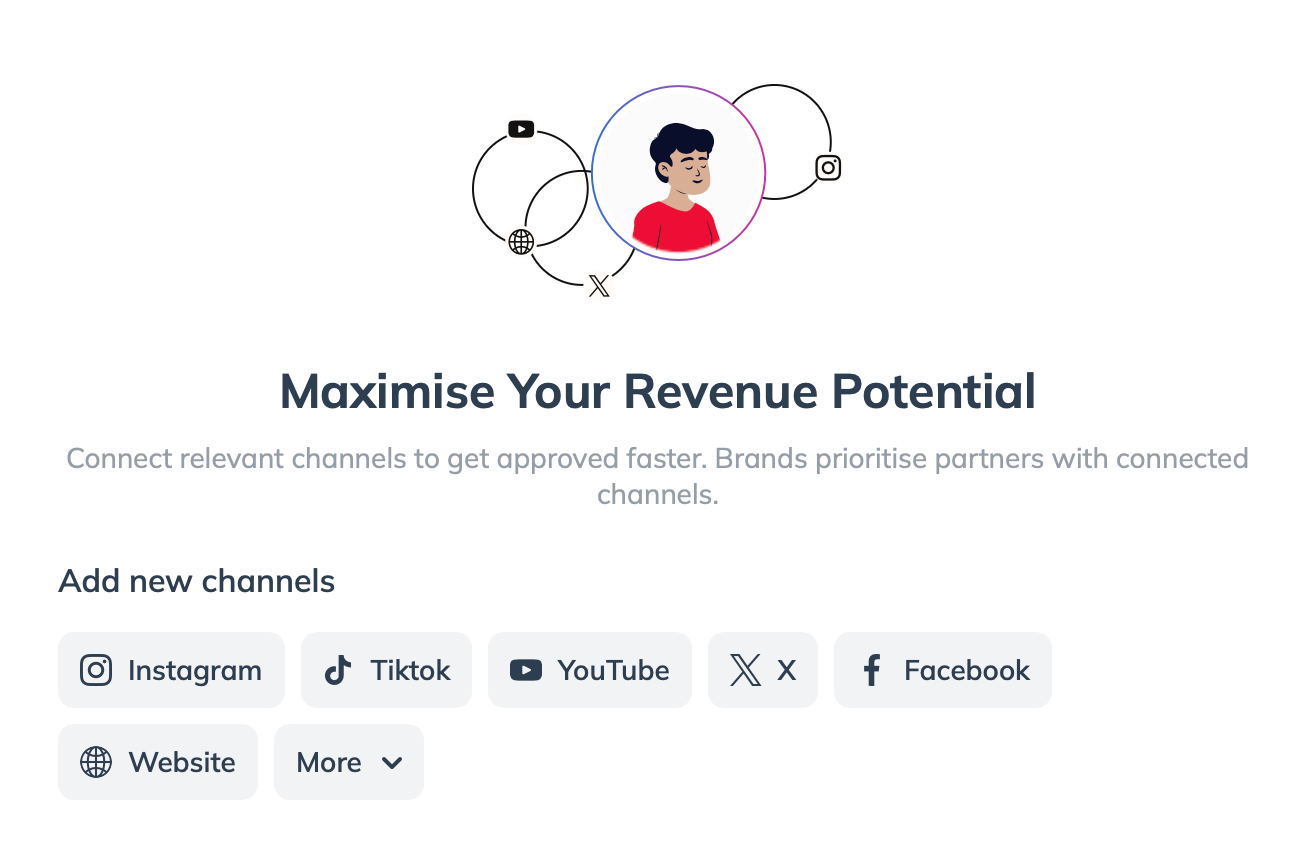
4. Connect Your Promotional Channels
Under Add new channels, connect the website or social media accounts you plan to use to promote MSP360. Select the relevant options and follow the connection and verification prompts.
5. Wait for MSP360’s Approval
Having completed the Promotional Channels setup, wait for MSP360 to review your application.
You can check application updates in Impact’s Notifications.
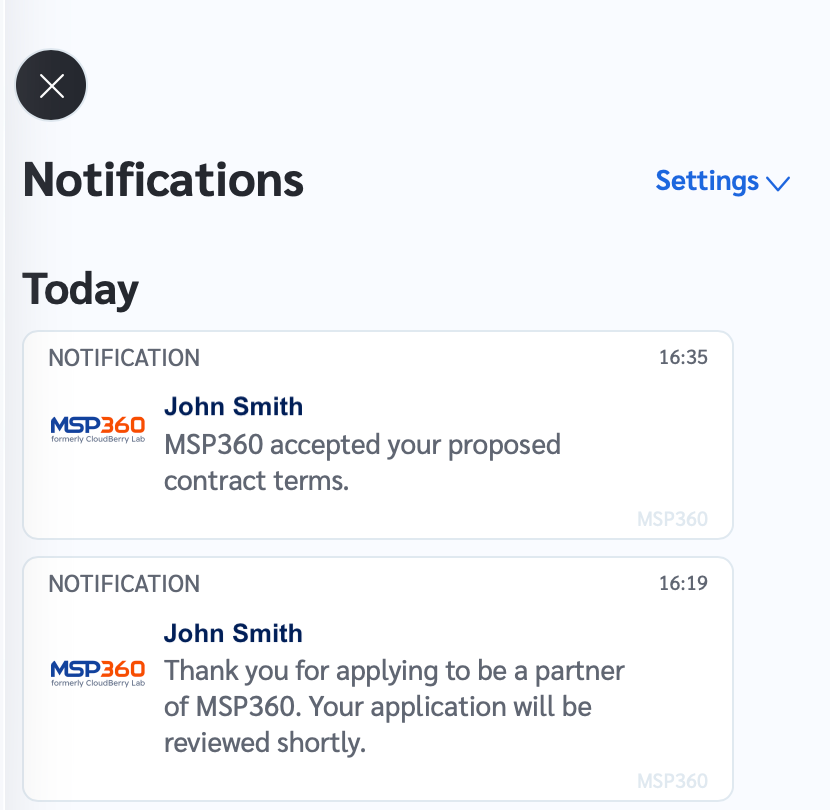
If you have any questions about your application or its approval status – feel free to contact us.
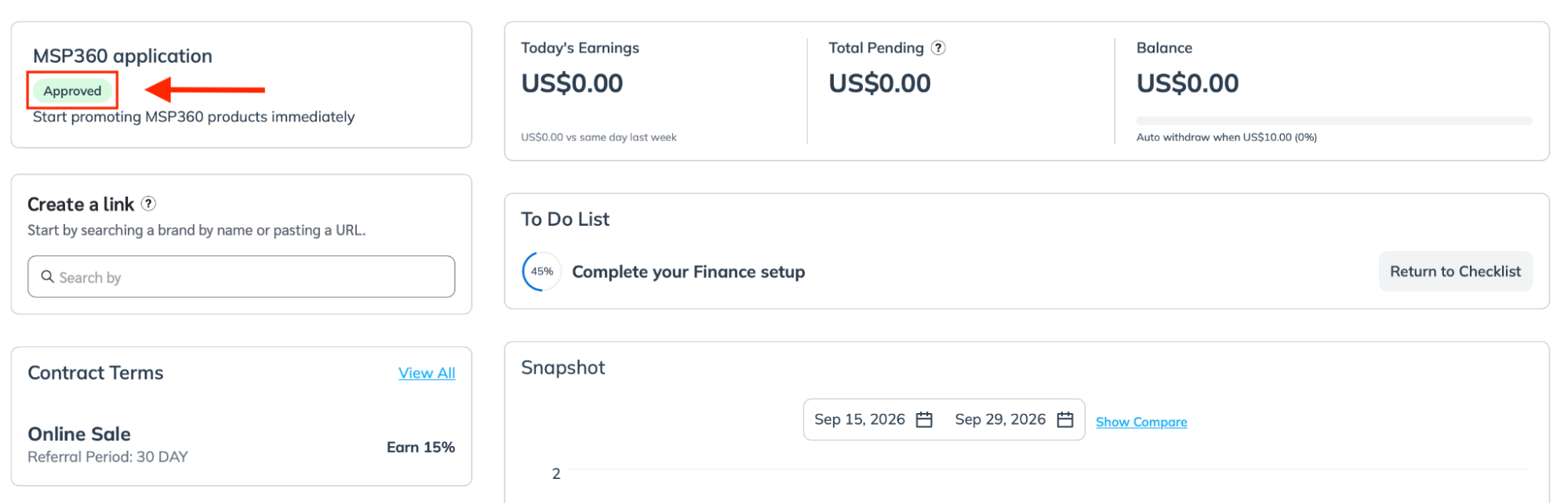
Once your dashboard shows the green Approved badge under MSP360 application, you can create your affiliate link.
6. Complete Your Finance Setup
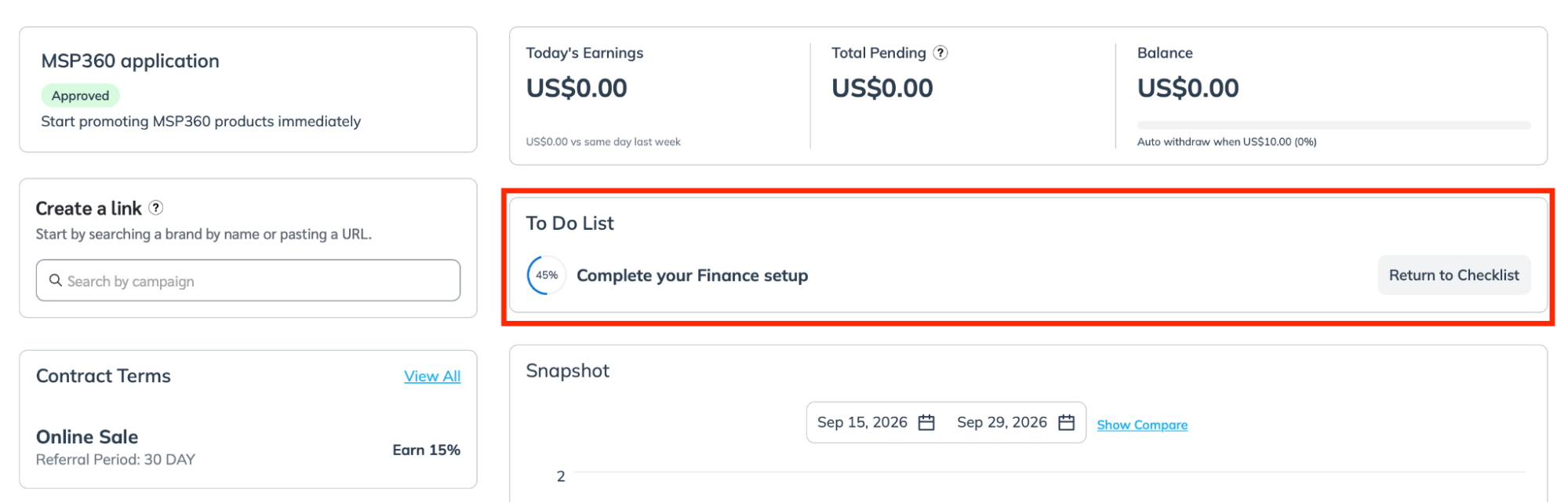
To receive payouts, complete the Finance setup checklist in your impact dashboard.
- Verify your email address.
- Add your billing address.
- Provide your tax information.
- Add your payment details.
You can receive payouts to your bank account or PayPal account once your available balance reaches $10 USD. Choose to receive payments when your balance reaches a set amount or on a fixed date each month. See Impact’s getting-started guide for setup instructions.
7. Create a Link to the Product You Want to Promote
In the dashboard’s Create a link section:
- Select MSP360
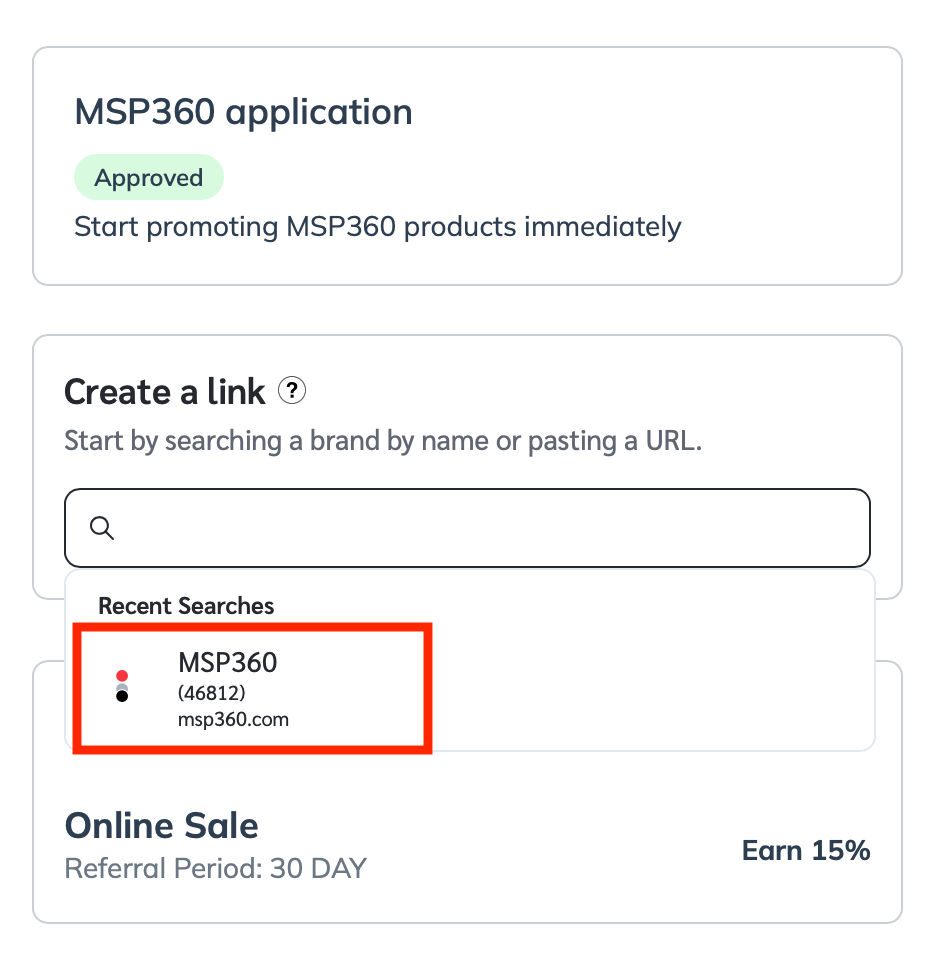
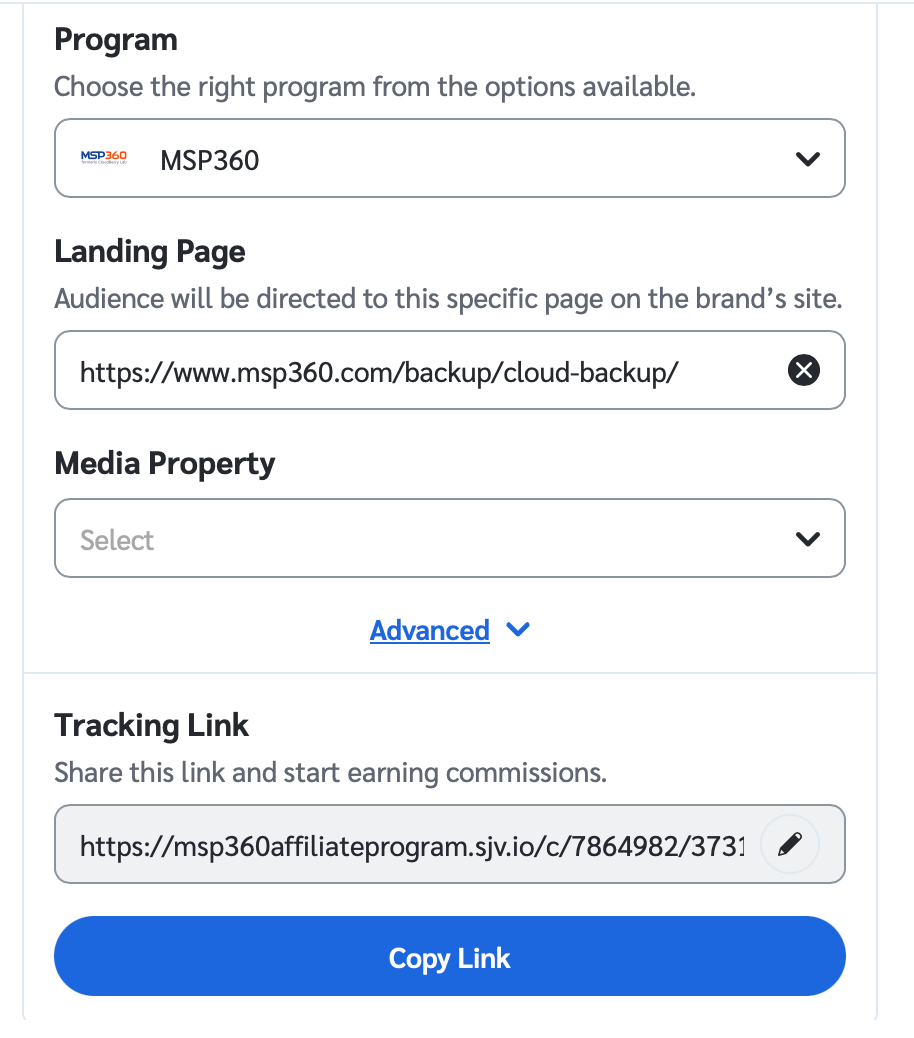
- In the panel that opens on the right, enter the relevant eligible product page URL in Landing Page.
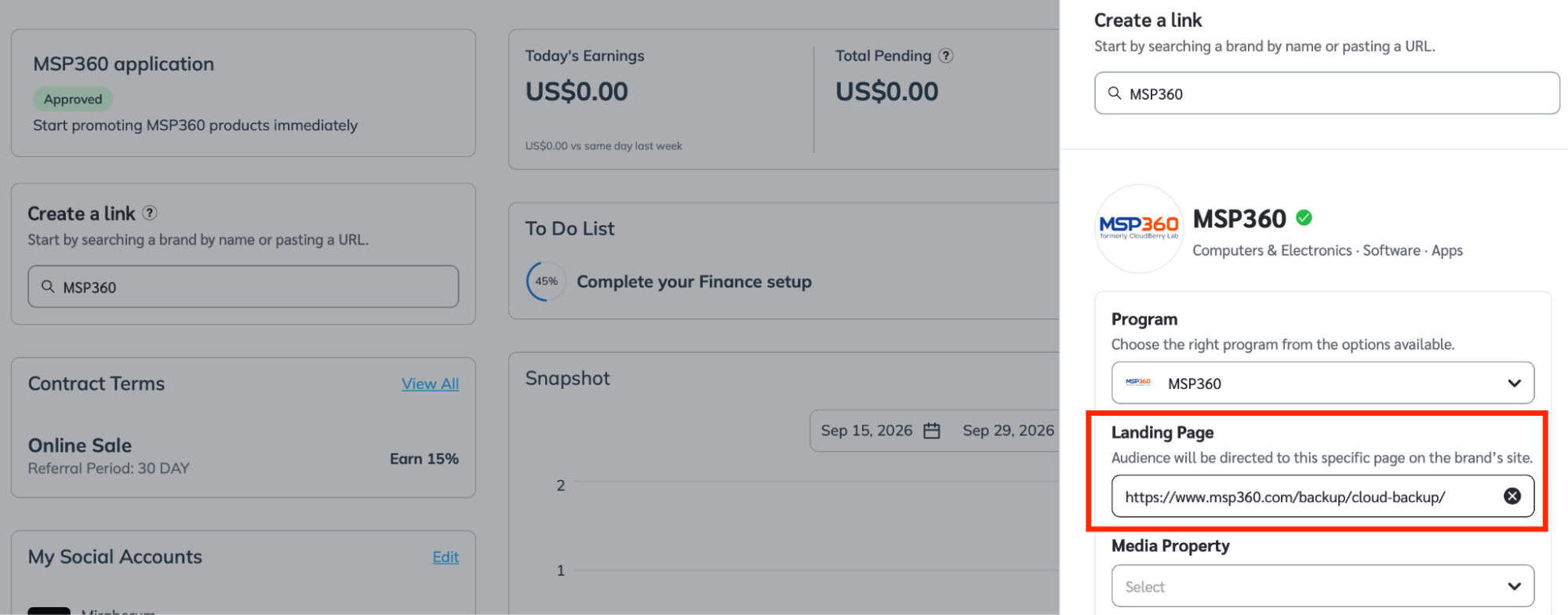
- The link is generated automatically. Just click Copy Link and you’re all set.
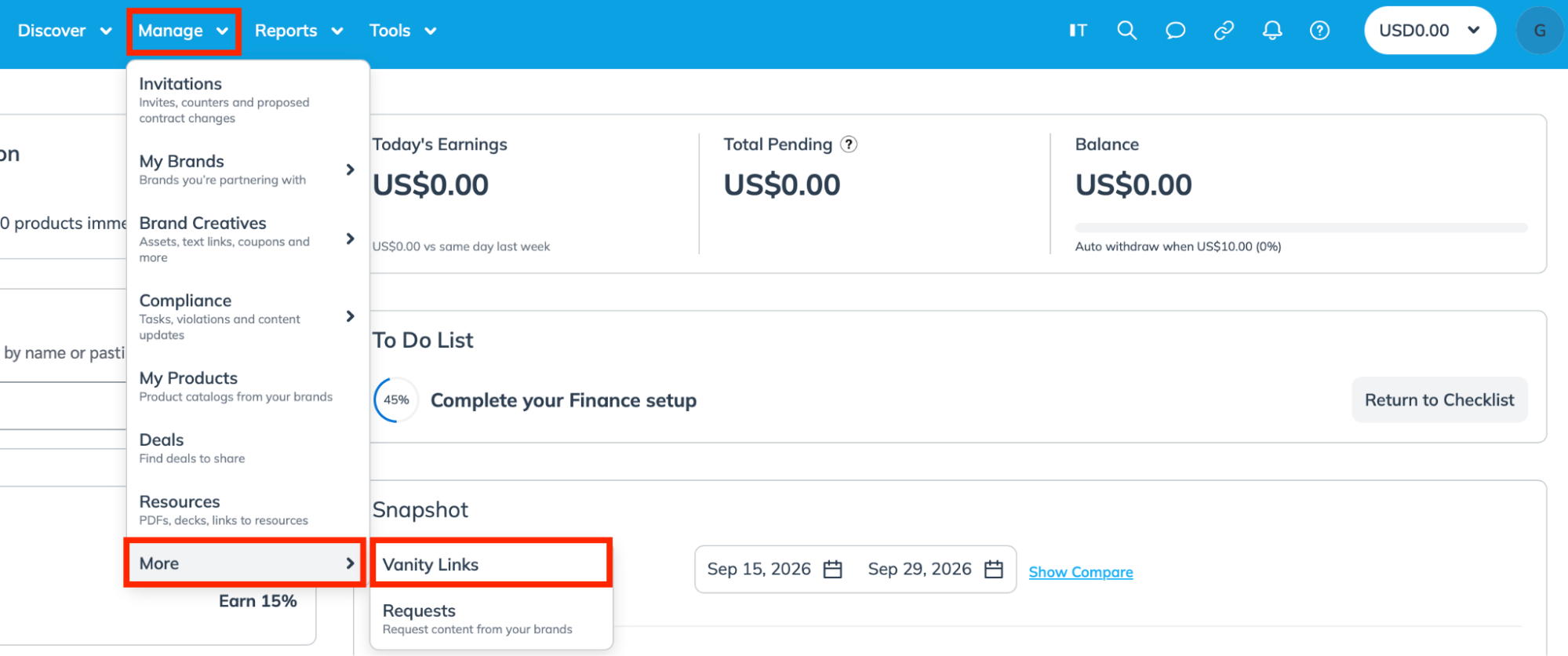
- To find and manage your created links, go to Manage → More → Vanity Links.
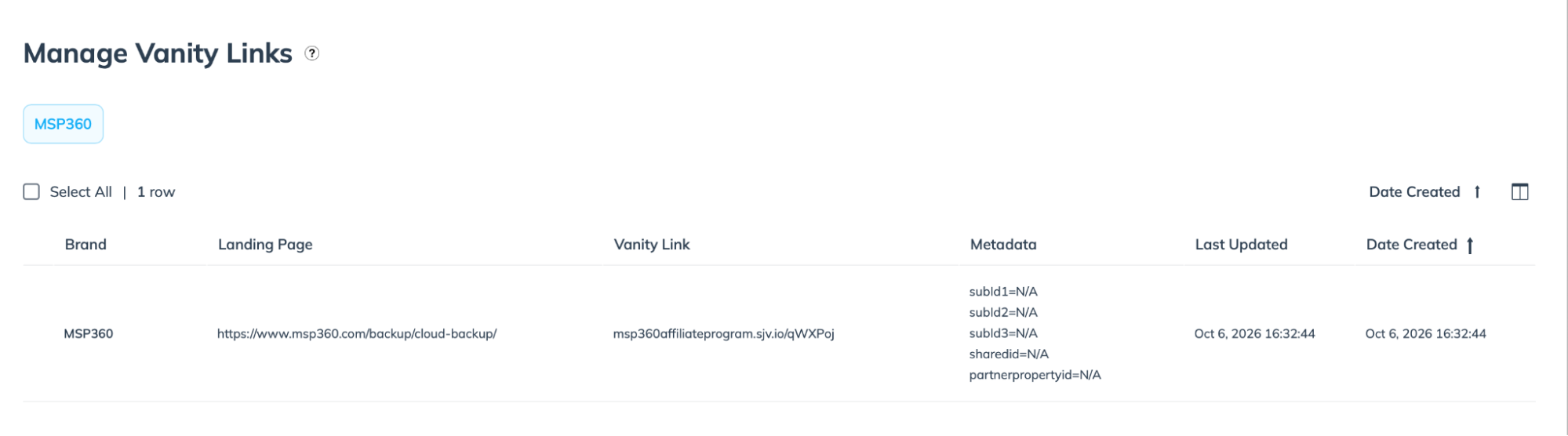
- Here, you’ll see your saved Vanity links and their destination pages.
Use the generated affiliate link in your promotional content so referrals can be attributed to your account. Match the destination to your recommendation: a tutorial about Backup Pro should link directly to its product page.
Use Impact’s getting-started guide for partnered affiliates to learn more about tracking links and payment setup. Ready to recommend MSP360? Review the offer and apply to the MSP360 Affiliate Program.