Best Free Data Recovery Tools You Can Trust in 2026
In a perfect world, you would have an automated data backup and recovery solution in place for all of your data so that you never need to worry about losing it. In the real world, though, things don’t always go that way. Files get deleted by accident, memory cards get corrupted, external drives stop working, and there’s no backup in sight. That’s when data recovery tools start to matter, especially those that come with no cost.
[content]
That’s exactly what you’ll find below - we pulled together some of the best free (and freemium) recovery software available right now
Short on time? Here's the quick take: if you want the best overall experience, go with Disk Drill - it's freemium, but if your recovery needs fall within the trial limit, it might as well be free. Need something with no restrictions at all? PhotoRec is powerful if you're okay with its unconventional approach to file recovery, or Recuva - a well-known classic that just works.
When Recovery Tools Won’t Help
Before we get to our lists, to keep expectations realistic, we want to highlight a few situations where recovery software may not deliver the results you’re hoping for:
- Once TRIM on SSD and NVMe drives has cleared deleted blocks, the data is gone. Recovery tools cannot bring back data that has already been “TRIM-ed”. This is especially true for modern Macs, where every built-in drive is an SSD with TRIM enabled — regular Mac backup software is the only reliable safety net.
- Full-disk encryption (BitLocker, FileVault, VeraCrypt) requires a valid recovery key. If you don’t have it, recovery tools won’t be able to reconstruct readable files from the encrypted data.
- If files were encrypted after a ransomware attack, recovery software won’t “reverse” encryption.
- After a file’s blocks are overwritten (even partially), you might recover a file name or shell, but the content might be corrupted or incomplete.
- Clicking drives, repeated disconnects, I/O errors, or ultra-slow reads are red flags. Image first (if possible), then scan the image - direct scans can accelerate failure.
- If the cloud data (OneDrive/Dropbox) never lived on disk, local data recovery won’t find it.
Notice the pattern? In most of these cases, the only real way out is a copy of your data stored somewhere else. Files encrypted by ransomware can be restored with cloud backup software that supports immutable storage, and data that lives only in OneDrive or Google Drive needs dedicated Microsoft 365 and Google Workspace backup.
Best Freemium Data Recovery Software
First, let’s talk about freemium data recovery software.
In our experience, tools built on this model tend to perform better. There’s less corner-cutting, more attention to the UI, and often features that genuinely help, like disk imaging or file previews that many 100% free data recovery tools either skip or don’t do too well.
Disk Drill
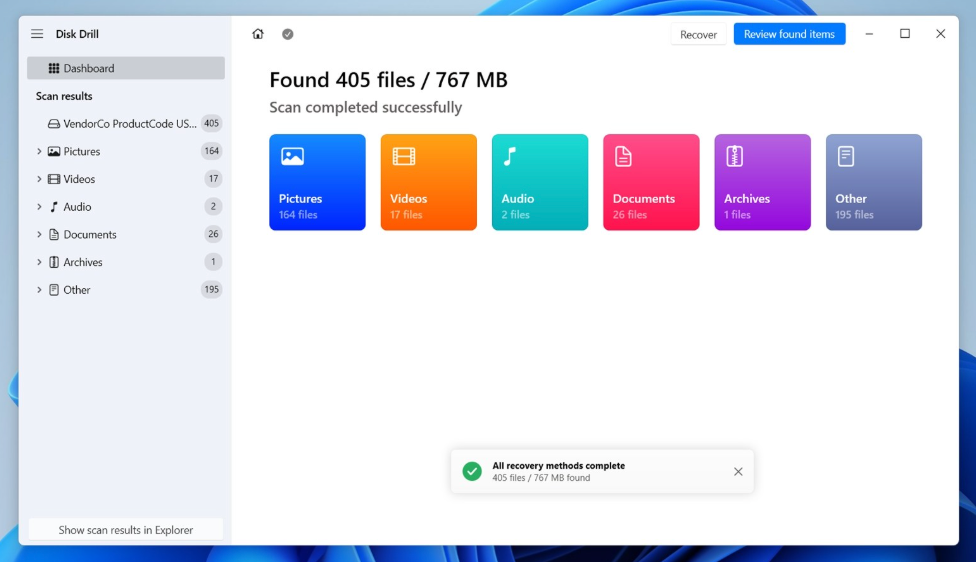
Disk Drill is a freemium data recovery program that has been around for over a decade now. It works on both Windows & macOS, and handles any common recovery case: deleted files, formatted drives, missing partitions, corrupted SD cards. File system support is broad (NTFS, FAT, exFAT, EXT, HFS+, APFS, and more), and the signature scanner recognizes hundreds of file types (around 400).
What sets it apart is how much the free version includes. You get full disk imaging (Byte-to-byte backup), S.M.A.R.T. monitoring, and an Advanced Camera Recovery mode for photos and videos from cameras. They’re available out of the box.
And if you're on Windows, the free version also lets you recover up to 100MB of data without paying anything. So if you only lost a few important files, there's a real chance you can get them back without spending a cent.
Pros
- Works on Windows and macOS (single license covers both)
- Recovers hundreds of file types (390+)
- Fast and reliable scans
- Real-time previews
- Includes disk imaging
- S.M.A.R.T. monitoring for drive health
- Advanced camera recovery mode
- Free recovery on Windows
Cons
- Mac version only allows file preview/scanning for free
MiniTool Power Data Recovery
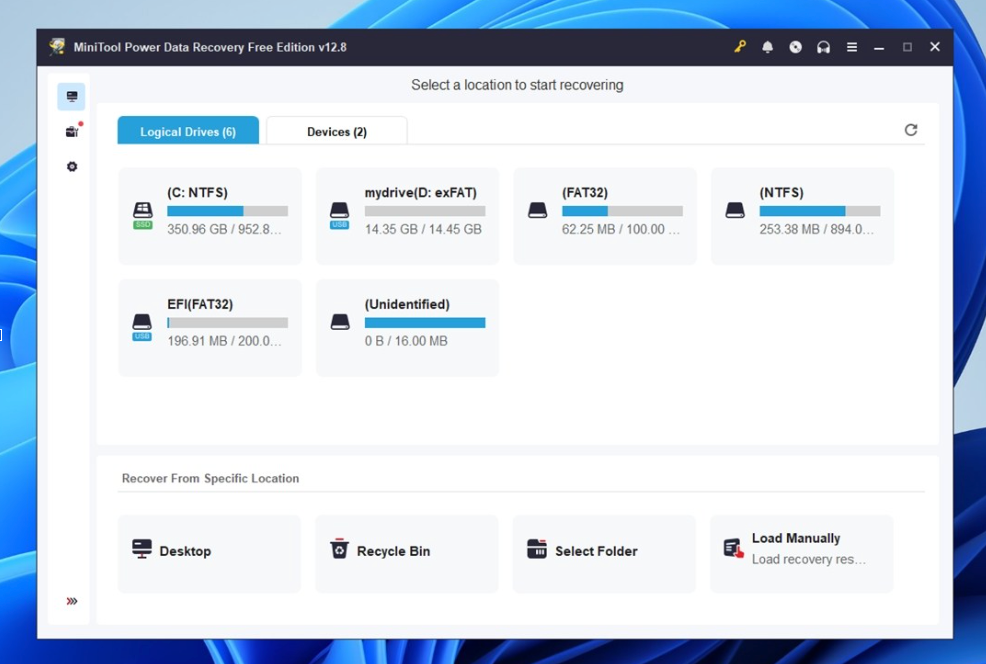
MiniTool Power Data Recovery is one of those recovery tools that doesn’t try to do everything. It sticks to the basics and does them well enough for most recovery jobs. If you’ve lost documents or photos from a USB stick or a regular Windows drive, MiniTool usually gets the job done without making you jump through hoops.
It runs both quick and deep scans automatically. It lets you target specific folders like the Recycle Bin or Desktop. Nothing fancy, but it’s intuitive and works.
Performance-wise, it's solid for simple things: accidental deletions, formatted drives, etc. Recovery success on NTFS is decent. You get back your files, and in many cases, they open fine. But the tool starts to struggle once you go off the beaten path. Recovery from RAW drives is far less reliable. And scan speeds slower than most other tools we’ve tested. Not painfully slow, but definitely noticeable.
Still, the free version gives you up to 1 GB of free data recovery. For a lot of people, that’s enough to save an important folder or a batch of photos. And it doesn’t nag you with bundled software or popups, which is more than you can say for some other apps out there.
Pros
- Easy to use, even for beginners
- Recovers common file types
- Free version includes 1 GB of recovery
- No bundled junk
- Offers bootable recovery (paid tier)
Cons
- Scan speed is on the slower side
- File preview isn’t always reliable
- Limited file system support (no APFS, EXT4, etc.)
- Struggles with RAW drives and more complex cases
- UI feels outdated compared to modern alternatives
4DDiG Data Recovery
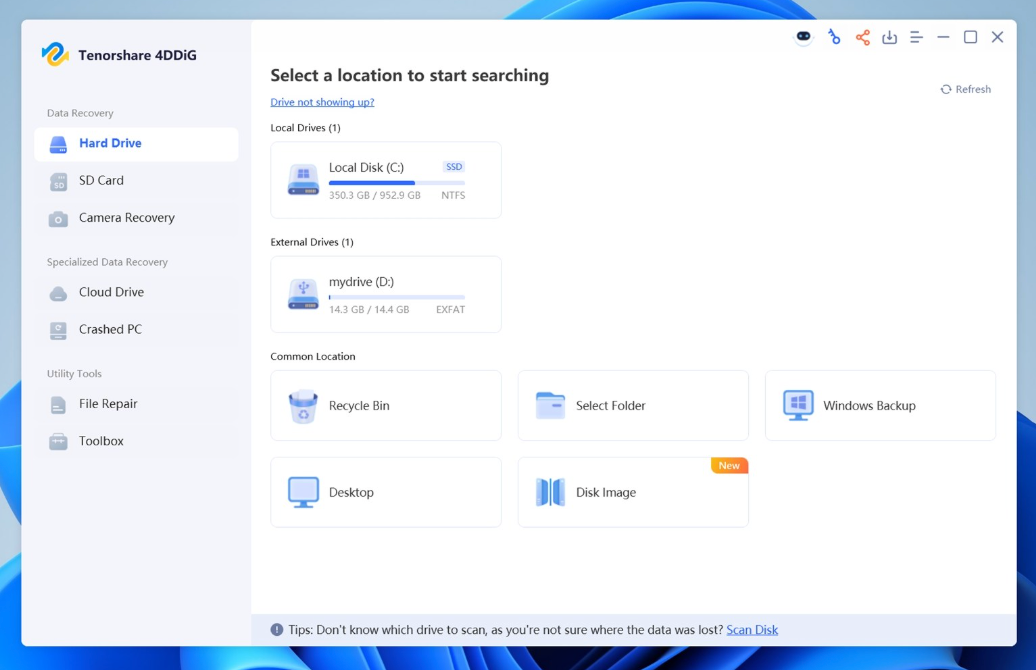
4DDiG, as the developer puts it, is easy-to-use free data recovery software - and that’s mostly true. The interface is clean, the workflow is dead simple, and it’s pretty good at handling everyday recovery jobs. It runs on both Windows and macOS, and the experience feels nearly identical across both platforms.
That ease of use is probably its biggest strength.
Scans are slower than some other tools, but results with basic formats (JPGs, DOCX, MP4s) usually fine. It even has a built-in photo and video repair feature, which came in handy more then once. We managed to bring back a few damaged images that other tools couldn’t preview.
Still, it’s not perfect. File previews are buggy; we ran into a lot of stuck “loading…” screens. Folder structure and filenames often go missing on formatted or RAW drives. And if you're working with tricky formats like CR3 or Fujifilm RAW, don't expect much. It supports the file systems most people use, but advanced features like disk imaging or drive health checks aren’t included at all.
The good news is that the free version gives you 500 MB of recovery, which is more than enough for a trial run.
Pros
- Simple, beginner-friendly interface
- Handles deleted file recovery well
- Works on both Windows and macOS
- Built-in photo and video repair
- Affordable lifetime license
Cons
- Slow scans on large or corrupted drives
- Preview often fails or lags
- File names and structure frequently missing
- No disk imaging or S.M.A.R.T. tools
- Free recovery capped
DiskDigger
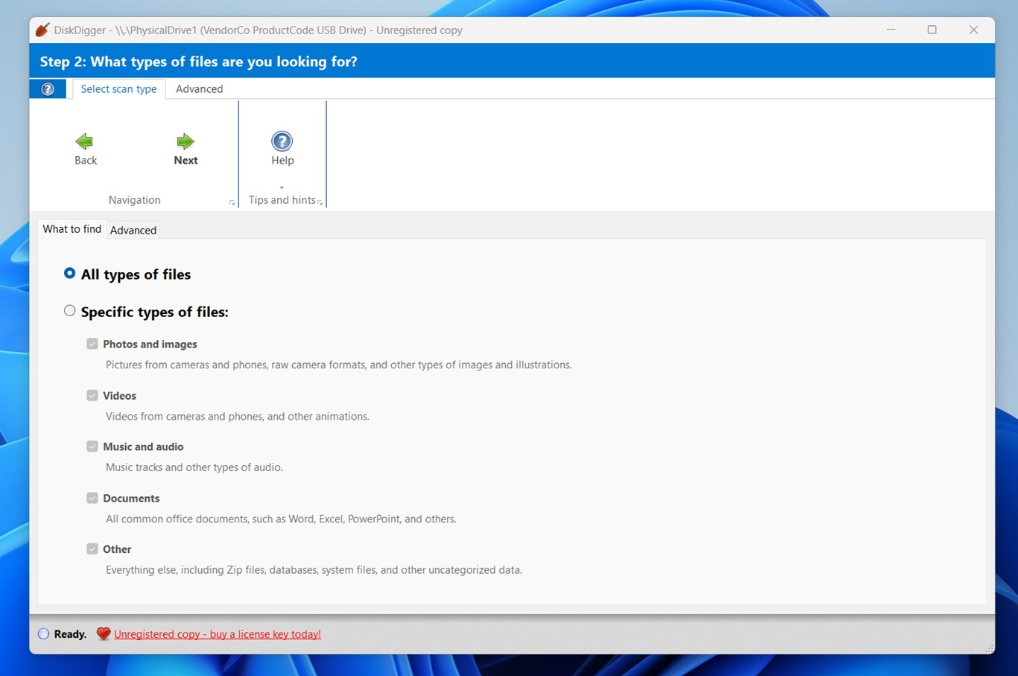
DiskDigger is a tiny Windows app that runs without installation, opens fast, and gets straight to the point. If you’re trying to undelete photos or documents from a USB stick or SD card, it’s the righ tool for the job (assuming things aren’t too messy).
The interface looks basic at best: plain menus, old-school fonts, no visual polish. But the workflow is clear enough: pick a drive, pick file types, hit scan. As files pop up, you can preview them, sort through formats like JPG, MP4, DOCX, ZIP, and when you’re ready, recover what you need.
And that’s one catch: the free version only scans and previews. To actually get files back, you’ll need to buy the Pro license. It’s cheap, though (around $15 for a lifetime). That’s easily one of the lowest prices out there.
In our tests, it worked fine for basic file types. DOCX and PDFs came back without much trouble. But once we tested it on formatted or RAW drives, results dropped fast. Video recovery wasn’t great, and it struggled with newer formats. If all you need is a one-time recovery for common file types, and you’re okay with an old-school interface, DiskDigger delivers fair value.
Pros
- Portable and lightweight (no install needed)
- Very affordable one-time license
- Supports a wide range of photo, video, and doc formats
- Works with standard storage (USB, SD, HDD)
- Handles virtual disk images
- Available on Android
Cons
- Can’t recover anything in free mode
- Outdated interface
- Struggles with formatted or damaged drives
- No advanced recovery features or drive tools
- File structure and names often missing
Best Free Unlimited Data Recovery Software
Now let’s get to the free data recovery software that doesn’t impose any real limits on what you can recover (or how much). No recovery caps here.
That said, like any tool, each has its own quirks and trade-offs.
Recuva
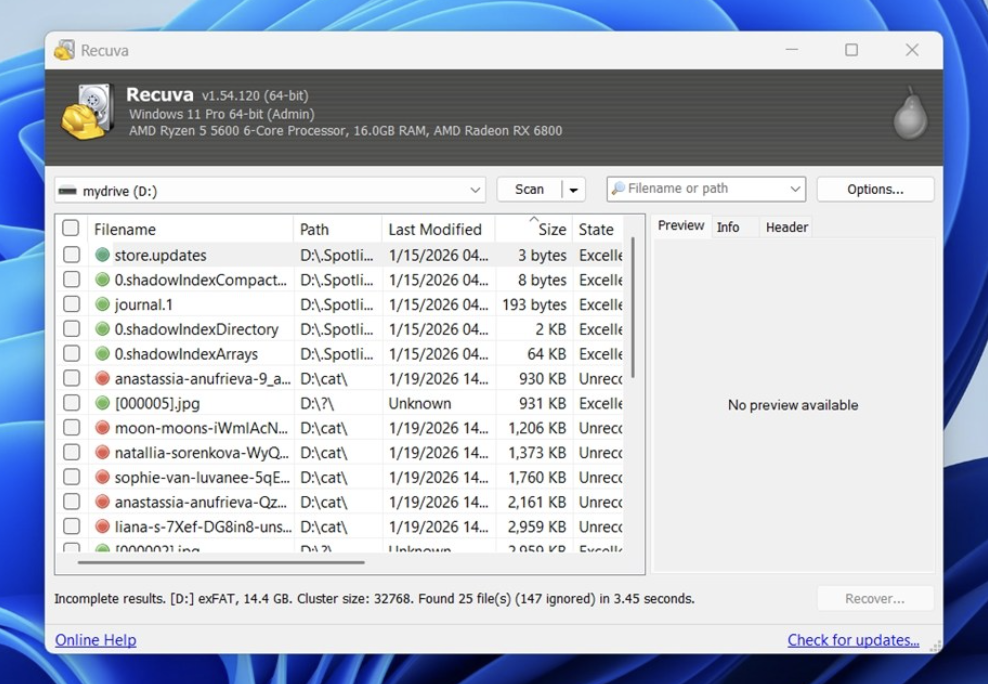
Recuva is a free data recovery software that many Windows users turn to for quick file recovery. There’s a paid premium version with an annual license, but it doesn’t really boost recovery performance in any noticeable way. The free version gives you full recovery access with no file size limits or caps.
In terms of power, don’t expect it to save a failing hard drive or recover fragmented GoPro footage; it’s not built for that. But if you accidentally deleted some documents, photos, or videos from a healthy drive, it’s a worthy little tool that gets the job done without costing you anything.
Recuva’s main downside is that it only works on Windows. It can, however, recover data from some types of Linux file systems if you mount the file systems on a Windows computer.
Pros
- Completely free with no recovery limits
- Lightweight and easy to use
- Good at undeleting files from healthy drives
- Supports common file types
- Quick scans on smaller media like USBs and SD cards
Cons
- Weak performance on corrupted drives
- Doesn’t handle fragmented files well
- No macOS or Linux support
- UI feels outdated
- Paid version adds little value for most users
Testdisk
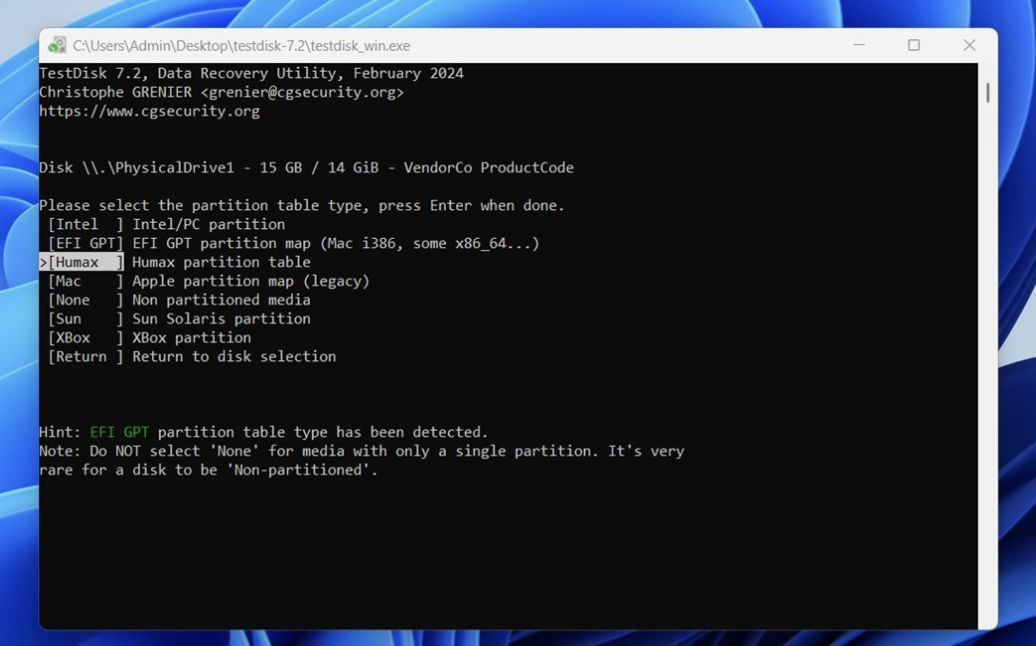
TestDisk is a free open-source data recovery software that many enthusiasts and tech-savvy users swear by, and for good reason. It’s one of the few tools that can recover lost partitions, repair corrupted boot sectors, and bring RAW drives back to life without costing you a cent. It’s lightweight, portable, cross-platform, and can run on everything from Windows to macOS to Linux.
But make no mistake: TestDisk isn’t built for beginners. There’s no graphical interface, no mouse support, no pop-up guidance. Everything happens in a terminal window, with arrow keys and text menus. If you’re not at least a little comfortable around partition structures, it’s easy to feel overwhelmed (or… accidentally overwrite something important).
That said, if your goal is to fix a broken partition or restore access to a drive that won’t mount, TestDisk is incredibly capable.
Pros
- Completely free and open-source
- Excellent for recovering lost partitions and fixing boot sectors
- Works on Windows, macOS, Linux, and more
- Supports a wide range of file systems (NTFS, FAT, exFAT, ext, HFS+, etc.)
- Portable
Cons
- No graphical interface (text-based only)
- Not beginner-friendly
- Not ideal for recovering individual files
- No file preview
- Easy to make mistakes if you don’t understand disk layout
PhotoRec
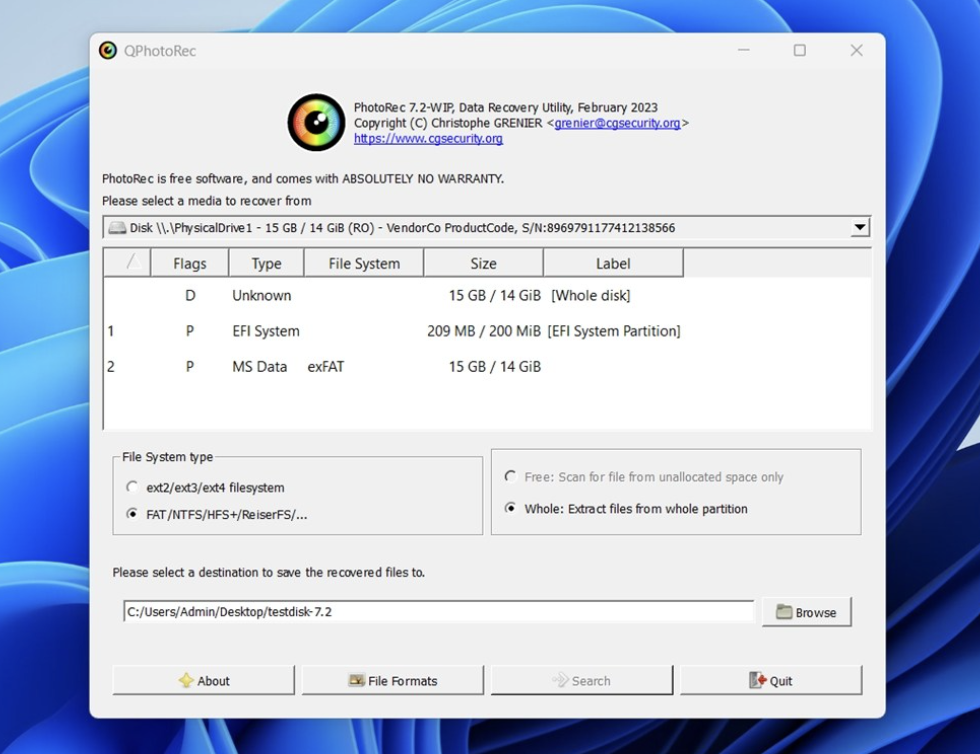
Photorec was originally designed to recover photos -- hence the name -- from a damaged file system. However, Photorec now supports recovery of many types of files. It comes bundled with TestDisk as a sort of sister tool, but the two serve very different purposes.
While TestDisk focuses on partitions and file systems, PhotoRec doesn’t care about file systems at all - it works purely on file signatures (scanning the raw data on a drive and carving out files based on known format patterns). That’s both its strength and its limitation: it can recover files even from completely unmountable or RAW drives, but it won’t bring back original filenames or folder structure.
It’s also not for the faint of heart. Like TestDisk, PhotoRec runs in a terminal window (although on Windows, there’s a basic GUI called QPhotoRec that makes things a bit easier). Still, if you’re okay with a few menus and don’t mind sorting files manually afterward, it’s one of the most effective free tools out there for deep, signature-based recovery.
You can configure Photorec to search for specific types of files. This makes it a particularly useful tool if, for example, you want to recover your music files from a damaged hard drive. In that case, you could tell Photorec to recover only mp3 files.
Pros
- 100% free and open-source
- Can recover files from RAW or severely damaged drives
- Supports hundreds of file types (photos, videos, documents, archives)
- Works on Windows, macOS, Linux, and more
Cons
- No original file names or folder structure
- Text-based interface (unless using QPhotoRec)
- No file preview before recovery
- Recovered files can be messy to sort through
- Not ideal for casual users
Windows File Recovery
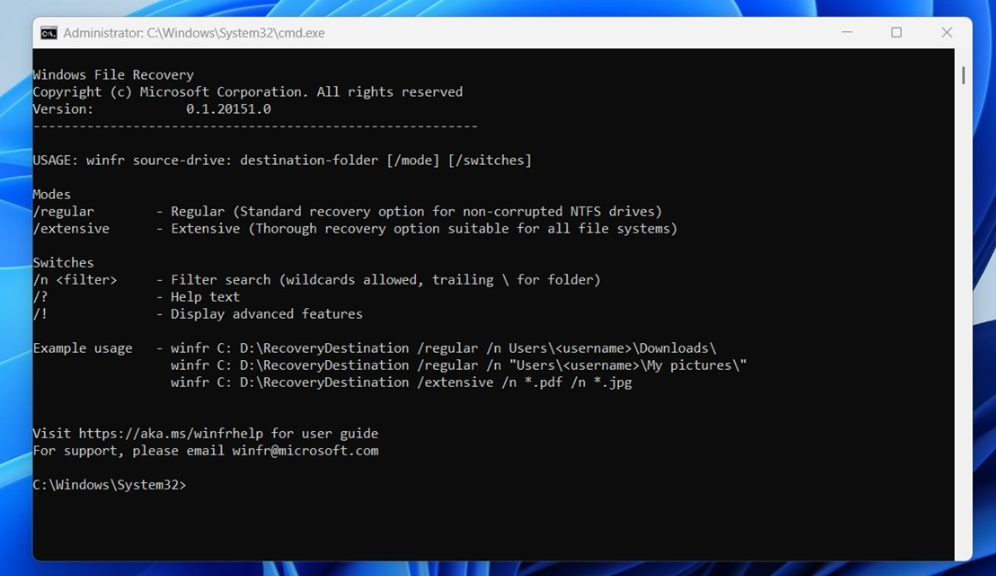
Windows File Recovery is Microsoft’s own free data recovery app, and it’s about as no-frills as you’d expect from a command-line utility. There’s no app window, no file preview, and definitely no drag-and-drop. But under the hood, it can pull back a decent amount of lost data; if you know how to use it.
You’ll find it right in the Microsoft Store. Once installed, it runs entirely in the Command Prompt. It supports multiple recovery modes depending on the file system and scenario. You can aim it at specific file types, scan USB drives or SD cards, and switch between quick or deep recovery. It takes a bit of learning, but once you get the syntax down, you’ve got it.
Results, though, are hit or miss. In our tests, it was able to recover some recently deleted text files, but it struggled with JPGs and often lost filenames. It’s not something we’d reach for first, but it’s there, it’s free, and anyone with a Windows machine can give it a shot - for a totally free recovery utility, it’s worth trying, especially if you don’t have another tool ready.
Pros
- 100% free, no upgrade prompts
- Backed by Microsoft
- Supports targeted recovery (file type, drive, mode)
- Can recover from external drives and SD cards
- Flexible command-line options for power users
Cons
- No graphical interface
- Steep learning curve for beginners
- No preview, no folder structure, and often no filenames
- Hit-or-miss results
And while Windows has a few built-in safety nets of its own, dedicated Windows backup software gives you scheduled image-based copies and offsite storage — so you don't have to rely on command-line recovery in the first place.
Ddrescue
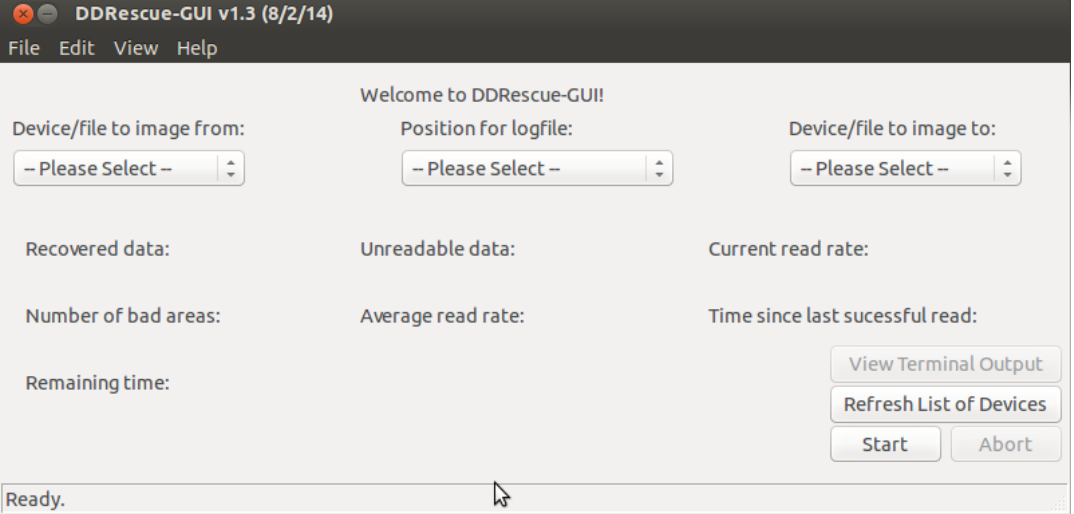
Ddrescue is a free open source data recovery software designed to help save data from a disk that is failing, or where the data is significantly corrupted.
Ddrescue works using the same principles as dd, a command-line tool for Linux and other Unix-like operating systems that copies data sector-by-sector from one disk to another (or to a disk image). Because dd and Ddrescue work at the level of the physical disk, rather than the file system, they can copy data even if the file system has been damaged or deleted.
Whereas dd will report errors and stop working in the event that it can’t read some disk sectors due to problems with the disk, Ddrescue will attempt to work through such errors automatically. It is designed to provide as complete a copy of a disk as possible.
Ddrescue’s main downsides are that it can take a very long time to run -- weeks, in some cases -- if it needs to handle many errors. In addition, the data that Ddrescue recovers is likely to contain problems because Ddrescue can’t fix bad or missing data; it simply copies good data from a data source that is partially corrupted and therefore difficult to access in other ways. Fully restoring the data that Ddrescue recovers may require the use of additional tools, such as testdisk, which could help to fix partition tables that have been damaged due to data loss.
Ddrescue can only run from a Linux-based operating system, but it can work with Windows and macOS file systems that are mounted on Linux. If you don’t have a Linux system available, you can run Ddrescue on your Windows or Mac computer using a Linux “live” CD, such as SystemRescueCD. Keep in mind, however, that it is a command-line tool.
If you're running Linux machines or servers, setting up Linux backup software in advance is a far better plan than spending days with ddrescue after a failure.
Side-by-Side Comparison of Free Data Recovery Tools
Here are all the tools we covered above, laid out side by side to help you quickly compare their capabilities and limits:
| Tool | OS | File system support | Free recovery limit | UI | Previews | Disk imaging feature |
| Disk Drill | Windows, macOS | NTFS, FAT/FAT32, exFAT, APFS, HFS+, EXT, and more | Windows up to 100MB recovery; macOS scan + preview only | Modern UI | Yes | Yes (byte-to-byte) |
| MiniTool Power Data Recovery | Windows | NTFS, FAT/FAT32, exFAT (limited beyond that) | Up to 1GB recovery | Wizard-style, older look | Yes (sometimes flaky) | No |
| 4DDiG Data Recovery | Windows, macOS | NTFS, FAT/FAT32, exFAT, APFS (basic) | 500MB recovery | Modern, wizard-like | Yes | No |
| DiskDigger | Windows | NTFS, FAT/FAT32, exFAT (basic) | Scan + preview only (recovery is paid) | Minimal, old-school | Yes | Yes (works with images/virtual disks) |
| Recuva | Windows | NTFS, FAT/FAT32, exFAT (and others via mounted volumes) | Unlimited | Simple wizard, dated | Limited/basic | No |
| TestDisk | Windows, macOS, Linux | NTFS, FAT, exFAT, ext, HFS+ (and more) | Unlimited | CLI | No | No |
| PhotoRec | Windows, macOS, Linux | File-system independent (signature carving) | Unlimited | CLI (basic GUI available on Windows) | No | No |
| Windows File Recovery | Windows | NTFS (best), also FAT/exFAT/ReFS depending on mode | Unlimited | CLI | No | No |
| ddrescue | Linux (live USB works) | File-system independent (sector-level copy) | Unlimited | CLI | No | Yes (sector-by-sector image) |
Planned Data Recovery
Again, the best way to recover data is to avoid having to use any of the free data recovery tools described above. Instead, you should have a disaster recovery plan in place before your data is lost. You can then perform a planned data recovery from your data backup in the event that data is lost.
The right setup depends on what you're protecting. For a personal computer, free backup software with scheduled file and image backups is usually enough. For business machines, you'll want offsite copies, encryption, and immutability. And if you manage many endpoints across clients or locations, MSP backup software lets you control everything from one console.
[readmore] Best Microsoft 365 Backup Solutions
[readmore] Best Google Workspace Backup Solutions