

Automation should make your life easier. But for many MSPs, it's done the opposite. The real challenge isn’t whether to automate, but what to automate and what should stay firmly under human control. Watch our webinar to find the right balance.
Featured post
Change layout
S3 tagging in MSP360 Explorer 5.0
Amazon has recently introduced S3 Object Tagging. With S3 Object Tagging, you can manage and control access for Amazon S3 objects. S3 Object Tags are key-value pairs applied to S3 objects which can be created, updated or deleted at any time during the lifetime of the object. With these, you’ll have the ability to create Identity and Access Management (IAM) policies, setup S3 Lifecycle policies, and customize storage metrics. These object-level tags can then manage transitions between storage classes and expire objects in the background. The latest version of MSP360 Backup supports S3 tagging out of the box.
Continue reading
“Favorites” Feature in MSP360 Explorer for Amazon S3
This article explains how to use a feature of MSP360 Explorer for Amazon S3 that makes it easier to work with the folders and buckets you use on a regular basis. The feature is called Favorites and it reminds the Favorites feature in the web browsers. You can select a certain bucket (with the path) and a certain folder to create a Favorites entry and then quickly navigate to it when needed. This is especially useful when you have many accounts with many buckets.
MSP360 Explorer Supports Amazon S3 Large Objects
We are excited about Amazon S3 team removing the restriction for the object size. No longer you are limited to the 5GB objects and you don't have to break down larger files into smaller parts to be able to upload and store them. Continue reading
Introducing All-In-One MSP360 Explorer
As you know, MSP360 Explorer used to be offered in 2 editions: Free and Pro. Well, no longer! We’ve now incorporated the functionality of both versions into a single build for your convenience. The latest version of MSP360 Explorer offers full-fledged support for all license tiers: freeware, trial Pro, and Pro. Continue reading
Support “Multi-Object Delete” Feature in MSP360 Explorer for Amazon S3
This article explains how to use the "Multi-Object Delete" feature of Amazon S3 in MSP360 Explorer. Continue reading
MSP360 Explorer 5.0: Glacier Retrieval Options
MSP360 Explorer 5.0 is out. The chief addition in the latest version of our cloud file manager is the ability to select the preferable Glacier retrieval option.
Continue reading
Search Across Your Amazon S3 Buckets with MSP360 Explorer Pro
In MSP360 we are always thinking about how to bring more value to our users. Since we use Amazon S3 heavily ourselves it is easy sometimes to identify things that will make MSP360 Explorer for Amazon S3 a better tool and the ability to Search for specific files is one of them.
How Search works
Nothing can be simpler: just click Ctrl+F on your keyboard or the lens icon next to the path bar:

Then type a text into the search text box and click enter. You will get the results that match your pattern:

You can also use wildcard characters such as (*):
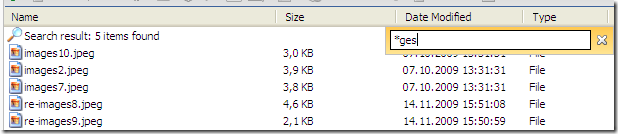
Or slightly more complex:

We don’t search across the contents of your files. We can only search across key names (file names). Please also note that Search is only available in our PRO edition.
Note: this post applies to MSP360 Explorer 1.7PRO and later.
Support for Amazon S3 Multipart Upload in MSP360 Explorer
MSP360 Explorer for Amazon S3 supports the Multipart Upload feature of Amazon S3 that allows you to break large files into smaller parts (chunks) and upload them in any sequence.
Continue reading
Direct Upload to Amazon S3 Glacier Deep Archive with MSP360 Explorer
In this post, we explain how to move your backup data from one storage class to another on Amazon S3. There are several different methods for achieving this goal, and we walk through each one below.
Continue reading
Using AWS GovCloud with MSP360 Explorer
As always we are trying to stay on top of the new functionality offered by Amazon S3 to offer the most compelling Amazon S3 and client on Windows platform. Learn how to connect your MSP360 Explorer for Amazon S3 to AWS GovCloud region.
How to Send Diagnostic Info with MSP360 Explorer
Sometimes while using any software it takes a lot of time to understand what the issue is and what caused it. This is where the diagnostic log helps dramatically. In the new version of MSP360 Explorer, we made it even easier to send us the diagnostic information.
Load more