Why You Sometimes Cannot See Your Files When Restoring
It is sometimes necessary to employ another computer to restore your data from the same cloud storage. Naturally, the computer you're trying to restore your files on must be properly set up. Elsewise, you might face a situation in which some of your files are invisible. There are 2 ways to ensure that all files are displayed: specify the correct prefix and sync repository.
[content]
Specifying the Right Prefix
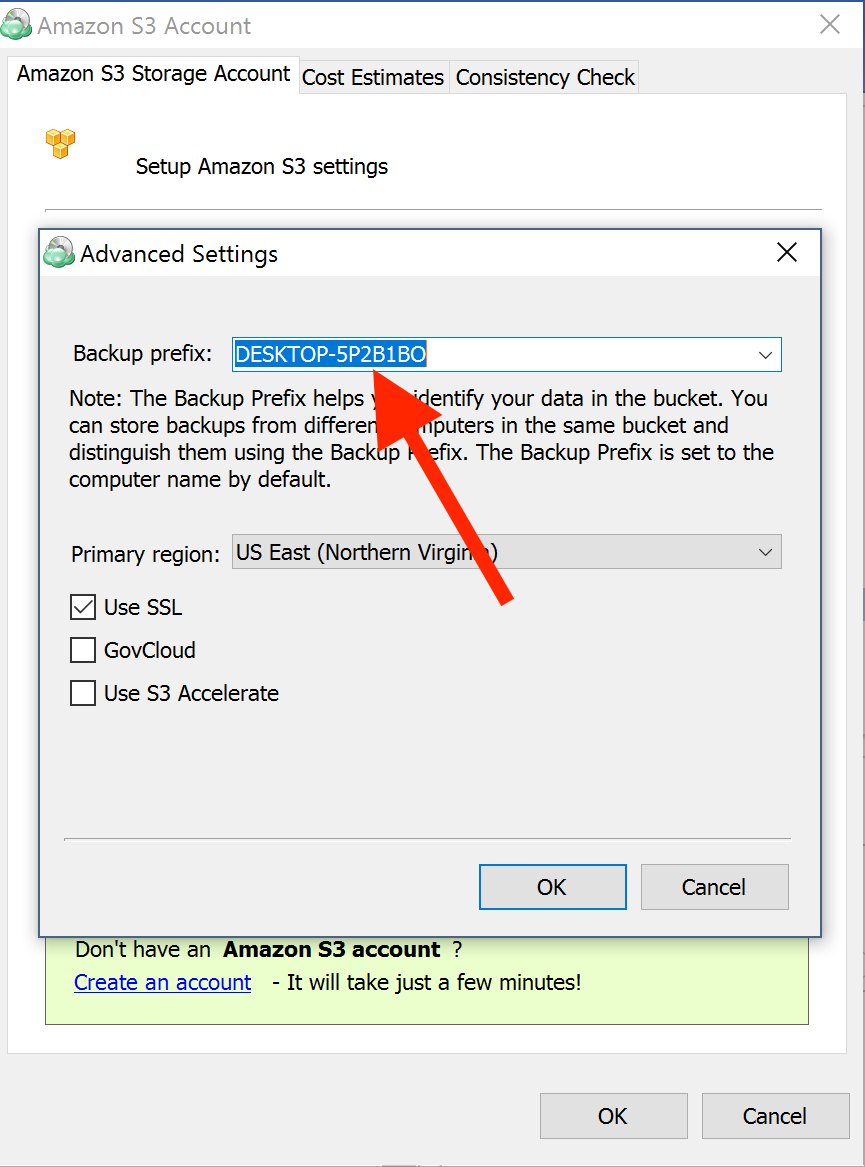
In order to restore files that were backed up from another machine, you have to ensure that the prefix on the machine you're restoring your files on matches that of the previously mentioned.
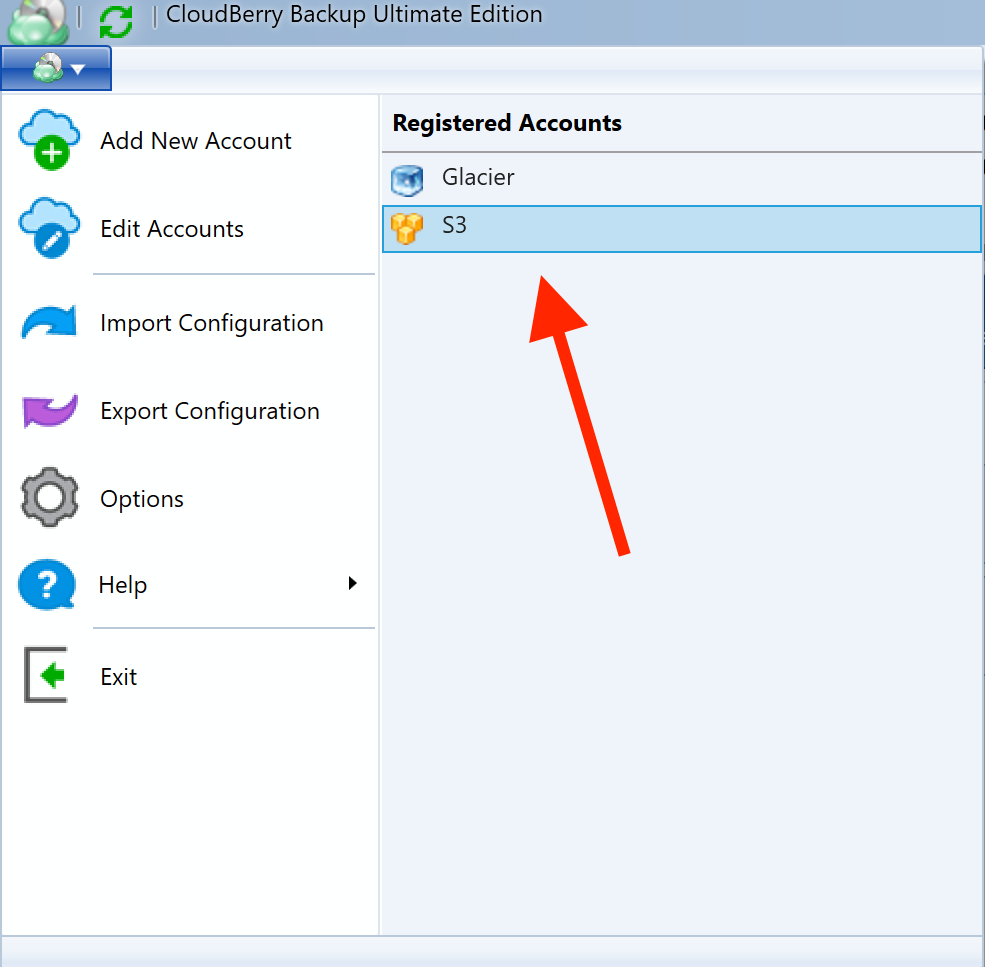
To change the prefix, go to your cloud storage settings.
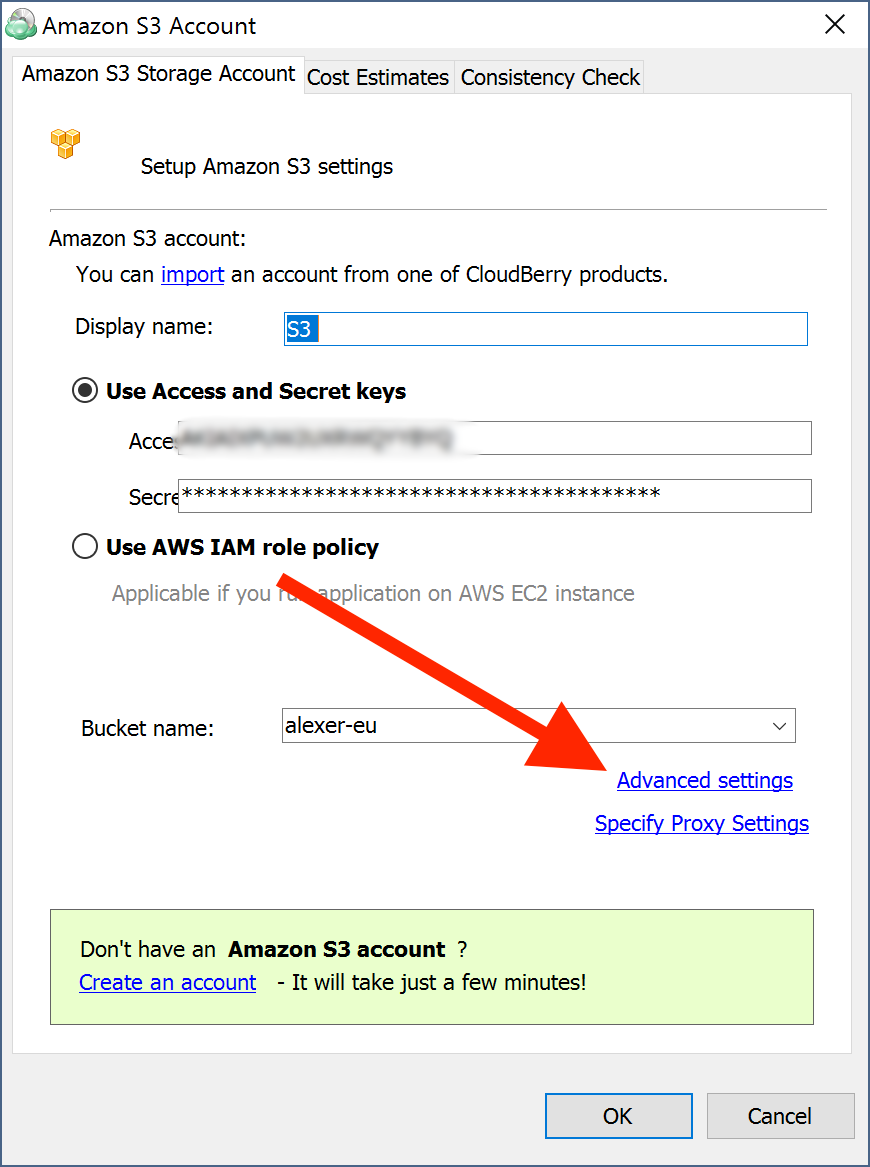
Click Advanced Settings.
Now enter the requisite prefix.
Sync Repository
Importantly, the process is somewhat different when it comes to Amazon Glacier. This post will hence touch upon both cases: Glacier and others.
Glacier
It’s critical to understand how Amazon Glacier functions so that you don’t get confused by some of its peculiarities. Since Glacier implies not having instant access to your files, it may take some time to even get the list of your files (i.e. Sync Repository). That process takes roughly 3-5 hours to complete. Therefore, if you don't see your files, it is likely that they haven't been synced yet.
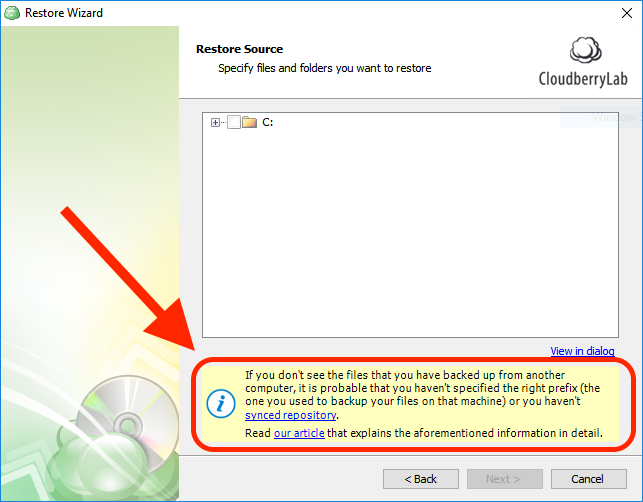
Notice the yellow warning at the bottom of the window. It prompts you to sync repository. Click synced repository.
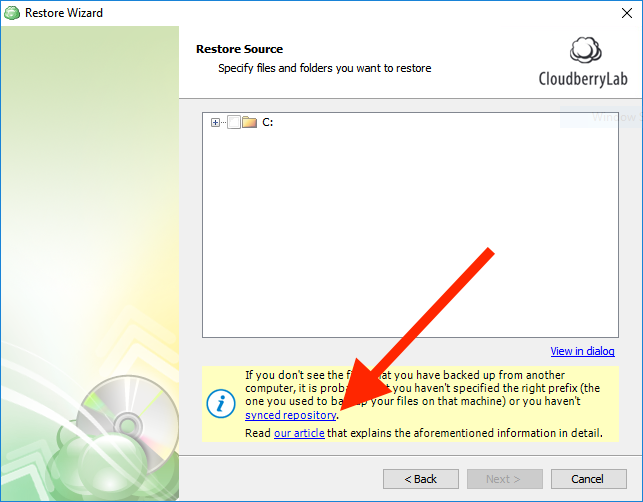
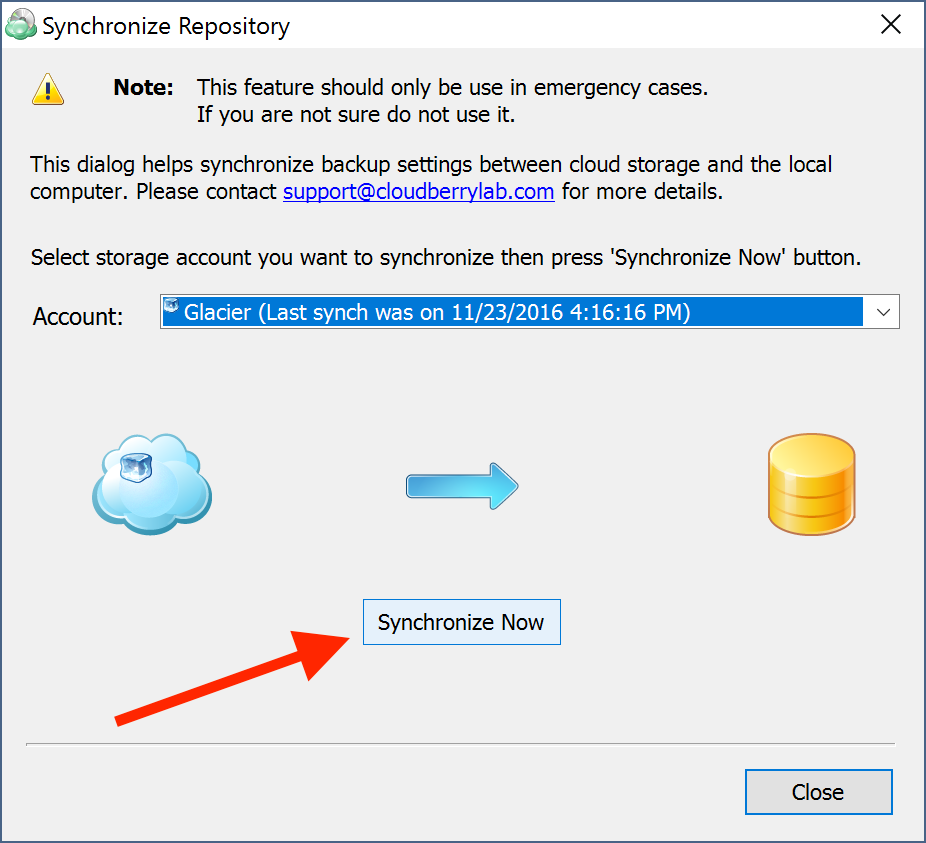
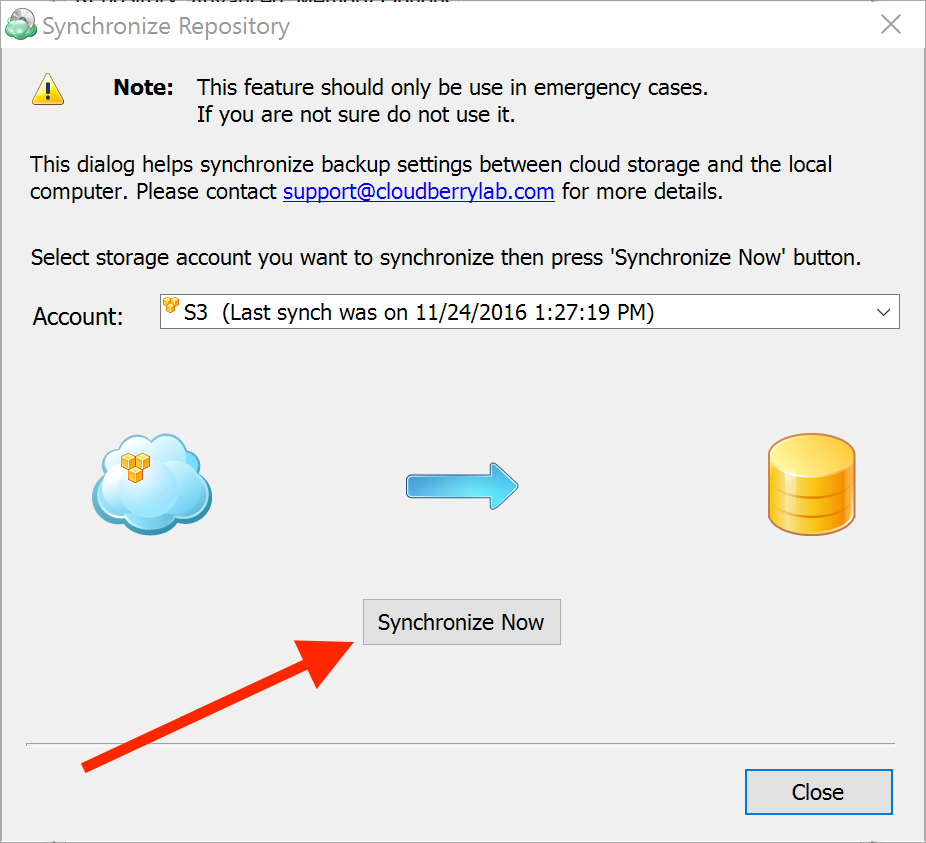
Now click Synchronize Now.
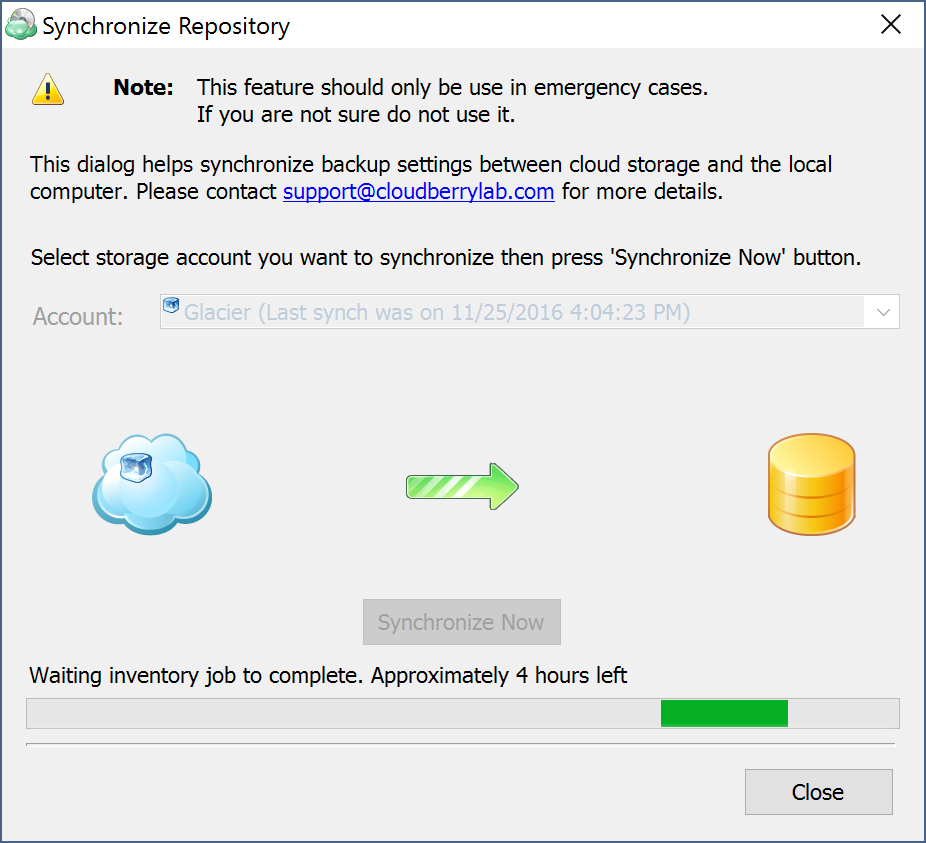
This may take a while!
Once done, you may commence restoring your files from Amazon Glacier.
Others
Other cloud storages do not require such hustles and are therefore easier to work with when it comes to repository sync.
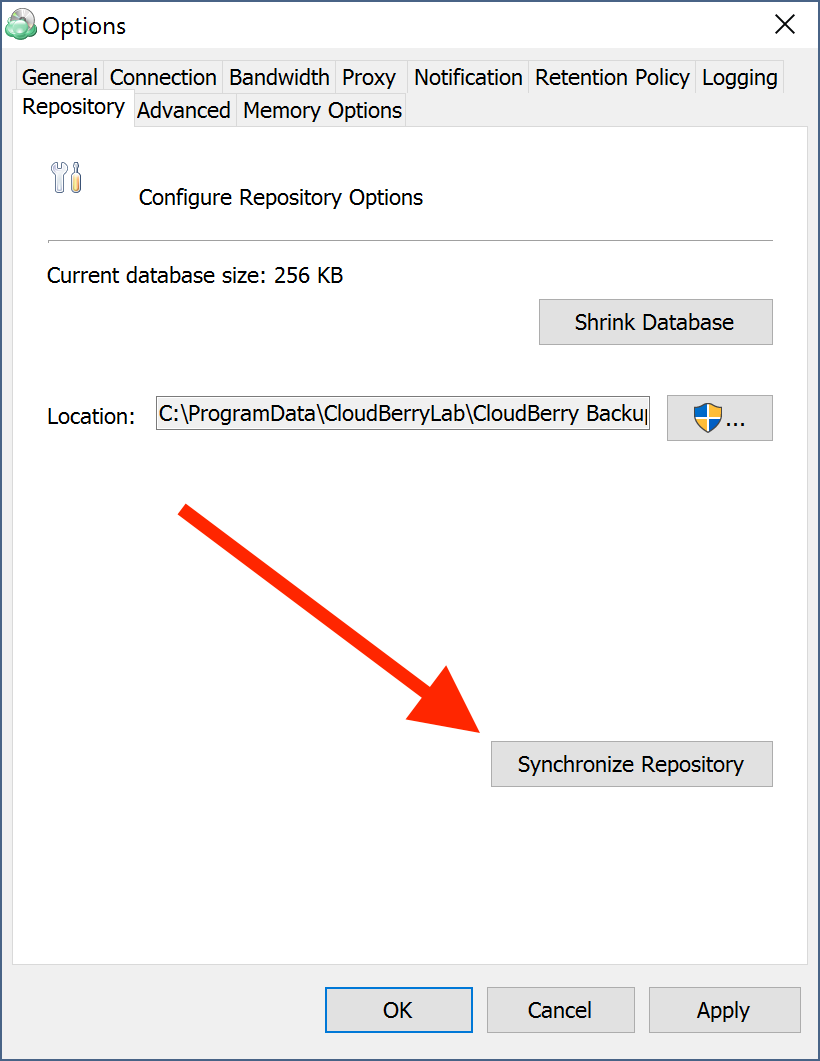
Open Options.
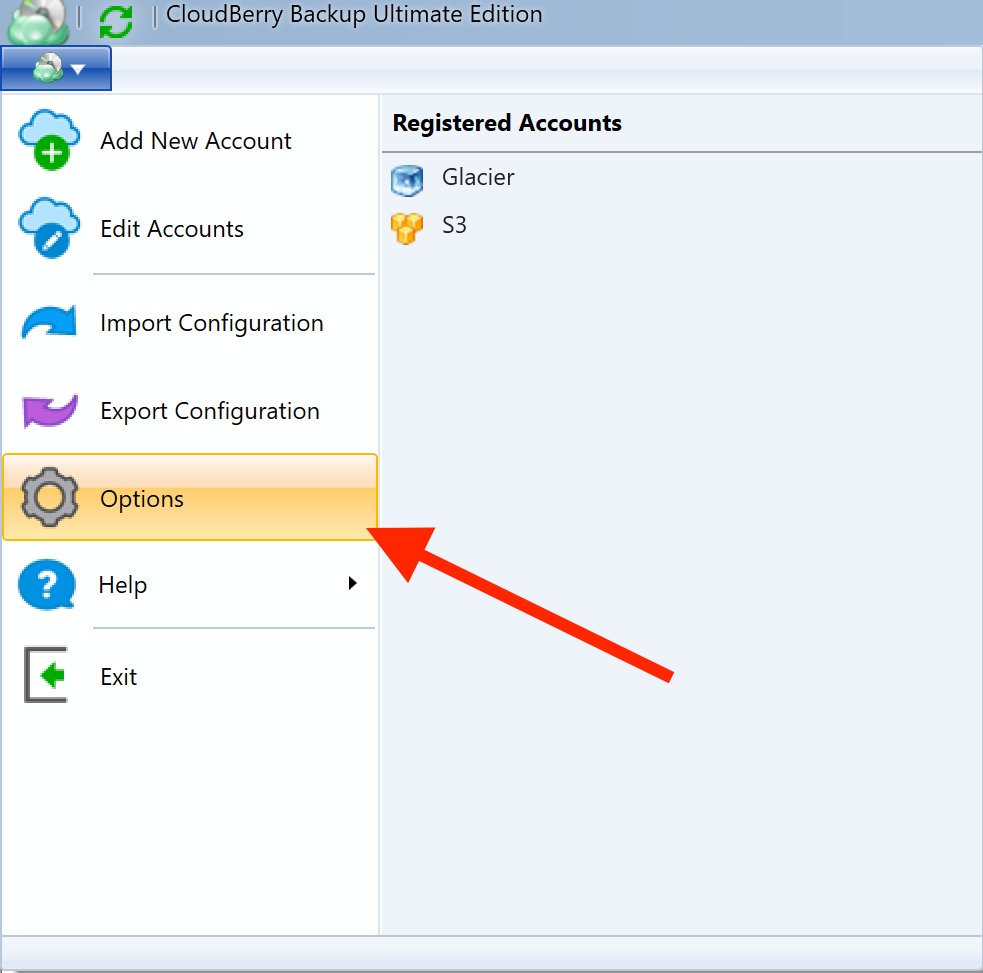
Under Repository, click Synchronize Repository.
Select the requisite cloud storage. Click Synchronize Now.
That's it. If you've done everything correctly, your files should be displayed when trying to restore them.