Time Machine for Local Backup, MSP360 Backup for the Cloud
Time Machine is handy when you’ve deleted a file by mistake or need an earlier version of a document. It comes with macOS and can also help you move your data to another Mac. What it doesn’t do is back up your files to the cloud.
MSP360 Backup Pro for macOS backs up selected files and folders to local or cloud storage on a schedule you choose. You also decide how long to retain those backups. You can use it as your only file backup tool, or add Time Machine to give yourself another way to recover data.
With both tools, MSP360 Backup stores a copy of your files in the cloud, while Time Machine keeps a separate local backup. Each works directly with the files on your Mac, so you can restore from either backup.
Time Machine and MSP360 Backup Compared
Both tools can run automatic backups, but they differ in where they store them, what you can configure, and how you recover your files.
| Capability | MSP360 Backup | Time Machine |
|---|---|---|
| Scheduled backups | Yes. Flexible | Yes. With limited scheduling options |
| Retention policies | Configurable | Automatic; no custom retention policies |
| Backup to local storage | Yes | Yes |
| Backup to cloud storage | Yes | No |
| Restore previous file versions | Yes. With configurable retention | Yes. Within the available backup history |
| Browse backup history | Through MSP360 restore tools | Through the Time Machine interface |
| Recover data after replacing a Mac | Restore backed-up files and folders | Transfer data using Migration Assistant and a Time Machine backup |
| Client-side backup encryption | Yes | Yes |
| Backup to compatible NAS storage | Yes | Yes |
| Cloud archive storage tiers | Yes. Depending on provider | Not applicable |
| Cloud storage costs | Paid separately to the provider | Not applicable |
One important difference is the scope of recovery. Time Machine can help transfer applications, user accounts, settings, and files to another Mac through Migration Assistant. MSP360 Backup for macOS focuses on restoring the files and folders included in your backup plans. A cloud backup protects those files off-site, but it does not replace Time Machine's Mac migration capabilities.
For instructions on configuring MSP360 Backup, read how to back up files and see our guide to creating your backup.
For details about Time Machine, see Apple’s guide to backing up your Mac.
Using Time Machine and MSP360 Backup Together
1. Back Up to the Cloud with MSP360 Backup
If your Mac and external backup drive are stolen, lost, or damaged together, your local backup may be gone too. MSP360 Backup lets you keep another copy of your files in cloud storage, separate from both devices. It also allows scheduled cloud backups when you're away from your Time Machine drive, as long as your Mac has an internet connection.
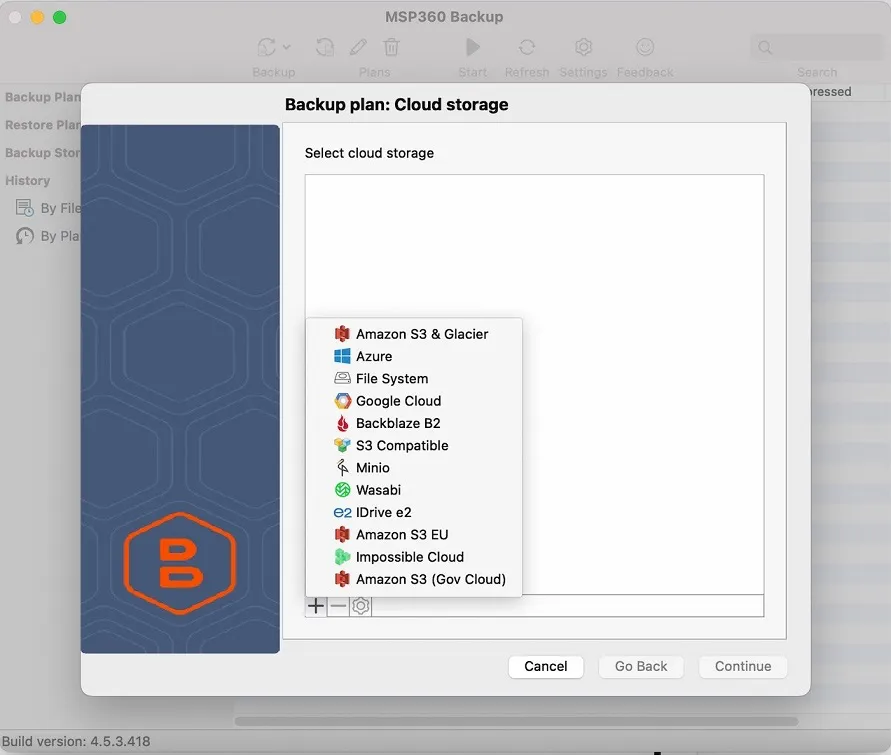
For cloud backups, the options include Amazon S3, Microsoft Azure, Google Cloud, Backblaze B2, Wasabi, and S3-compatible storage. You’ll need your own account with the provider: cloud storage is paid for separately and isn’t included with MSP360 Backup. Before you choose, compare storage prices and check whether you’ll pay to retrieve your data. MSP360 has a local storage option too. If you want copies in several destinations, set up a backup plan for each one.
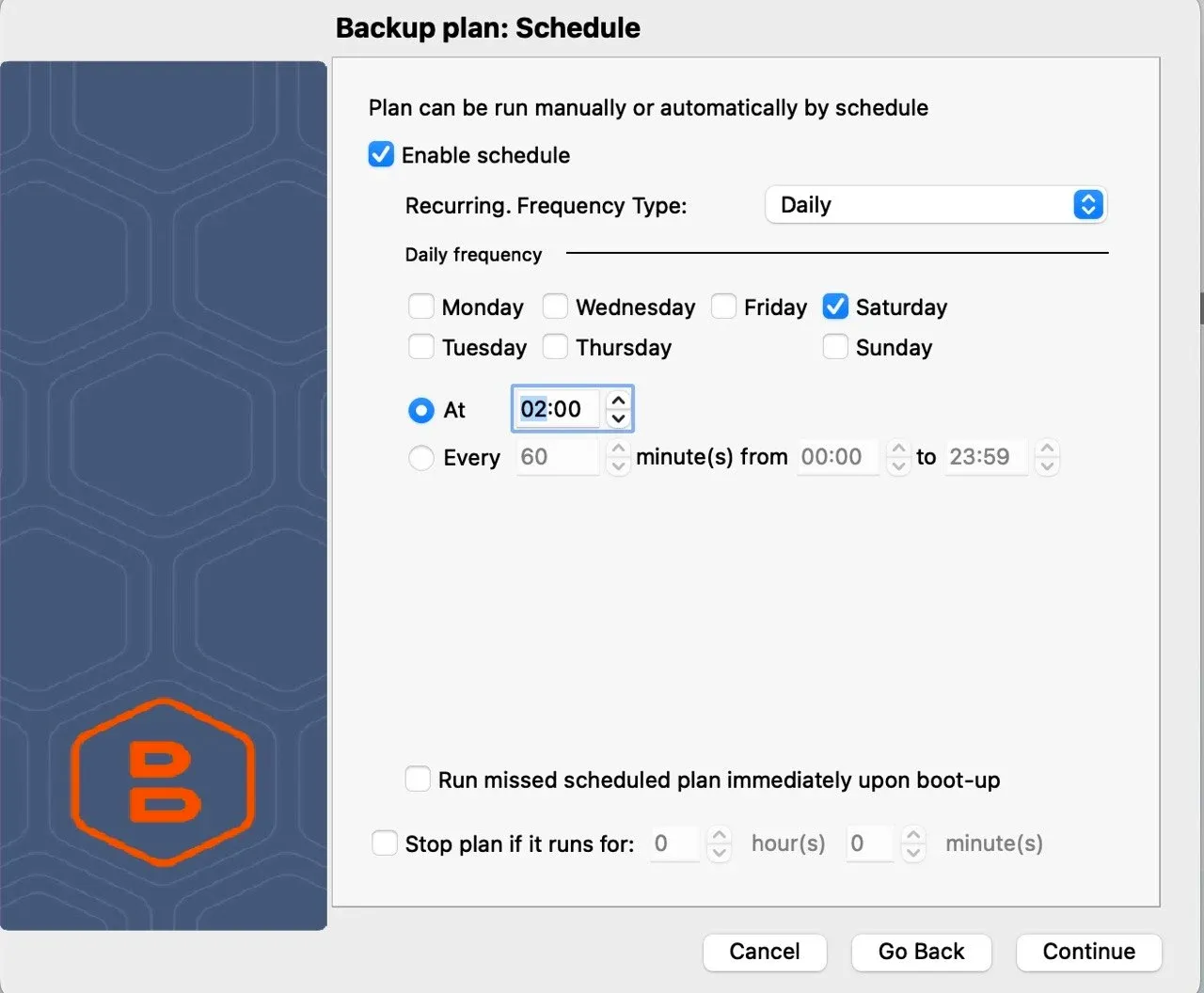
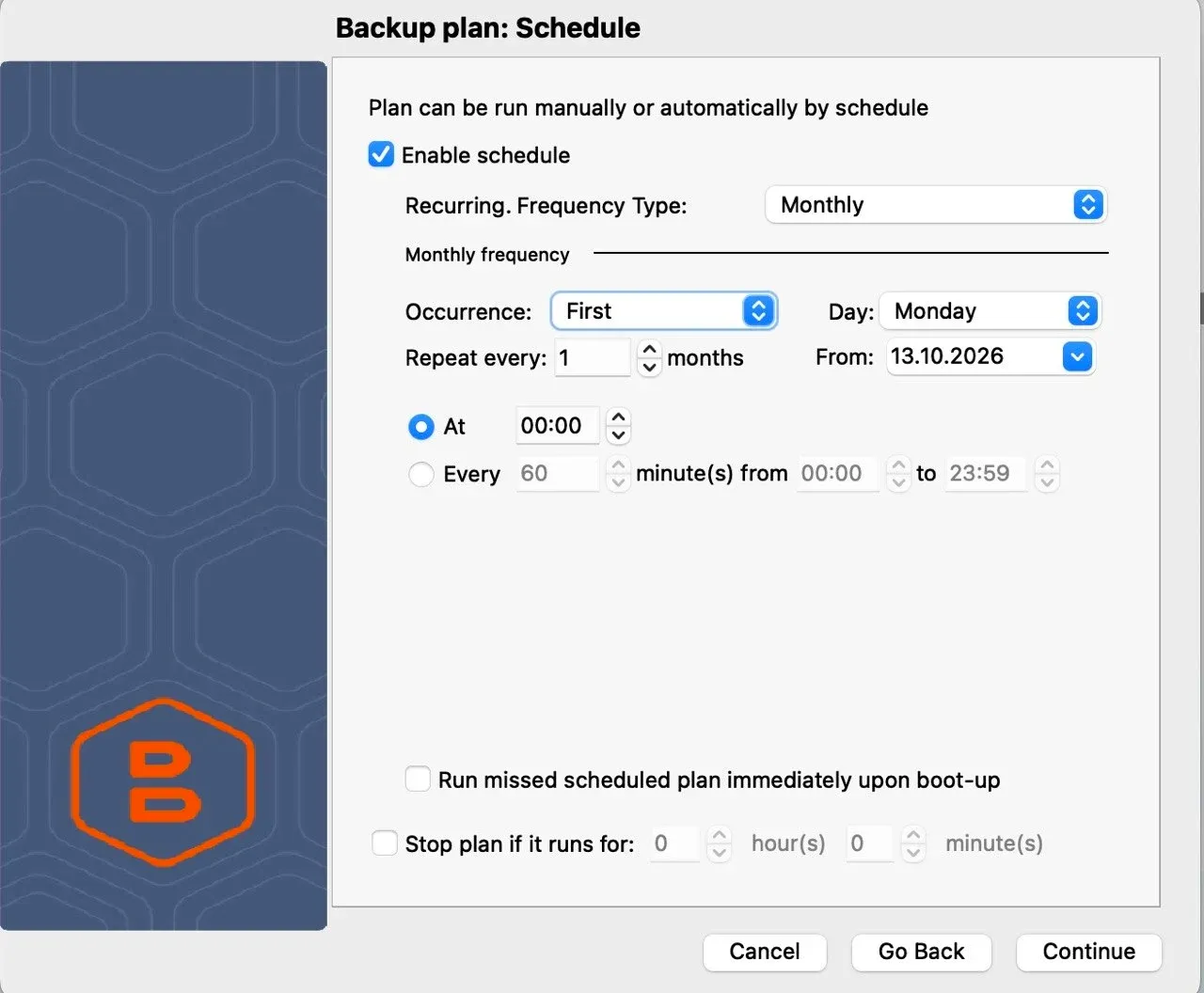
Then choose when your backups should run. You might run backups every Saturday at 2 a.m., choose several weekdays, or repeat them at set intervals within a particular time window. Monthly schedules are available too – for example, the first Monday of each month. You can also have a missed scheduled backup run when the Mac next starts.
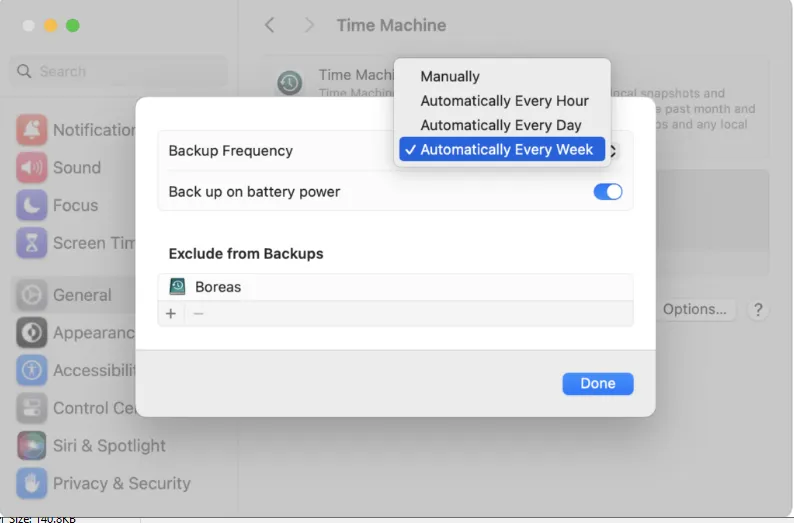
Time Machine offers hourly, daily, or weekly automatic backups, plus a manual option. With MSP360 Backup, you can adjust the timing more precisely to fit backups around working hours or other tasks.
MSP360 Backup also gives you more control over retention. You can set a retention period for each plan or keep backups without automatic deletion. Time Machine manages retention automatically, deleting older backup history as space is needed. If you need to recover a file version from several months ago, a defined retention policy can help you keep that history available. Keep in mind that longer retention also means more storage usage and potentially higher cloud costs.
For each backup plan:
- Select the files and folders to include.
- Match the backup frequency to how often those files change.
- Review the exclusions for anything you still need backed up.
- Choose how long to retain older file versions.
- Turn on encryption for sensitive files and keep your encryption password in a safe place. MSP360 cannot recover a forgotten encryption password.
- Check backup results and resolve any failures.
- Restore a few files periodically to check that the backups work.
A backup can run on time and still miss files that weren’t included in the plan. Check what it covers as well as whether it finishes successfully.
2. Use Time Machine for a Local Copy
For this setup, set aside an external drive just for Time Machine. Time Machine also supports compatible network storage, but a directly connected drive is a straightforward option for local recovery. You can browse the dates in your backup history to recover a deleted file or find an older version of a document.
Restoring from the local drive saves you the wait for a cloud download. When it’s time to move to another Mac, you can also use the backup to transfer personal data, applications, and settings through Migration Assistant.
Follow Apple’s instructions to back up your Mac with Time Machine.
3. Keep the Two Backups Independent
Give each backup its own destination:
- MSP360 Backup to keep a copy of your files in cloud storage
- Time Machine to maintain a separate local copy on an external drive.
Both tools should back up your Mac’s files independently. In your MSP360 Backup plan, select the original files and folders on your Mac. Do not use the Time Machine backup as the source.
If your Time Machine drive fails, restore your files from the MSP360 cloud backup. If it’s your internet connection that’s down, you can recover from the local Time Machine copy.
Between backups, you can unplug the Time Machine drive and put it somewhere safe. Leaving it disconnected reduces its exposure to problems on your Mac; just remember to reconnect it regularly so the backup doesn’t fall behind.
4. Check That You Can Restore Your Files
Try restoring files before you need to recover something important. Repeat these checks periodically:
- Restore a recent file and an older version using MSP360 Backup.
- Restore a deleted file or go back to an earlier version with Time Machine.
- Try accessing your cloud storage, and make sure you have the credentials or encryption keys you’ll need to restore your files.
Then open the files you’ve restored. Check that you recovered the versions you wanted and that the contents are intact.
If you're setting up a replacement Mac, use Migration Assistant to transfer data from your Time Machine backup. If you need to reinstall macOS on your existing Mac, complete the installation before restoring your data.
See Restore your Mac from a backup.
Is Time Machine Still Worth Using?
Yes, especially if you want an easy way to recover older file versions or transfer your applications, settings, and files to another Mac.
MSP360 Backup can protect your important files independently, including copies stored in the cloud. Time Machine adds a convenient local recovery option and supports Mac migration through Migration Assistant.
You don't need both tools for every situation. But if you want a local backup for quick recovery and a separate off-site copy in case your Mac and backup drive are lost, using Time Machine and MSP360 Backup together makes sense.