
Read on for guidance on how to back up SharePoint sites, including both SharePoint Online and on-prem. Below, we explore multiple SharePoint backup options, including built-in data protection features as well as third-party tools. We also explain best practices for implementing reliable and scalable SharePoint backup – such as using cloud-to-cloud backup automation to move data quickly and efficiently while also minimizing backup costs.
Table of Contents
As a content management and collaboration hub, Microsoft SharePoint is a critical pillar for millions of businesses. Unfortunately, it’s also one that can fail: Although Microsoft manages SharePoint infrastructure on behalf of its customers, various scenarios can arise in which SharePoint data disappears. Not only could the platform itself go offline temporarily, but users could also accidentally delete data.
Hence the need for SharePoint backup. By investing in tools and processes that back up SharePoint data and make it available for restoration, businesses can help ensure that the content they need to operate doesn’t disappear unexpectedly.
Looking for the best SharePoint backup solution?

Why SharePoint Backup Matters More than Ever
Let’s start by discussing the importance of backing up SharePoint data in the first place.
The need to create SharePoint online backup might not be something that business owners and SharePoint site owners give much thought to. Microsoft’s management of SharePoint can give the false impression that data backup and restoration are included.
The reality, though, is that under the terms of Microsoft’s responsibility policies, Microsoft protects only the host infrastructure. In the company’s own words, “When you put your data in SharePoint and OneDrive for Microsoft 365, you remain the owner of the data” – which means that you, the customer, assume responsibility for protecting data against threats that could lead to loss even if the underlying SharePoint infrastructure remains intact.
6 reasons to back up SharePoint
Those threats come in many forms, including:
- Accidental data deletion: If an employee or contractor removes a file from SharePoint, the data could be lost forever. It’s generally possible to “undelete” the data for a period of 93 days (although that can vary depending on your SharePoint plan and the type of data). After that, there is no way to recover it, unless you have a SharePoint backup on hand.
- Insider threats: Along similar lines, a malicious insider within your business may deliberately delete data with the goal of harming your company. There is no guarantee that you’ll be able to undelete it within SharePoint.
- Ransomware: Ransomware attackers who penetrate your environment could delete or encrypt SharePoint data, then demand a ransom to re-enable access. Having a backup available means you can recover the data without paying the ransom. It is important because only 20 percent of companies that pay ransoms actually recover their data fully.
- Versioning gaps: SharePoint has built-in version control features that automatically save multiple versions of documents. However, it doesn’t save every change permanently, and scenarios could arise. For example, needing an older version of a document than SharePoint has available, where you’d need backups to recover.
- Compliance requirements: HIPAA, GDPR, and similar mandates may require holding data longer than SharePoint natively supports. Here again, backups are important for meeting these requirements.
Last but not least, there’s a risk that SharePoint online itself could fail temporarily. Although SharePoint outages are rare, they are also very costly, due especially to the loss of revenue as a result of disruptions to business operations. Outages on SharePoint and other Microsoft 365 services can cost as much as $1 million per hour.
Which SharePoint Data to Back Up
An effective SharePoint backup and recovery strategy covers all of the data stored in SharePoint – which is more than documents and other types of standard files. Comprehensive backup should also protect:
- Sites, subsites, and libraries.
- Settings that link files to Teams, OneDrive and other external platforms or services.
- File version history.
If you can't restore all of this information from your SharePoint sites, your backups aren't all that useful for ensuring business continuity. How long would recovery take if your backups only included files and basic integrations needed for user access? The process could take weeks. But if you back up alongside SharePoint content itself, you can automatically restore SharePoint data in a context-complete matter.
What Microsoft’s Native Backup Tools Can, and Can’t, Do
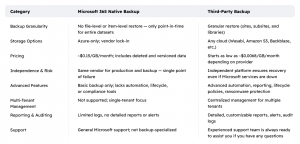
Microsoft offers various built-in tools and features that offer a limited degree of SharePoint data protection. For example, as we noted, you can undelete files from the SharePoint Recycle Bin for a period of up to 93 days in most cases. Likewise, version control lets you restore older file versions, assuming the version you need was automatically saved.
In addition, SharePoint includes eDiscovery and compliance features, which can help to enforce automated retention of certain types of files.
These capabilities are certainly useful for meeting some very basic data backup and recovery needs in SharePoint. But they are subject to major limitations. Above all, they don’t protect all types of data, and they don’t provide full control over how long your data is retained. Nor do they enable automated data recovery, which means that they’re poor solutions if you need to restore a large number of files.
Instead, Microsoft’s native backup features amount primarily to data retention capabilities – and data retention is distinct from true backup.
Manual & Local SharePoint Backups
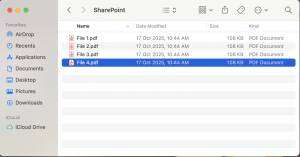
It’s also possible to meet some basic SharePoint backup needs by creating backups manually using local storage. You could, for example, download document libraries to a PC's hard drive, or sync SharePoint files with a OneDrive instance mapped to local storage. You could even have custom PowerShell or Power Automate workflows back up data automatically to local storage (assuming you are able to implement the workflows yourself).
Here again, however, these practices are only useful for meeting basic SharePoint backup needs. They lack full protection because some data types aren’t covered, such as document version histories. Plus, they provide limited automation capabilities – and any automations you do use have to be implemented manually, using scripts that are prone to errors.
Automating SharePoint Backup with Cloud-to-Cloud Data Protection
There’s an alternative to the clunky, unreliable data protection methods described above. It’s called cloud-to-cloud backup, and it involves automatically copying all SharePoint data to another cloud-based storage platform.
This approach provides a range of benefits:
- More reliable storage: Cloud storage is less prone to failure than local disks or storage arrays.
- Unlimited storage capacity: In the cloud, you never run out of storage space.
- Continuous backups: Cloud-to-cloud SharePoint backup lets you keep backups continuously synced with production sites through the Microsoft Graph API.
- Incremental backup support: Incremental backups are also an option, if you want to back up data only at certain periods.
- Fast, automated restore: Cloud-to-cloud backup provides the option of automatically restoring SharePoint data directly from the cloud, which is typically faster than restoring from local storage.
- Complete data coverage: Using APIs, you can back up all types of SharePoint data, not just files.
For these reasons, cloud-to-cloud backup with external tools is the best way to automate SharePoint at scale. Other methods are really only appropriate if you’re only aiming to protect a handful of files.
Given this, it’s not surprising that 88 percent of enterprises say they prefer third-party SharePoint backup tools.
Key Features to Look for in a SharePoint Backup Solution
An excellent SharePoint backup solution offers more than just cloud-to-cloud backup capabilities and the ability to automate backup and recovery operations on a large scale. To ensure that your SharePoint data is safe, it’s also critical to choose a tool that offers full coverage of your sites, subsites, libraries, and so on.
Extensive backup configuration options are also important. You should be able to choose between granular and full-site backup and recovery based on varying needs. Support for API-based backup – instead of blunter, less reliable bulk export options – should likewise be a goal. And tools should provide options for custom retention policies and meet legal hold requirements.
From a security point of view, search for SharePoint backup tools that provide end-to-end encryption of your data, so that any sensitive data in your SharePoint sites is encrypted and secure throughout the backup and recovery process. Multi-factor authentication and role-based access control can also help to prevent accidental access to backup data.
Cost, too, is an important consideration – and here, you should think not just about the licensing cost of your SharePoint backup tool (although that’s important), but also whether you can “bring your own cloud” by storing backups on a cloud platform of your choice. If you can, you’re likely to pay less because you can take advantage of lower-cost cloud storage services. If a vendor forces specific storage, you’ll likely pay more per gigabyte to protect SharePoint data.
Finally, consider how easy the backup solution is to deploy and manage. Capabilities like centralized configuration and monitoring of backups through a single hub simplifies operations for IT staff. Reporting capabilities are also important as a way of tracking the status of backups and detecting issues.
How MSP360 Backup for Microsoft 365 Protects SharePoint
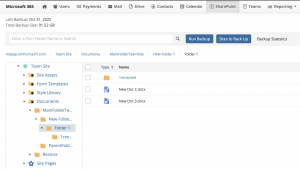
As a data protection platform built specific for SharePoint and other Microsoft products, MSP360 Backup for Microsoft 365 delivers all of the key SharePoint backup capabilities described above, including:
- A fully cloud-to-cloud backup approach that doesn’t require local storage.
- Backup operations request and move data using the Microsoft Graph API (rather than crude data export features in SharePoint), enabling highly customizable, secure and efficient backups.
- Full support for granular item-level data recovery, as well as complete recovery of all SharePoint data.
- The ability to store data on any cloud – so you can avoid proprietary storage and the high costs that come with it.
- A centralized console that allows IT admins to manage and administer backup.
- Multi-tenant support allows for easy SharePoint backup for multiple clients, using a single backup tool.
- Full encryption of data-at-rest and data-in-transit, as well as multi-factor authentication and audit logging capabilities for enhanced security
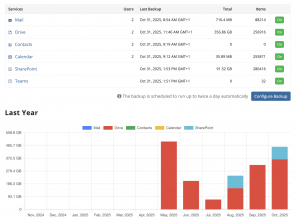
Try these features for yourself and start a trial of MSP360 Backup for Microsoft 365.
Microsoft 365 SharePoint Backup Best Practices
No matter which backup tools you use, these steps help keep SharePoint data protection efficient and reliable
- Backup schedules and retention should be based on data needsDifferent data does not always need to be backed up with the same frequency, or for the same retention periods. Review the importance of each SharePoint asset and create backup and retention plans based on that. Less critical data does not necessarily have to be backed up as frequently.
- Test data restoration regularlyYou don’t want to discover after a disaster that your SharePoint backups can’t restore properly. Avoid this risk by running restoration tests to validate your recovery plans.
- Separate backup credentials from Microsoft credentialsThe credentials to access your backup tool should be different from those you use to access your Microsoft 365 accounts. This keeps backups safe if Microsoft accounts are compromised, as they require different, secure credentials
- Monitor and audit backupsVarious issues can disrupt SharePoint backups, including unstable network connections that cause certain data operations to fail. Avoid surprises during data recovery time by monitoring and auditing your backups so that you’re clued into failures early-on.
- Adopt a unified approach to SharePoint, OneDrive and Teams backupIf you use other Microsoft services, one backup tool and storage location can simplify operations and reduce costs.

Conclusion
The bottom line: SharePoint is a very reliable platform but it does not automatically safeguard against all potential scenarios that could cause data loss. To help your business meet its own end of the shared responsibility model, you need to back up SharePoint data and have a recovery plan in place.
Ideally, you’ll do this using dedicated backup tools such as MSP360 which enable scalable, efficient, cloud-to-cloud backup and recovery, so you can maximize your compliance and business continuity posture.