

This article explains that multiple viable approaches are available for on how to backup Microsoft Teams. It also offers guidance on best practices for maximizing the efficiency, security, and reliability of Microsoft Teams data protection.
Looking for the best Microsoft Teams backup solution?


Table of Contents
Introduction on How to Backup Microsoft Teams
As a platform used by 93 percent of Fortune 100 companies, Microsoft Teams is a critical component of business operations at organizations around the world. But like any platform, Teams can experience outages, failures, or accidental deletion events that result in data loss, unavailability, or compliance violations.
Hence why every business that depends on Teams for productivity must have a strategy in place, on how to backup Microsoft Teams.
Indeed, given that more than half of organizations report storing business-critical data on Teams, backing up the platform is important not just as a way of avoiding disruptions, but of ensuring that critical information is safe.
And if you think there’s no need for Teams backup because it’s a platform managed by Microsoft, think again. Under the terms of Microsoft’s shared responsibility model, Microsoft manages only the Teams infrastructure and software. It expects Teams users to bear responsibility for protecting any data that they generate or upload to Teams – such as chats, meeting recordings, AI-generated meeting summaries and so on.
Knowing How to Backup Microsoft Teams is Important
Let’s begin by detailing why it’s important to back up data from Teams.
The answer is that Teams backup protects against four main types of risks:
- Business discontinuity, which could occur when data managed through Teams becomes temporarily or permanently unavailable. Although outages for Teams and other Microsoft products are rare, they do occur: Consider, for example, the major outage of August 2024 that was triggered by a bad software update, taking many Microsoft 365 services offline for hours.
- Compliance risks. Regulatory frameworks, such as DORA, often require businesses to have plans in place to protect all of their data, including information stored in online platforms like Teams.
- Ransomware attacks, in which threat actors use techniques like phishing to gain access to a business’s Teams environment, then encrypt or delete the data stored in it.
- Accidental data deletion, which could occur when users mistakenly remove files from Teams.
And again, although Microsoft manages the infrastructure that hosts Teams, it doesn’t guarantee that data stored in Teams will remain permanently available. The onus is on Teams users to ensure that they back up their business and personal data adequately.
What to Back Up in Microsoft Teams
Microsoft Teams is mainly a collaboration platform rather than a content platform. But that doesn’t mean there is no Teams content that is important to back up.
On the contrary, Teams users commonly produce many types of data, including:
- Chat messages.
- Documents, spreadsheets and other files that users collaborate on within Teams.
- Meeting recordings.
- Automatically generated meeting summaries.
- Configuration data.
Importantly, most of this data doesn’t reside permanently and natively in Teams. Instead, it lives in other Microsoft services, like OneDrive (which hosts meeting recordings in most cases) and SharePoint (where most types of Teams-generated content are housed).
Still, it’s essential to ensure that you have backup copies of all of your Teams data. As Teams spans multiple services, even if you back up SharePoint, much of your Teams data likely remains unprotected. Only a deliberate, purposeful backup strategy focused on Teams ensures that all relevant data is safe.
Built-in Teams Data Protection Capabilities
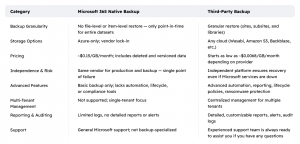
Although Microsoft Teams doesn’t automatically protect all user data, it does have some native data protection capabilities. The main features in this regard include:
- Undeleting data from the recycle bin: Microsoft Teams has a recycle bin feature that allows you to undelete most types of Teams data, so long as the retention period has not expired. The retention period varies, and organizations can set a custom retention window. You often have 30 days to undelete data from Teams, but in some cases, admins might eliminate data retention altogether, meaning that permanent deletion occurs immediately. (For details on data retention policies, see the Microsoft documentation.)
- Version control: The Teams version control feature makes it possible to restore certain files to an earlier version. This only applies to data stored in SharePoint, however, not other types of Teams files.
- Microsoft Purview: If you integrate Teams with Microsoft Purview (a data governance and security tool), you can create policies that retain Teams data for a fixed period. However, Purview is not a data protection platform; its main purpose is addressing requirements related to compliance and legal holds, and it won’t protect all Teams data in most cases.
In some instances, these capabilities may suffice for recovering data that you accidentally deleted from Teams. But they’re a far cry from true data protection. They don’t cover all types of data, they don’t enable rapid recovery and they typically only retain data for a relatively short period of time before it’s gone forever (unless you’ve backed it up somewhere else first).
Further reading Microsoft 365 Backup Solution: Native vs third party backup software
How to Backup Microsoft Teams Manually
Now that we’ve covered why you need to back up Teams data and why it can be hard, let’s dive into backup techniques. We’ll start with manual backup approaches.
Downloading files
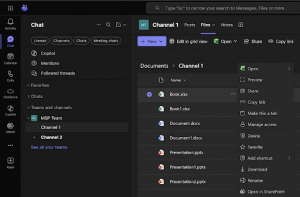
The simplest way to back up Teams is to log in and download files manually from Teams directly, or from the other Microsoft 365 services where it stores data (like SharePoint and OneDrive).
This approach, however, is slow and tedious. It’s not a practical way to back up Teams data at scale.
File exports
Teams has an export feature that allows you to save certain types of data (such as wiki content) to a file or another platform. Export automatically converts the data to match the new platform and stores it on that platform.
This is also a relatively simple way of backing up Teams. The drawbacks are that it’s inefficient, and it only supports some types of data. You can’t “export” a meeting recording, for example; you can only download recordings as files.
How to Backup Microsoft Teams using Graph API or Powershell
Another approach to Teams backup involves using the Teams API or Windows scripting tools. Both techniques make it possible to back up Teams without using additional software – although as we’ll see, these methods have their limitations.
Exporting chats, membership and configs via Graph API
Using the Microsoft Graph API, you can export many types of Teams data automatically and save them on local or cloud-based storage. This is a fast, scalable way to back up Teams.
As mentioned above, API throttling can slow down API-based backups. However, it’s possible to stagger backup schedules as a workaround.
A downside you can’t work around on how to backup Microsoft Teams with this method, is that using the API to back up teams requires engineering effort, since you need technically skilled staff to write the API queries. Teams offers no graphical interface for managing the API.
Export using PowerShell
Along similar lines, you can write PowerShell scripts that use the Teams PowerShell Module to export data from Teams. (The SharePoint PowerShell Module can also be helpful for backing up some types of data that originates in Teams.)
This is also an efficient way to back up data, but it comes with the same core drawbacks as API-based backup: You have to write and manage the backup script code. It’s also possible that changes to your Teams configuration will “break” your script, requiring you to update it.
How to Backup Microsoft Teams Using Third-Party Cloud Backup Software
Another option is third-party cloud-to-cloud backup tools, such as MSP360 backup for Microsoft Teams, offering efficient protection with minimal effort.
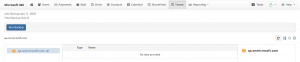
Under this approach, you can leverage a user-friendly interface to choose which data to back up, then run backups automatically on a schedule of your choosing. You don’t need to worry about writing code, working around API throttling limitations or figuring out exactly where your Teams data resides. MSP360 backup for Microsoft Teams handles all of that for you.
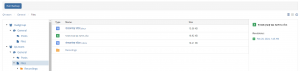
But an easy Teams backup experience is just the start. As a Microsoft Teams backup solution, MSP360 also enables:
- Vendor-agnostic storage: You can store Teams backup data in whichever cloud or on-prem location best meets your cost, performance and availability needs.
- Security: Keep backups safe with end-to-end encryption, multi-factor authentication and credential separation.
- Granular restore: You can choose to restore only certain teams, channels or individual files if desired.
- Compliance and reporting: Configuration backup retention periods, immutable storage and audit logs make it easy to meet compliance and reporting requirements.
- Unified SaaS backup solution: MSP360 protects data stored not just on Teams, but on all major Microsoft 365 and Google Workspace components.
Further reading For the detailed, step-by-step guide with all features and options covered, see the full MSP360 Backup for Microsoft Teams guide
Key Challenges on how to Backup Microsoft Teams
While Teams backup is important, it’s not always easy, due to challenges like the following:
- Distributed architecture: Because Teams integrates with other Microsoft 365 services and uses them to host most of its data, backing up Teams requires the ability to back up data from multiple services.
- API performance limitations: Although Teams has an API, which organizations can use to copy data automatically, the API can be subject to limitations like throttling and synchronization inconsistencies. These may make API-based backup slow.
- API cost: Teams API usage is also metered in some cases. (Microsoft made some Teams APIs free in August 2025, but not all.) As a result, backing up data using the API could result in high costs.
- Security requirements: Organizations must take special care to mitigate security risks when backing up sensitive Teams data. For example, backup credentials should be separate from tenant credentials to prevent misuse of stored login details.
- Limited data reproducibility: It’s often not easy (or even possible, in some cases) to reproduce all Teams data fully as part of data recovery. For example, reactions and threads may be lost.
As we’ll see, it’s possible to address most of these challenges – but only when you adopt a backup and recovery strategy tailored for the unique needs of Microsoft Teams.
Common Teams Backup Mistakes
No matter which approach you take to backing up Microsoft Teams, be sure to avoid these common pitfalls:
- Assuming that data retention provides data backup. As noted above, retention only protects data for a limited period, and it may not provide full recovery capabilities.
- Overlooking private channel SharePoint sites. A comprehensive Teams backup strategy must protect all Teams data.
- Overlooking meeting artifacts. Similarly, it’s important to back up Teams artifacts, meaning data produced during live meetings and events.
- Using the same credentials for production and backup. As we mentioned, this is a security risk.
- Failing to test data restore capabilities. Recovery testing is important in any data protection scenario. But it’s especially critical with Teams, given the nuances surrounding exactly how data is restored within the platform.
Best Practices on how to backup Microsoft Teams
To maximize the efficiency and reliability of Teams backup, consider the following best practices:
- Enforce MFA to reduce the risk of unauthorized access to Teams backup data.
- Use separate backup credentials. This prevents someone with access to your backups from using them to log into Teams.
- Store backups using immutable storage, to prevent tampering with or deletion of your backup data by ransomware attacks.
- Regularly verify your data recovery plans through recovery drills. Ideally, drills should occur at least once every quarter.
- Monitor backups continuously. This ensures you’re alerted to issues and can spot backup performance problems caused by the Teams API.
- Reassess your Teams backup strategy whenever you modify your Teams configuration or add or remove tenants.

How to backup Microsoft Teams Conclusion
It would be nice if Microsoft automatically protected Teams data, or if backing up other platforms (like SharePoint) was sufficient for ensuring against Teams data loss.
Unfortunately, this is not the case. The only way to guarantee that your Teams data will be there when you need it is to design and implement a backup strategy customized for Teams. And while you can do this manually or via custom scripts, a simpler, more reliable approach is to use third-party backup software, like MSP360 backup for Microsoft 365.
As a solution designed specifically for Teams and other Microsoft products, MSP360 combines ease of use with advanced backup capabilities to enable secure, compliant, granular protection across the entire Microsoft 365 ecosystem.