Backup Retention Policies and Versioning in MSP360 Backup
help documentation
The Retention Policy feature in MSP360 Backup allows you to create and delete copies of your files automatically. This article explains how to configure different options of the retention policy feature in MSP360 Backup.
[content]
Retention Policy and Versioning
In MSP360 Backup, we call each copy of a single file a version. You can create several versions of a file during its lifespan accordingly to your security settings. We track each version of each file that was created and give you full control over it. All user files are accompanied by a list of their previous versions in the backup system.
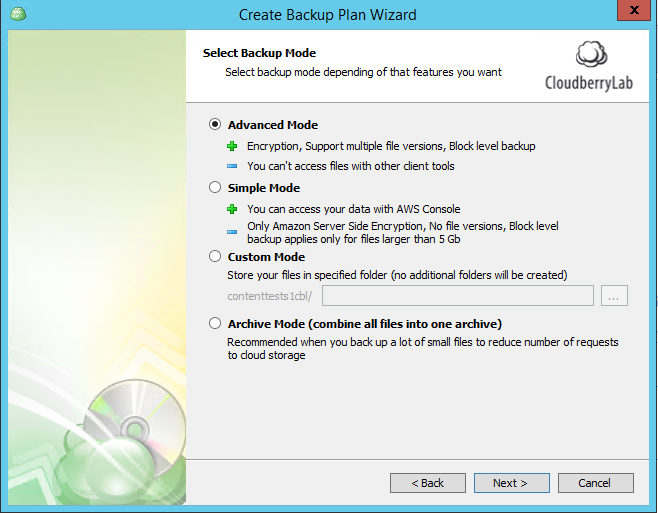
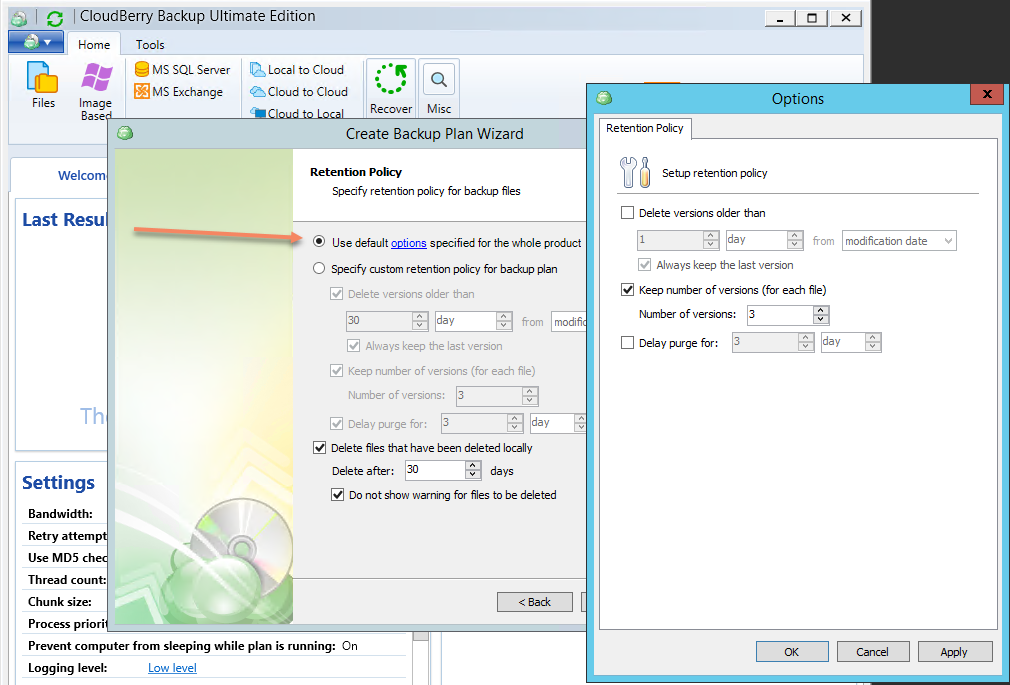
All of the Retention Policy options are available in the backup plan settings you choose. To get a clear understanding of those choices, select any backup plan, click Edit Backup Plan, and enable Advanced Backup Mode to configure custom retention policy settings on the corresponding step of the backup plan wizard.
MSP360 Managed Backup
Delete Versions Older Than
This parameter of the retention policy settings allows you to delete all file versions that were created before a certain date (day, week, month and year can be chosen), based on the initial backup or last modification date of your files.
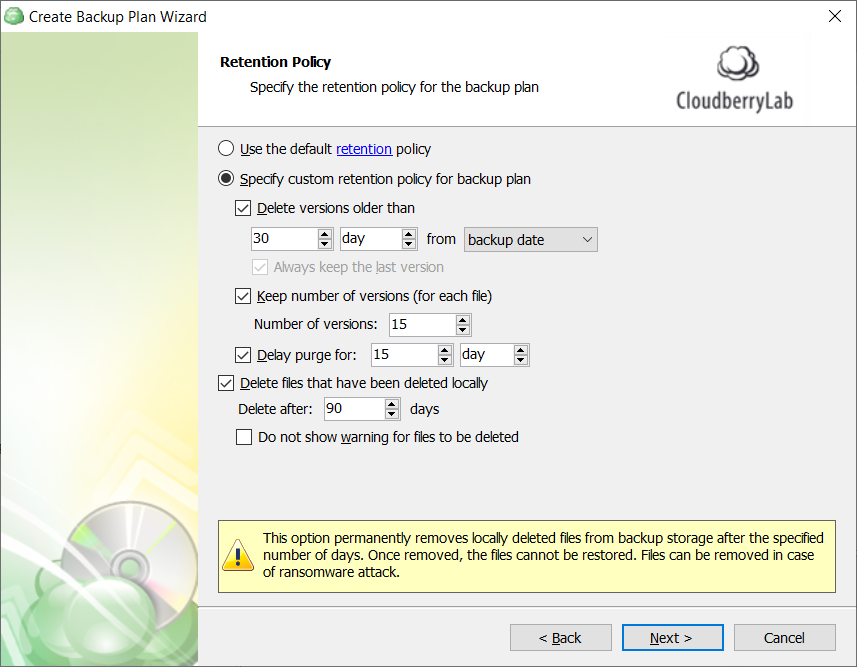
Always keep the last version.
Keep Number of Versions
This option allows you to set a limit on the number of versions of a file that you retain. This setting is useful when you need to configure a policy without a specific date. It is especially convenient for data that is rarely updated. For example, information on a website might be rarely updated, but you still want to track its history to prevent data loss or a sudden malware attack. You can do so by simply choosing Keep number of versions and setting the desired number of copies.
[hubspot type=cta portal=5442029 id=15de95d7-79cb-4945-b80d-11e3dbd96d60]
Use the Delay purge for option to give yourself extra time to review files that are scheduled to be purged. It’s another safety lock for your backup strategy
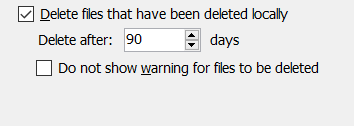
Delete Files That Have Been Deleted Locally
This option allows MSP360 Backup to purge unnecessary files from the backup storage. If a file was deleted from the dataset, it will be deleted from your cloud backup storage location automatically during the next run of the MSP360 Backup. This option helps free up storage space and simplifies the management of large backup datasets.
Delay purge for
Create Default Retention Policy
backup plans
If your retention policy can be standardized and you want it to be enabled for all backup plans by default, go to Tools - Options - Retention Policy. You can also enable and manage default retention policies directly from the Backup Wizard.
Block-Level Backup and Retention Policy
A block-level backup feature allows you to upload only the parts of files that have changed since the last backup, instead of uploading whole files.
[readmore] Block-Level Backup Explained
In MSP360 Backup, a single incremental block is considered a version. Thus, if you configure MSP360 Backup to keep 3 versions of a file, the backup will only start purging data beginning with the fourth full version of the file. Here’s how it works:
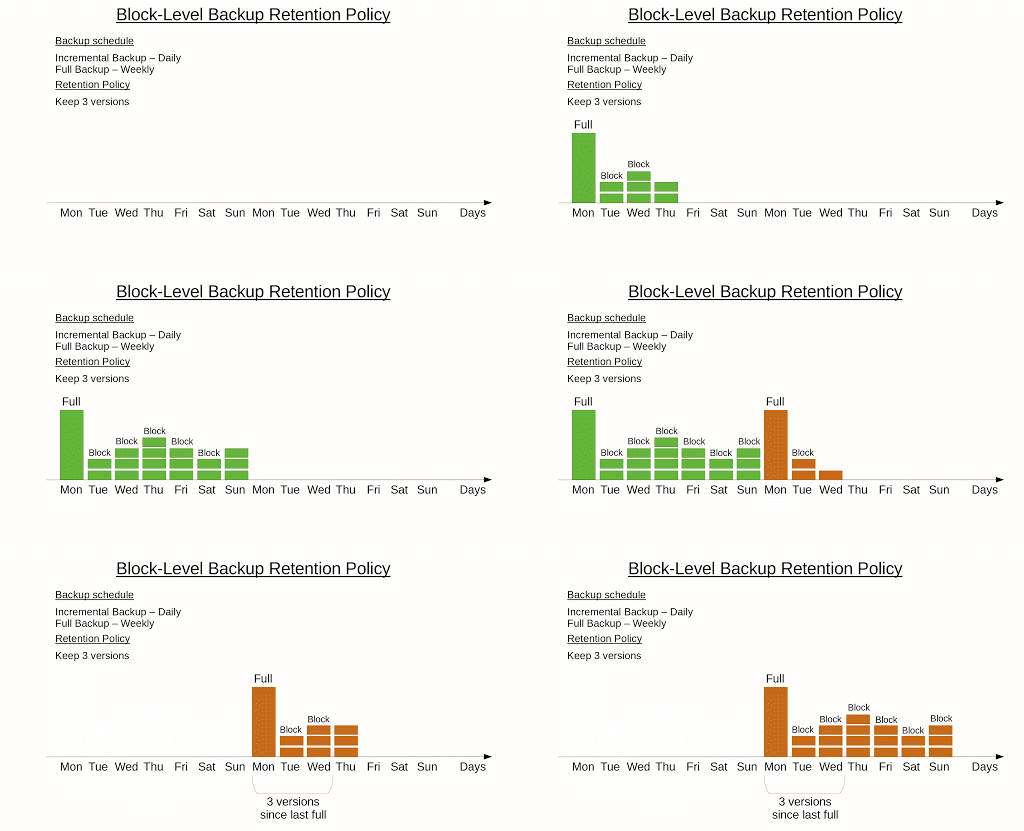
Due to this architecture, it is necessary to schedule full backups periodically. Doing so will ensure that the purge feature works properly.
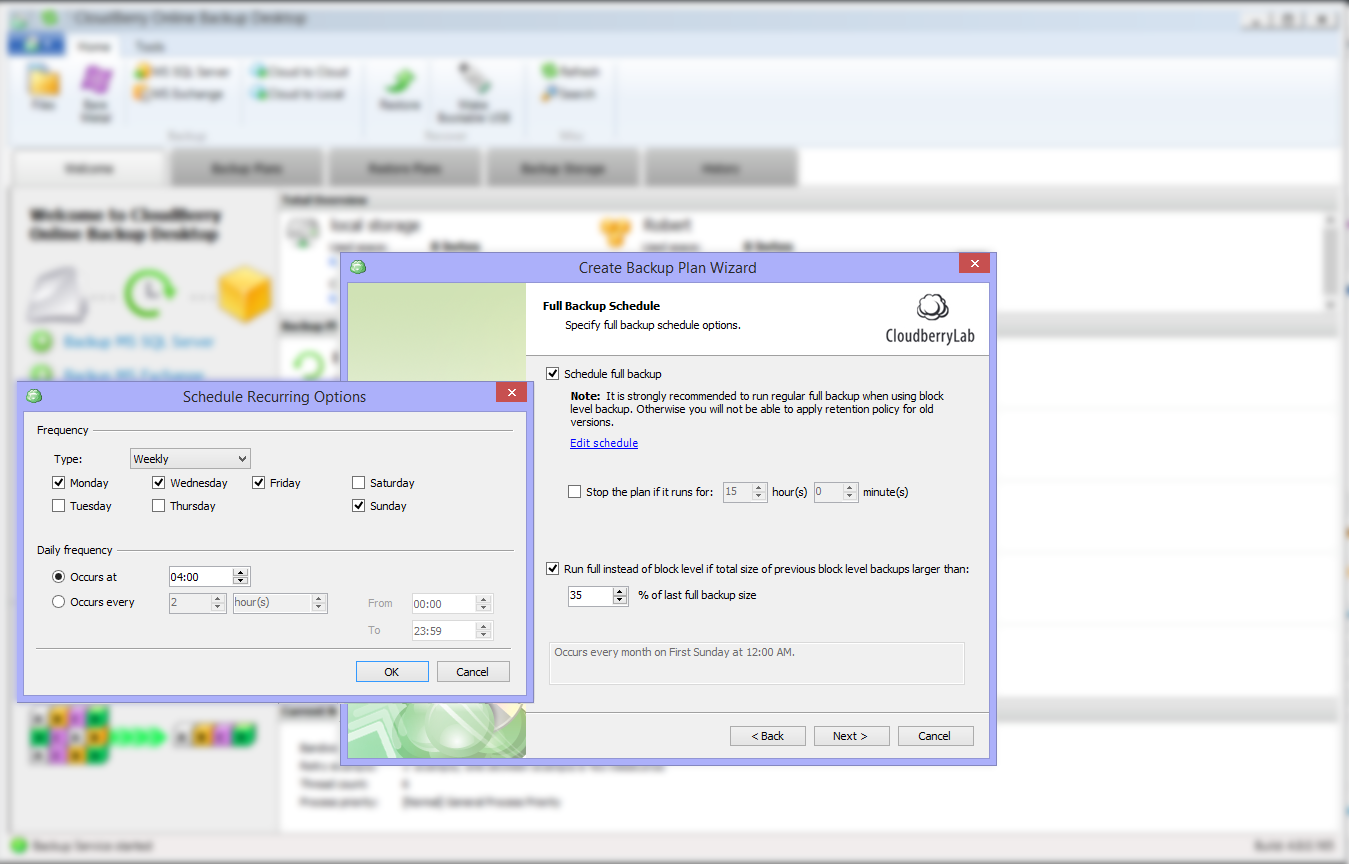
- Schedule full backup with the following settings — If you check this box, you will see an additional window with a timetable where you can choose certain periods of full backup copy creation.
- Run full only if the total size of previous block level backups larger than — Here, you can set a percentage ratio that cannot be exceeded by increment copies in relation to the full version. If their size exceeds the limit, a new full copy containing its own chain of backup copies is created. All other copies of the earlier chain can then be deleted safely.
Conclusion
If you have any questions regarding versioning or retention policies, let us know in the comments below, or on our official MSP360 Forum.