We’re excited to introduce the new release of MSP360 Managed Backup with the new RMM smart filtering for logged-in users search and an ability to request a product demo directly from the web console. These updates significantly streamline the way you and your team work inside MSP360.
Request a Technical Demo Directly from the Web Console
New MSP360 users sometimes need guidance to fully understand the platform: whether it’s a quick technical question, feature walkthrough or advice on best practices. These types of questions don’t require a sales conversation, that’s why we’ve introduced an ability to request a non-sales technical demo directly from the web console.
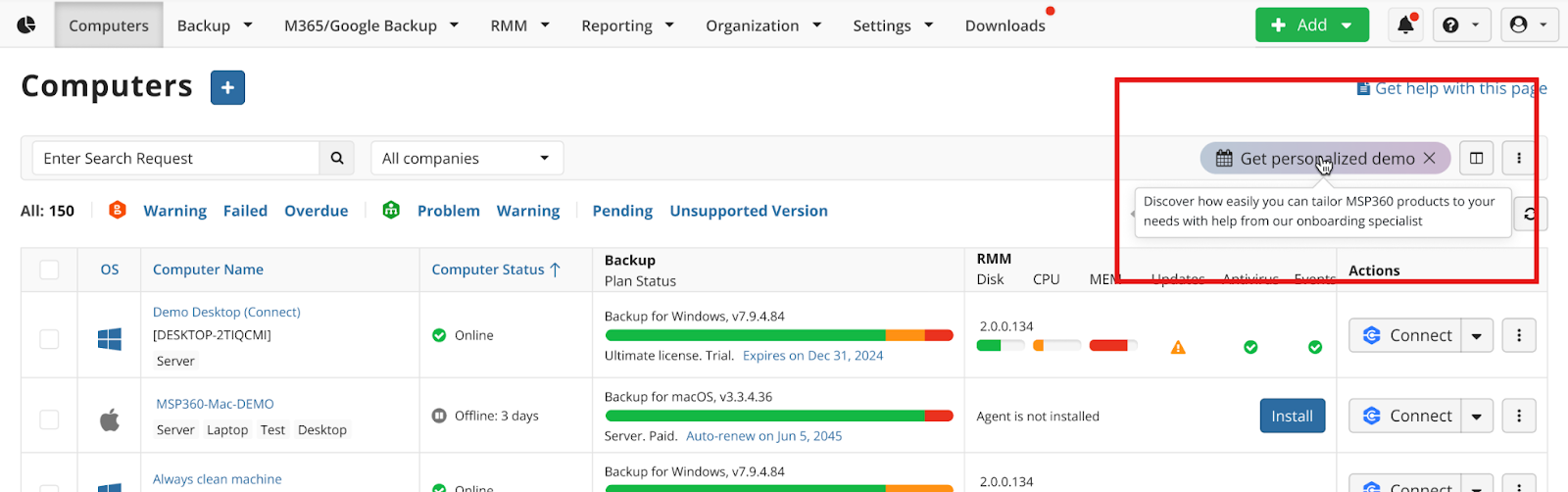
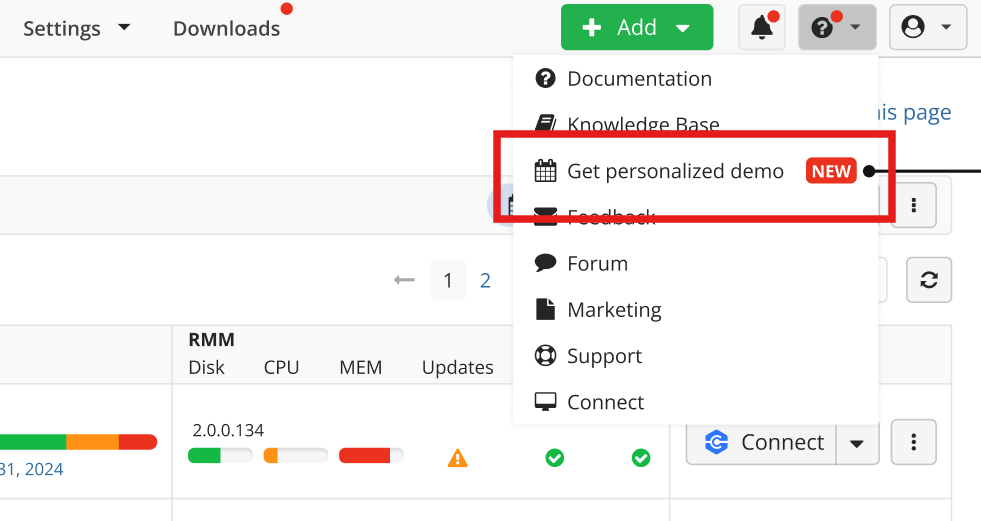
To do that, click the Get personalized demo button in the upper right corner and book a slot with an engineer. Alternatively, you will be able to find this link in the drop-down menu under a question mark icon.
With this update, we’re enhancing the onboarding process for new users and simplifying self-serve experience with easier access to technical guidance.
Smart RMM Filtering: Find Computers by Logged-In User
When an MSP gets a call or email from a customer asking for help with “their computer,” the engineer usually knows the user’s name, but not the computer name. Looking through every device assigned to that client is a time-consuming process that is especially hard with a large IT environment with hundreds or thousands machines.
With the new filter for searching logged-in users, you will be able to simply type the user’s name into the filter, and get the list of all endpoints where that user is currently logged in. This update significantly reduces troubleshooting time and helps MSPs provide faster, more accurate remote support.
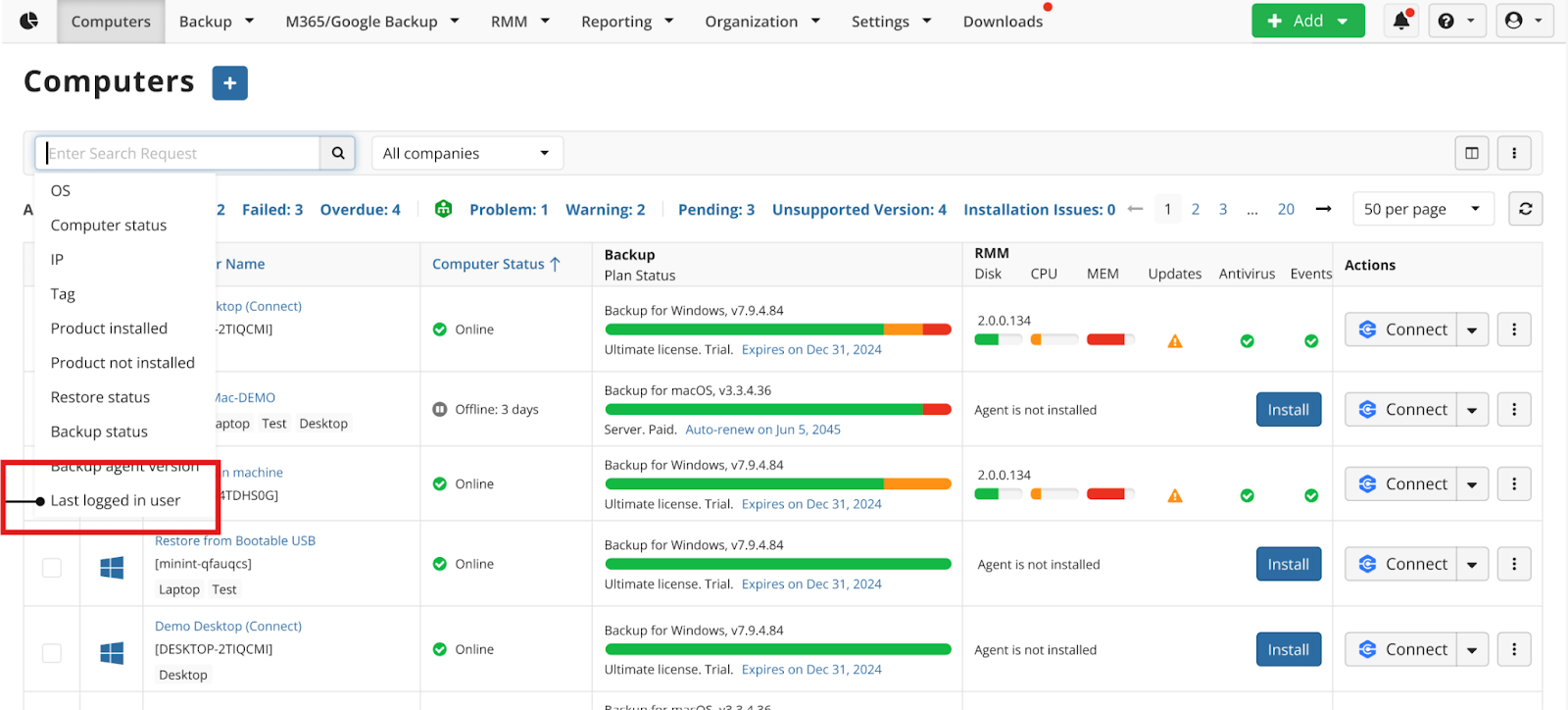
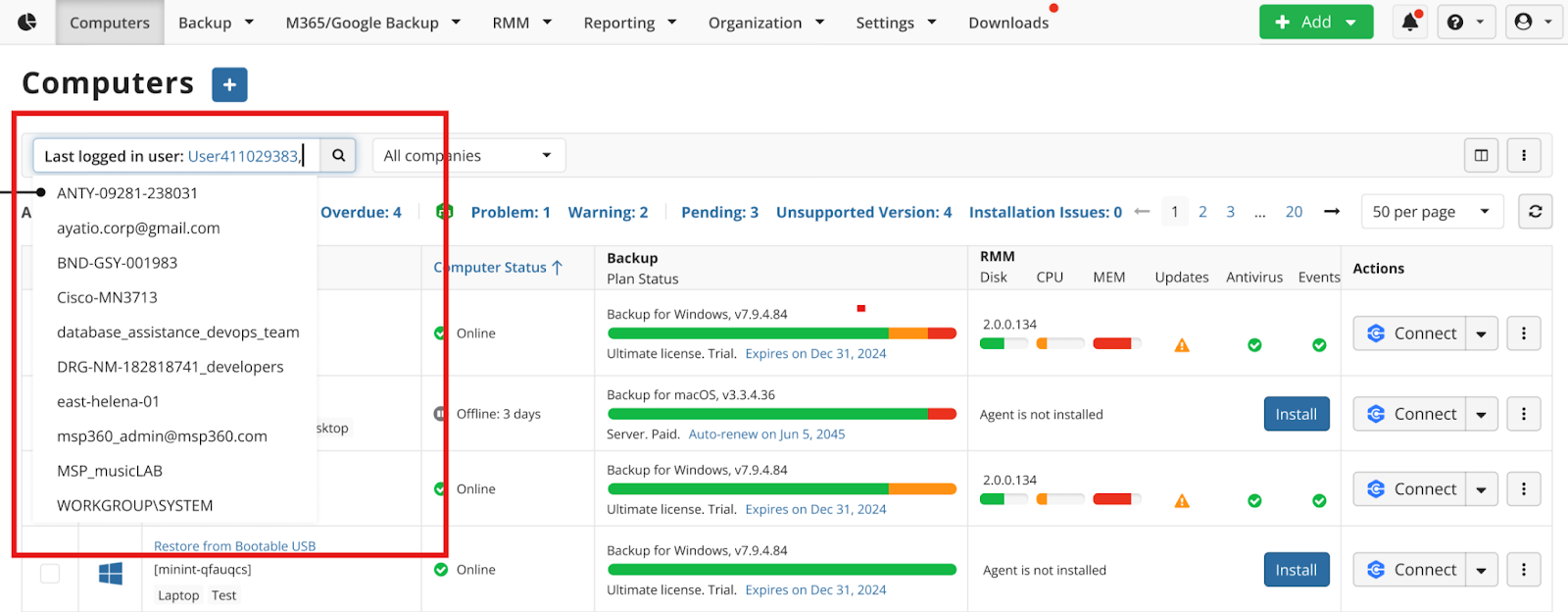
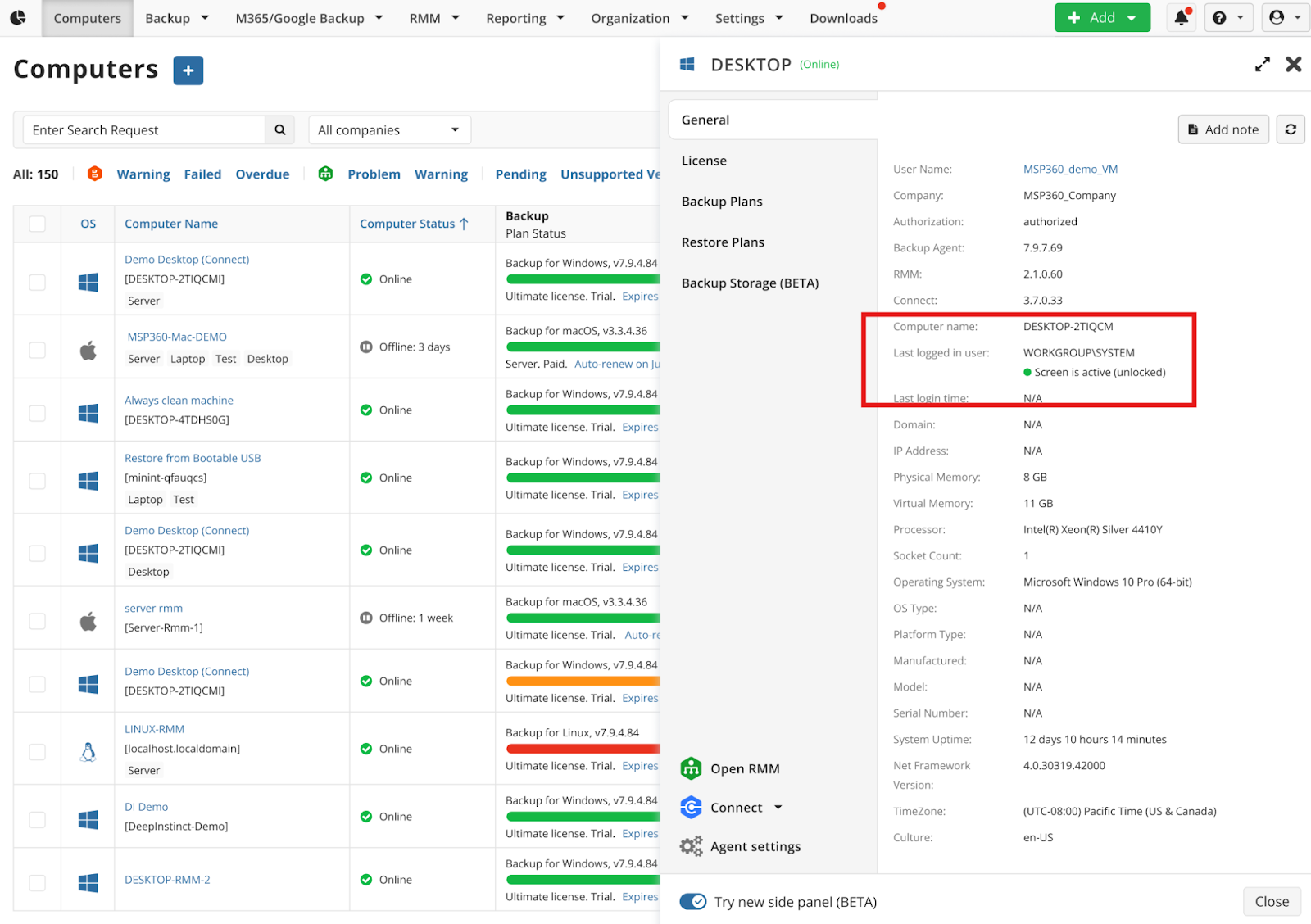
Please note that this feature is available for RMM, RMM Trial, and RMM Community Edition users.
We value your feedback and encourage you to share your thoughts on our forum, feedback portal, or via the contact form.