Customizable RMM Computers Page and MSI Deployment in MSP360 RMM 2.6
We’re excited to announce MSP360 RMM 2.6. It helps you onboard clients faster and spend less time checking individual computers during everyday support.
MSP360 RMM 2.6 introduces:
- A customizable RMM Computers page, with personal custom views and expanded endpoint information.
- A Windows MSI installer for deployment through GPO, Microsoft Intune, and other MSI-capable tools.
- Windows Event Log alerts, configurable by log, event source, ID, or level.
- Windows restart management improvements, including pending restart visibility, bulk restarts, and user postponement of Windows Update policy restarts.
New RMM Computers Page with Custom Views
“Fixed table layout limits usability across different workflows and user preferences. Providing flexible column management would make the overview significantly more efficient and adaptable for different operational needs.”
– MSP360 RMM user
One fixed page view can’t cover every workflow you switch between in a day. Checking patch status, investigating alerts, and planning OS upgrades call for different information. The rebuilt RMM > Computers page lets each administrator choose columns, their order, filters, and sorting, and save that setup as a personal named view. You can also add a custom Action button to each row to act on computers faster.
With the Alerts column, the page shows your definition of a problem, not MSP360’s predefined Status indicators.
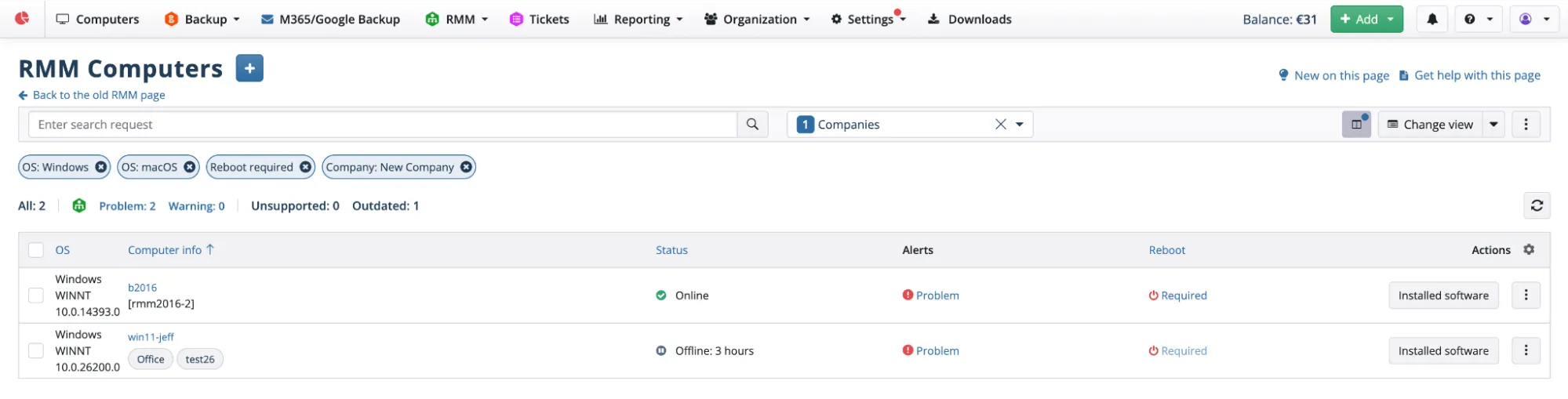
For example, you can create:
- A monitoring view with your configured open alerts and CPU, memory, and disk information, sorted so computers with active problems come first.
- A patching view with update information, online status, and pending restarts, plus an Installed software button to verify versions.
- An OS planning view that groups Windows computers by detailed OS version, making upgrade candidates easier to review and export to CSV. With Windows 10 out of support, it also shows which upgrade and replacement projects to propose to clients.
Your saved views are available from the page menu and under RMM > Computers, so you can switch between tasks without rebuilding the list.
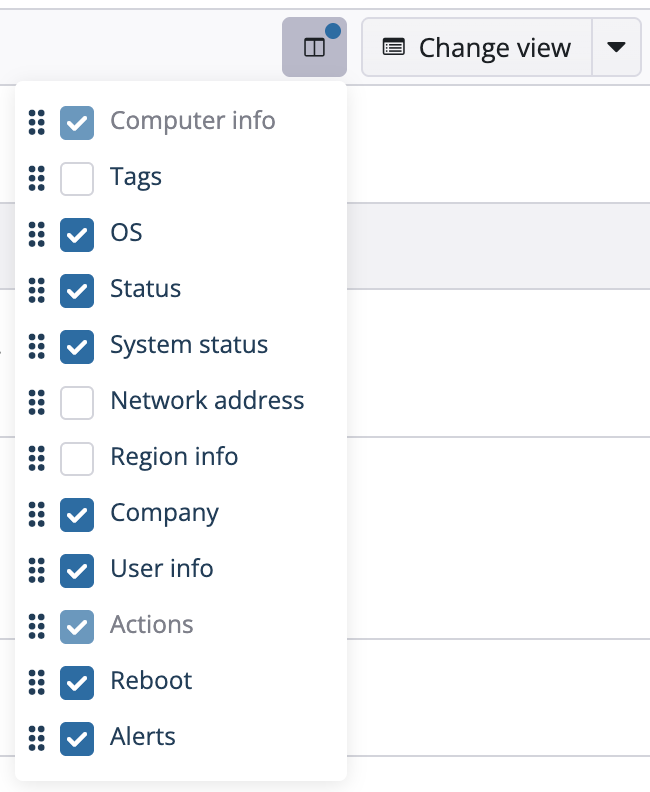
The new page also lets you:
- See who’s working before you act. The list shows whether the last logged-in user has an active session, no session, or a locked screen, which helps you choose a less disruptive time for maintenance.
- Find a computer by its user. Search the list by the last logged-in user.
- Know where each computer is. Show the approximate location, time zone, internal or external IP, or MAC address for computers across cities and regions. Location comes from the external IP, so a computer on a VPN shows the VPN’s location.
- Open what you check most in one click. Add a button to each row that opens a side panel section, such as Services or Processes.
- Keep the page focused on the tools your team uses. Hide any column or button you don’t need, including Connect.
Deploy RMM Agents Using the MSI Installer
“We need to have MSI installer to migrate 177 endpoints from one provider to another.”
– MSP360 RMM user
Less time spent on client onboarding means faster time to value for new clients and lower switching costs from another RMM.
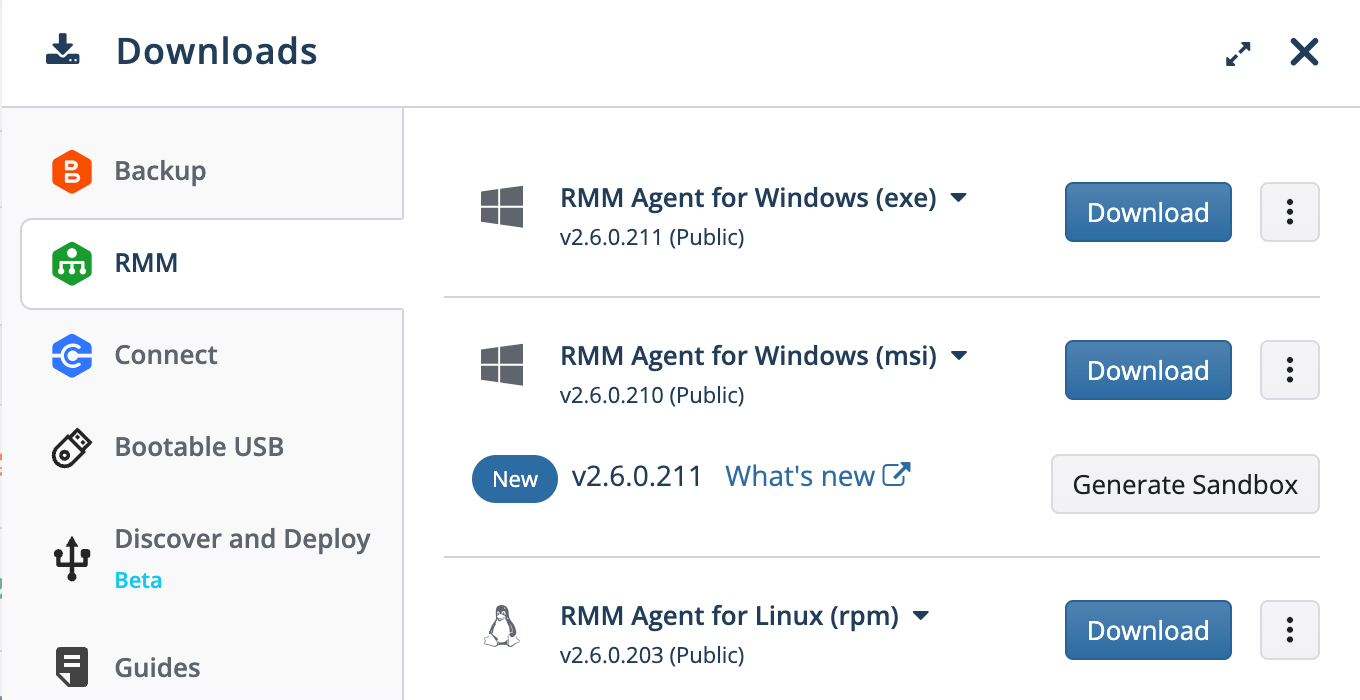
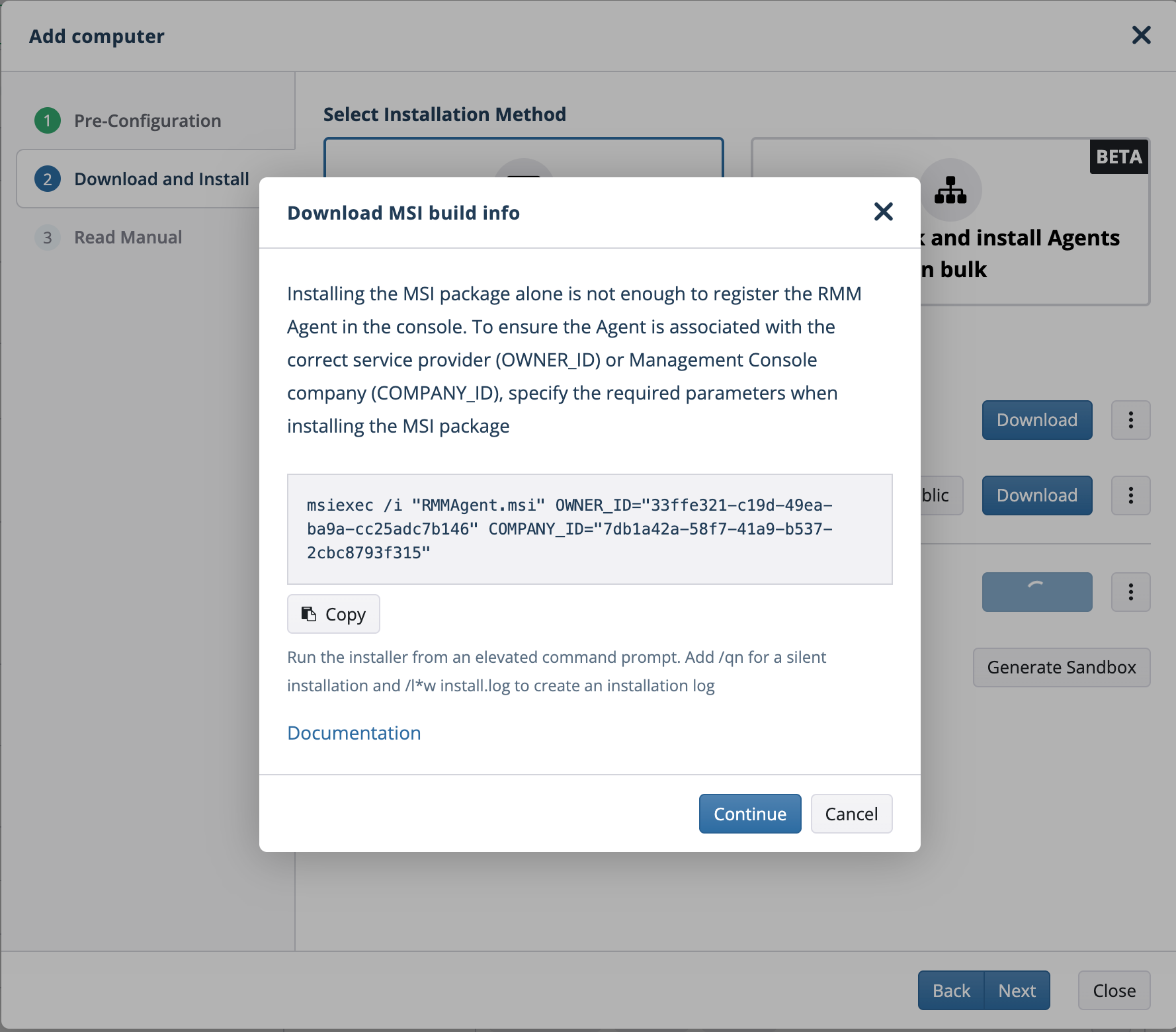
MSP360 RMM 2.6 adds a Windows MSI installer for silent deployment through Group Policy (GPO), Microsoft Intune, and other MSI-capable deployment tools. Your team can roll out the RMM agent through the same processes it uses to deploy other software, without asking users to run an installer. A single GPO can cover a client’s entire domain. Prepare the installer for a specific client company, and every agent appears in that company in your console, with no manual sorting after deployment.
This also makes it easier to deploy MSP360 RMM when moving from another RMM platform, even with hundreds of endpoints. Once installed, the agents can be managed and updated from the web console, and you can use them to roll out other MSP360 products, such as MSP360 Backup, to the same endpoints.
Turn Important Windows Events into Actions
“Is it possible to generate an alert from the event viewer log? For example if a disk alert or an unexpected shutdown occurs?”
– MSP360 RMM user
Windows logs can bury important events among routine entries. A general error count gives technicians little indication of which events actually need their attention.
With the new Log events alert type, you can define which Windows events should trigger an RMM alert and bring them into your monitoring workflow. Each rule targets the Application, Security, Setup, or System log and filters by any combination of source, event ID, and level. For example, you can monitor errors from SQL Server in the Application log or use a rule for unexpected shutdown events in the System log. The same rules work for line-of-business applications and for security events such as account lockouts, with no custom scripts.
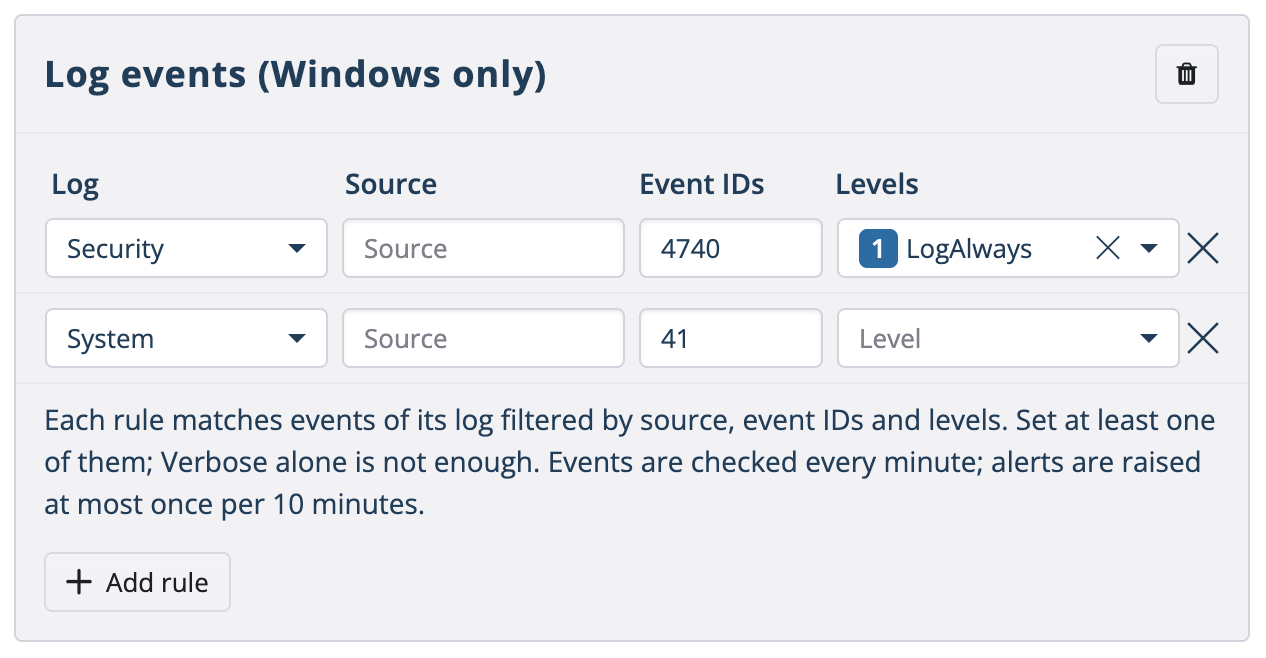
Alerts include an event count and sample event details to help with investigation, while event grouping reduces repetitive notifications during a burst of matching events.
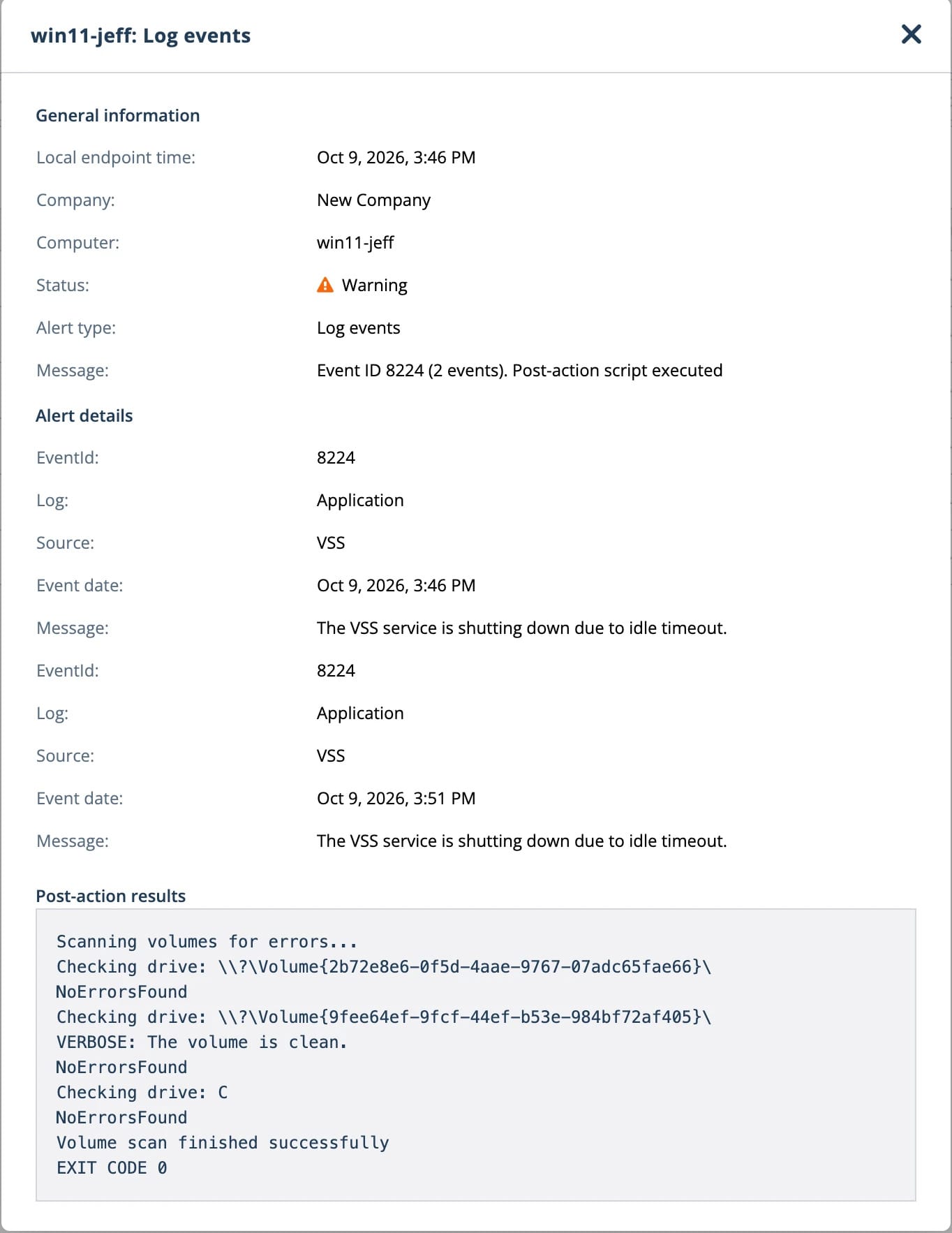
These alerts can trigger email or push notifications, create tickets in MSP360 Tickets, ConnectWise PSA, or HaloPSA, or run a selected script. That lets you decide how your team should respond when a particular event occurs. Apply alert profiles to companies, tags, or individual computers, so servers and workstations each get the rules that fit them.
See Which Computers Need a Restart to Finish Update Rollouts
“An installed update doesn’t protect a computer until it restarts. Can your RMM flag these computers?”
– MSP360 RMM user
Many security updates aren’t complete until the computer restarts. Until then, the computer remains unprotected and non-compliant, even though the update has been installed. MSP360 RMM 2.6 shows which computers are still waiting for that step, including restarts required by OS updates, third-party updates, or software installations.
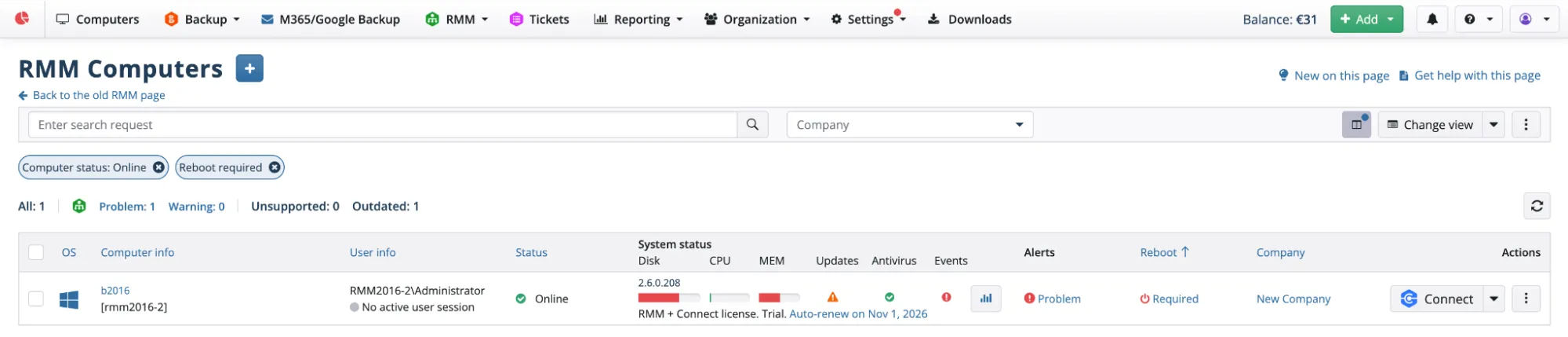
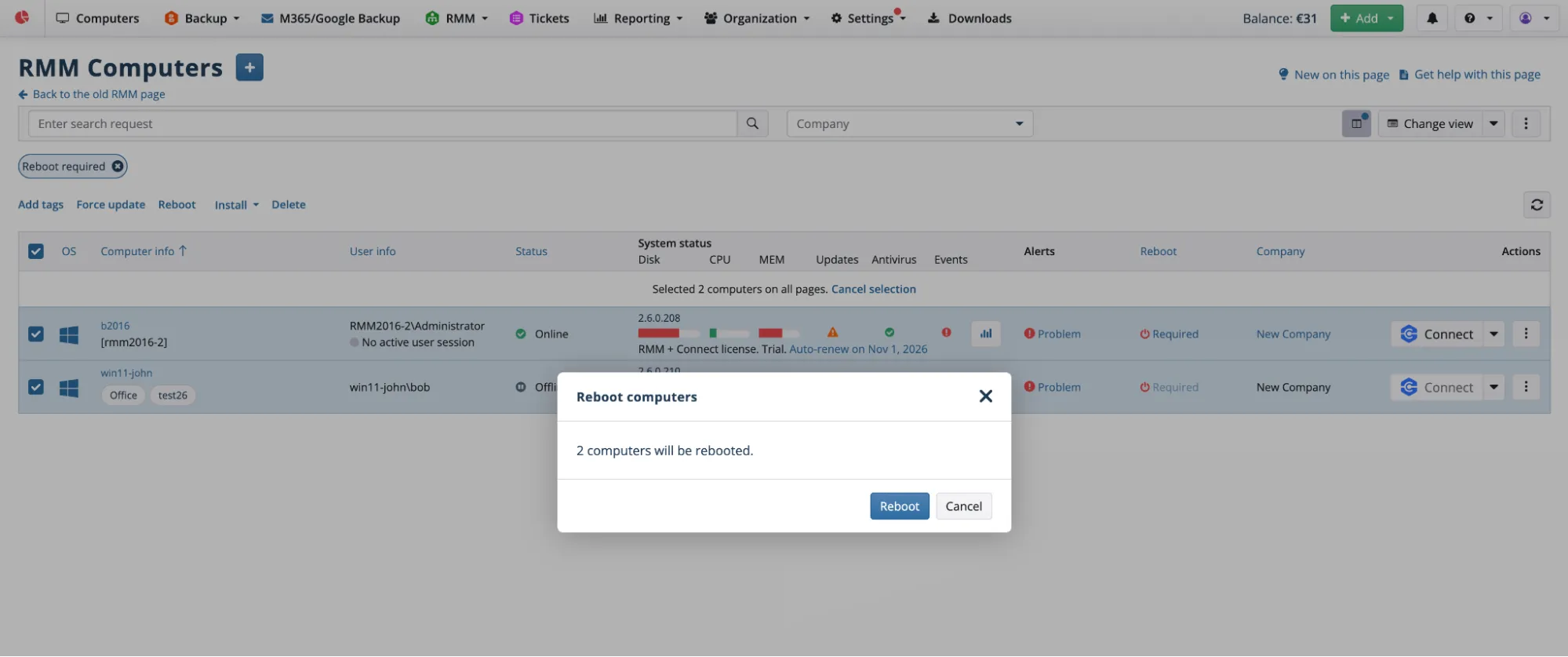
After a patching run, filter RMM > Computers to show computers pending a restart, review the affected endpoints, and restart selected computers in one bulk action. The status also appears in each computer’s side panel and remains pending if further restarts are required. Computers with a restart scheduled by a group action task are marked too.
“Is there an option to reboot upon finishing updates? Or maybe bulk reboot to a lot of computers together?”
– MSP360 RMM user
Give Users More Flexibility Around Scheduled Restarts
By default, when an MSP360 RMM administrator sets a date and time for an endpoint restart, the end user receives two tray notifications: one 60 minutes and another 10 minutes before the scheduled restart.
With this release, users can now postpone or cancel the system restart initiated by Windows Update policy group action tasks right from these notifications. This gives users a way to finish a call or save important work before an update-related restart.
Technicians can review the pending restart list and force a restart when needed.
More in This Release
- The Computer Inventory Report now adds disk health and disk space information for storage planning.
- Group action tasks can now be cloned.
- The selected side panel tab stays open as you move between computers.
- The Alert history page shows the endpoint’s local time.
- Update installation on Windows and macOS is improved.
- Software installation through RMM is improved to address access-denied errors.
For the full list of changes, see the RMM 2.6 release notes.
Get Started with MSP360 RMM 2.6
Sign in to your MSP360 Management Console to explore the updated RMM Computers page. Make sure to update installed RMM agents to version 2.6.
If you’re new to MSP360 RMM, start a 15-day free trial and try the deployment, monitoring, and management workflows with your own endpoints.
Much of this release came from your requests. Share what you’d like to see next on our feedback board.