Explore how cloud to cloud backup vs. local backup comparison can help you build the best backup strategy for your organisation. The cloud isn’t just a place to store production data. It can also be an excellent location for hosting backups via a method known as Cloud to Cloud backup. Compared to local or on-prem backup, the Cloud to Cloud technique is often simpler, more reliable, more scalable, and can be lower in total cost.
For many organizations, the cloud has become the go-to place for deploying applications and storing data. Indeed, 60 percent of all business data now resides in the cloud.
Read on for details as we explain how Cloud to Cloud backup works, when it makes sense to leverage it and how to implement a Cloud to Cloud backup solution.
Why should you compare Cloud to Cloud Backup vs. Local Backup strategies?
Cloud to cloud backup vs. local backup helps you find the best data protection strategy for your organisation. C2C is often simpler, faster, more scalable, more cost-effective due to pay-as-you-go cloud storage, and requires less maintenance compared to managing local infrastructure. Major cloud providers also offer higher reliability. However, this comparison is necessary to weigh C2C's benefits against drawbacks like limited control, potential compliance challenges, and vendor lock-in risks for certain use cases.
What is Cloud to Cloud Backup?
Cloud to Cloud backup is the practice of copying cloud-based data to cloud storage as a means of protecting against data loss, ransomware and similar risks.
Approaches to Cloud to Cloud Backup
Often, Cloud to Cloud backup involves copying data from one cloud-based service (such as Microsoft 365) to another cloud storage (like Google Cloud Storage). This approach, which is sometimes called cross-cloud backup, may enable greater reliability because it ensures that if the cloud hosting your primary data fails, the backups will still be accessible in the other cloud.
That said, Cloud to Cloud backup can also take the form of copying data within the same cloud platform. You can boost reliability in this case by storing the backups in a different cloud region than production data. It’s rare for multiple cloud regions to fail at the same time, so cross-region backup provides reliability that is almost as good as cross-cloud backup.
Why Cloud to Cloud Backup Solutions are Important
While there will always be a role for local or on-prem storage within some backup strategies, Cloud to Cloud backup solutions offer an alternative approach that is often simpler, faster, and more cost-effective for some segments of users, like SMBs.
This is because Cloud to Cloud backup frees IT staff and MSPs from having to implement and manage local storage infrastructure – a tedious and (in many cases) costly task.
The benefits of Cloud to Cloud backup solutions
Cloud to Cloud backup is distinct from traditional backup methods, which usually entail storing backups on local infrastructure and deliver a variety of important benefits that you won’t get from traditional backup strategies, including:
- Low storage costs: Cloud storage services like Backblaze and Amazon S3 charge low rates per gigabyte. Often, they are a more cost-effective way to host backups than on-prem storage, especially when you factor not just the price of local hard disks and servers but also maintenance costs.
- Pay-as-you-go pricing: In the cloud, you pay as you go, and you’re charged only for the storage you actually use. This allows businesses to avoid the large upfront capital expenses that they would face if they had to build local backup storage infrastructure.
- Maximum scalability: In the cloud, you’ll never run out of storage space. This means you can store as much data as you need, and you can retain data for as long as you’d like.
- Faster backups: In many cases, copying data within or between clouds when backing it up is faster than downing it to local infrastructure. Restoring workloads also often takes less time when backup data already resides in the cloud, since there’s no need to upload it.
- Less maintenance: Not only does Cloud to Cloud backup free IT staff from having to manage physical backup infrastructure, but it also enables a high degree of automation. Using automation capabilities available from backup software as well as cloud platforms, admins can automate workflows like backup rotation and storage lifecycle management.
- Reliability: Major public cloud providers have very strong track records when it comes to reliability and provide high availability guarantees for data storage. Few organizations can come close to achieving the same levels of reliability with on-prem infrastructure that they manage on their own.
Cloud to Cloud Backups vs. Traditional Backups
| Cloud to Cloud Backup (C2C) | Cloud to Local Backup | |
|---|---|---|
| Cost Efficiency | Pay only for the storage you use | Requires upfront investment into local hardware |
| Deployment efforts | Fast and simple deployment with no local infrastructure required | Deployment requires significant time, expertise, and infrastructure |
| Scalability | Flexible capacity without disrupting users with high durability and uptime | Scaling requires companies to purchase extra hardware and perform manual provisioning |
| Automation and management | Easy to manage, eliminating the need for internal IT staff | Manual configuration requires additional human resources and increases the risk of errors |
| Backup data accessibility | Access backup data from anywhere with an internet connection | Storing data locally necessitates access either through physical presence or via remote access |
| Cybersecurity | Immutable backups with object lock protect against cyber threats and minimize data loss | Not standard, protection relies on self-managed infrastructure and security controls |
| Data loss risk | Backups are stored in highly durable, geo-redundant cloud storage designed for high availability | Can be subject to data loss from hardware failures and natural disasters |
The Drawbacks of Cloud to Cloud Backups
Although Cloud to Cloud backup offers many benefits, it also has some drawbacks that make it a poor solution for certain use cases.
One drawback is that you have less control over where and how you store backup data. Because they can’t access the physical storage infrastructure that hosts backups in the cloud, backup admins must rely on the configuration options the cloud storage provider offers.
Along similar lines, Cloud to Cloud backups may create compliance and data privacy challenges when backing up highly sensitive data. This is because they require organizations to store data on third-party infrastructure.
Finally, Cloud to Cloud backup can create a certain degree of vendor lock-in risk. If you store large amounts of backup data on one cloud, migrating to a different cloud becomes a challenge due to the sheer volume of data you’d have to move, as well as the need to reconfigure storage configurations, backup policies, identity and access management policies, and so on in the new cloud.
MSP360 as a Cloud to Cloud backup solution for Microsoft 365 and Google Workspace data protection
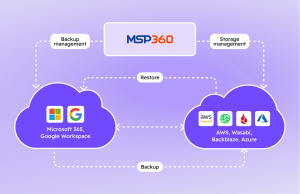
MSP360 makes it easy for organizations of all types to implement Cloud to Cloud backup as a data protection strategy for SaaS platforms like Microsoft 365 and Google Workspace.
It offers two key products in this domain: MSP360 Backup for M365/Google, which supports the backup needs of individual organizations, and MSP360 Managed Backup for M365/Google, which is designed for Managed Service Providers (MSPs) seeking a flexible, multi-tenant solution that can support data protection for multiple clients.
MSP360 Backup for Microsoft 365 and Google Workspace
MSP360 Backup for Microsoft 365 and for Google Workspace provides Cloud to Cloud data protection, featuring centralized management and support for all core M365 components, including Exchange Online, Mail, Contacts, Calendar, OneDrive, SharePoint, and Teams. For Google Workspace, the solution offers full support for major Google SaaS services, including Gmail, Contacts, Calendar, Google Drive, and Shared Drives.
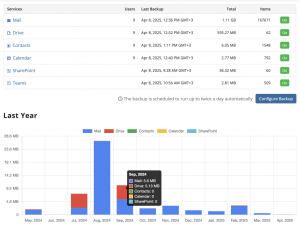
Backup features a broad set of automation capabilities, as well as a user-friendly configuration interface that doesn’t require deep technical expertise.
MSP360 Managed Backup for Microsoft 365 and Google Workspace
MSP360 Managed Backup for M365/Google is a dedicated backup solution designed especially for MSPs. They offer complete data protection capabilities with advanced features available exclusively for MSPs, including multi-domain management and a centralized management console that streamlines backup configuration and monitoring across multiple clients. Flexible licensing, scalability, and seamless restore options simplify cloud data protection and streamline operations.
Key MSP360 Backup Features
- Cloud-based backup solution that doesn’t require local infrastructure (although local storage of backups is an option if desired).
- Coverage of all Microsoft 365 and Google Workspace components on a single platform
- BYOC (Bring Your Own Cloud) capabilities mean you can store backups on any major cloud storage service: Amazon S3, Wasabi, Backblaze B2, and many others.
- Fully managed, built-in cloud storage based on Wasabi or Amazon S3 is available for organizations that don’t want to manage storage separately.
- Automated alerts and failure email notifications, backup history and audit logging make it easy to track backup status and detect failures.
- Point-in-time recovery options and item-level backup enable flexible data restoration.
- Outlook and Gmail data (Email messages, Contacts, and Calendar) can be exported to PST, enabling a wide variety of backup and recovery scenarios.
- End-to-end encryption, multi-factor authentication and role-based access controls help mitigate the risk of unauthorized access to backups.
- Robust retention policies make it easy to meet compliance requirements and keep critical backups on hand for as long as necessary via automated retention controls.
- Flexible licensing with no hidden fees and no long-term commitment helps to maximize backup ROI.
Additional capabilities for the Managed version, designed for MSPs and multi-domain users include:
- Ransomware protection and immutable backups (object lock) to provide extra backup protection.
- Centralized management through a single platform, which streamlines the MSP experience and helps to optimize productivity.
- Custom branding (white labeling) options allow MSPs to integrate MSP360 backup seamlessly into their offerings.

Conclusion on Cloud to Cloud Backup vs Local Backup strategies
The cloud has become the de facto place to host workloads, and for businesses, it should be the go-to solution for storing backup data, too. Cloud to Cloud backup offers an approach to backup storage and data recovery that is substantially faster, simpler, more scalable and more cost-effective than traditional backup methods.
Unless special requirements, such as especially stringent compliance rules, prevent your organization from storing backups in the cloud, consider Cloud to Cloud backup vs. local backup as a way to streamline your backup operations while also boosting reliability.