How to Recover Deleted Emails in Gmail
Learn how to recover deleted Gmail emails from Trash, check Google Workspace recovery options, and restore messages from an existing backup.
KEY TAKEAWAYS
- Messages still in Trash can usually be restored within 30 days of deletion. Emptying Trash or selecting Delete forever removes this standard recovery option sooner.
- Google’s Gmail Message Recovery Tool is intended for messages lost after unauthorized access. Recovery is not guaranteed.
- For Google Workspace accounts, administrators can restore eligible messages permanently deleted within the past 25 days. Those 25 days begin when the messages are permanently deleted from Trash.
- Google Vault lets you search for and export messages kept under retention rules or holds. It can’t put them back into Gmail directly.
- A backup offers a clear recovery path, provided the missing emails were backed up before they were deleted and are still within the backup’s retention period.
If you delete an email by mistake, Trash is the first place to look. Gmail keeps messages there for 30 days before deleting them permanently. They are also permanently deleted if you manually clear the Trash folder.
The good news is that, in some cases, other methods may be available to recover lost emails from Gmail. A work or school account may give you access to recovery options that a personal account doesn’t. If you already have Gmail backups in place, those are worth checking, too.
Start with Trash, then work through the other options if the message isn’t there. Below, we explain when each method works and how to use it.
The Simplest Way to Restore Deleted Emails in Gmail: Recover from Trash
You can move messages from Trash back to your inbox in both personal Gmail and Google Workspace accounts.
The caveat is that Gmail only stores deleted messages in Trash temporarily. It automatically deletes them permanently once they’ve been in Trash for 30 days. Emails in Trash are also deleted permanently if users manually purge Trash, or select Delete forever for individual messages. Once a message is permanently deleted from Trash, you can no longer restore it through Gmail’s standard Trash recovery process. Other options may still be available, depending on your account type and whether a recoverable copy remains.
On a Computer
- In Gmail’s left sidebar, click More → Trash. In some language settings, Trash is labeled Bin.
- Check the box next to each message you want to recover.
- Click Move to and select Inbox or another label.
- Confirm the messages appear in the selected destination.
If you can’t find Trash in the sidebar, search for in:trash.
On Android or iPhone
Open the Gmail app and select the correct account. Tap Menu → Trash, then touch and hold each message you want to recover.
- On Android, tap More → Move to, then select Inbox.
- On iPhone, tap More → Move, then select Inbox.
Check that the messages are back in Inbox.
Can’t Find the Email? Check Whether It Was Actually Deleted
A message that isn’t in your inbox or Trash may not have been deleted at all. This usually comes down to one of three things:
- You’re signed in to the wrong Gmail account.
- The message was moved out of your inbox, for example to Spam.
- The message was archived and is still available under All Mail.
To troubleshoot the issue, first make sure you’re logged into the correct Gmail account. From there, performing a search like in:anywhere from:sender@example.com may help you locate the message because the in:anywhere option tells Gmail to search all locations. You can also search by subject using in:anywhere subject:invoice. Both searches include Spam and Trash.
If you find an archived message in All Mail, use Move to → Inbox. For a message that landed in Spam by mistake, select Not spam.
If messages keep disappearing, look at your filters, forwarding settings, and any email apps connected to Gmail. One of them may be set to archive or delete mail automatically. Correcting that setting can prevent further losses, but it won’t bring back emails that have already been deleted.
How to Recover Permanently Deleted Gmail Messages
If you emptied Trash or Gmail cleared it automatically, the message is now permanently deleted. That doesn’t always mean every copy is gone. Work and school accounts may still have administrator recovery options, and an existing backup may contain the email. Google also has a recovery tool for messages lost after unauthorized access.
Use the Gmail Message Recovery Tool After Unauthorized Access
Google offers a solution, called Gmail Message Recovery Tool, designed to help users recover emails following unauthorized access to their accounts – such as a breach triggered by a phishing attack.
Sign in to the Gmail account that lost the messages, then open the Gmail Message Recovery Tool form in a new tab in the same browser. Follow the instructions on the form to submit a recovery request.
Act as soon as you notice that someone has deleted mail from your account. The tool may be able to help, but there’s no guarantee you’ll get the messages back.
Ask Your Google Workspace Administrator to Restore Emails
For accounts managed through Google Workspace (not personal Gmail accounts), it is sometimes possible for admins to restore emails.
According to Google’s documentation, admins can restore messages permanently deleted within the past 25 days. The 25-day recovery period starts when a message is permanently deleted from Trash. A message that spends the full 30 days in Trash may therefore be recoverable for up to 55 days after you first delete it. If you empty Trash or use Delete forever earlier, though, the administrator’s 25-day window begins immediately.
- Open the Admin console and select Directory → Users.
- Point to the user and click More options → Restore data.
- Choose the date range, within the past 25 days.
- Select Gmail and click Restore.
The date range refers to when messages were permanently deleted, not when they were received. The tool restores all eligible mail from that range; admins can’t select individual messages. Once started, the restore can’t be paused or stopped. If the organization uses Google Vault, Google recommends placing the user’s mail on hold first, so nothing is purged before the restore completes.
It can take up to several days for messages to reappear in the user’s account. Note as well that deleted drafts, messages that were deleted from the Spam folder, and deleted labels can’t be recovered by admins.
Check Whether Google Vault Retained the Message
A third potential recovery option is Google Vault, a governance tool that organizations can use to force the retention of data for a specified period. Google Vault works only with Google Workspace accounts, not personal Gmail accounts.
The time period during which messages will remain available through Google Vault depends on which retention policies admins have configured. Retention can be set for a fixed period or indefinitely, and holds preserve data until they’re removed. Vault retains nothing by default, so this option only works if a rule or hold covered the message before it was purged.
To recover messages from Google Vault, an admin needs to search for them and export the results. Vault can’t restore messages directly to Gmail, and getting exported messages back into an inbox is a separate process.
Thus, while Google Vault offers one potential recovery path, it’s not a backup tool per se, and it’s worth pursuing only if no other options are available.
Restore Gmail Emails from a Third-Party Backup
For individuals and organizations that have taken steps to protect their Gmail data using a dedicated, third-party SaaS backup solution, it’s possible to recover deleted messages using that tool, provided a copy of the messages still exists in the available backups.
Unlike Gmail’s native recovery options, a third-party solution like MSP360 Backup for Google Workspace keeps its own copy of your messages, on a retention schedule you set rather than Google’s 30- and 25-day windows. A separate backup copy may remain available after you empty Trash or select Delete forever, depending on the backup service’s deletion and retention settings. You can recover it for as long as your backup settings retain it, provided the backup hasn’t been deleted or compromised.
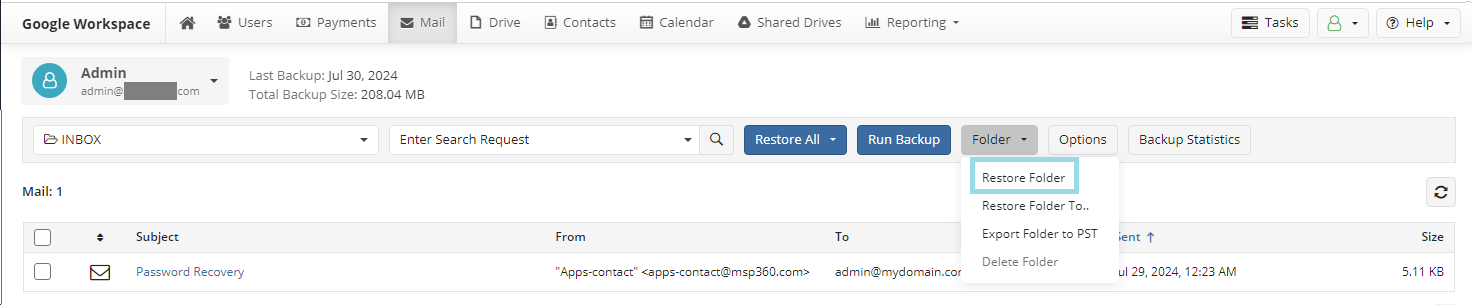
Recovery from a backup is possible only if an available backup contains the missing messages. That’s why it’s wise to invest in solutions like MSP360 Backup for Google Workspace, which provides a flexible, scalable approach to backing up Gmail for Google Workspace accounts. Once enabled, mail backups run a few times a day automatically. When you need to recover mail, you can select individual messages, folders, or the whole mailbox. You can restore them to the original account or a different one, then follow the job’s progress in Task Manager. Individually selected messages are restored to the destination account’s Restore folder.
[readmore] How to Backup Gmail – Secure, Automated, and Manual Options
What If You Still Can’t Recover the Email?
If you don't have any copies left, try to contact the person who sent it to you or someone else who received it and ask if they can resend it to you. Always back up your Gmail messages and keep them for as long as you may need. There are plenty of backup solutions out there that will allow you to back up your messages and any other items in your mailbox that you may want to back up, such as labels and drafts. Keep these for as long as you may need.