

Managing files in cloud storage can be a complex task for IT professionals and power users, especially when working across multiple cloud services. CloudBerry Explorer is a tool designed to simplify this process by providing a user-friendly interface for your cloud storage accounts.
Think of it as a robust cloud file manager – much like Windows Explorer or Finder, but for the cloud. With CloudBerry Explorer, you can access, move, and manage files across your local storage and various cloud storage services from one interface.
In this article, we’ll explore how CloudBerry Explorer can make multi-cloud file management easier, discuss key features (like direct transfers, encryption, and more), and outline the benefits for anyone dealing with cloud data. Whether you use Amazon S3, Azure, Google Cloud, iDrive or other storage services, this tool can save you time and streamline your workflows.
What Is CloudBerry Explorer?
CloudBerry Explorer is essentially a cloud storage browser and file manager. It comes in two editions: a Freeware version and a PRO version. The Freeware edition is feature-rich on its own – allowing you to connect to different cloud storage providers, transfer files, and perform common file operations. The PRO version (available via a one-time license purchase) adds advanced capabilities like encryption, compression, multithreading, and more.
Key points about CloudBerry Explorer:
- It supports a wide range of cloud storage services. Out of the box, you can connect to Amazon S3, Microsoft Azure, Google Cloud Storage, OpenStack-based storage, Wasabi, Backblaze B2, and other S3-compatible services. Instead of juggling multiple vendor-specific tools or web interfaces, Explorer lets you handle all these within a single interface.
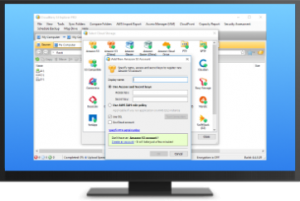
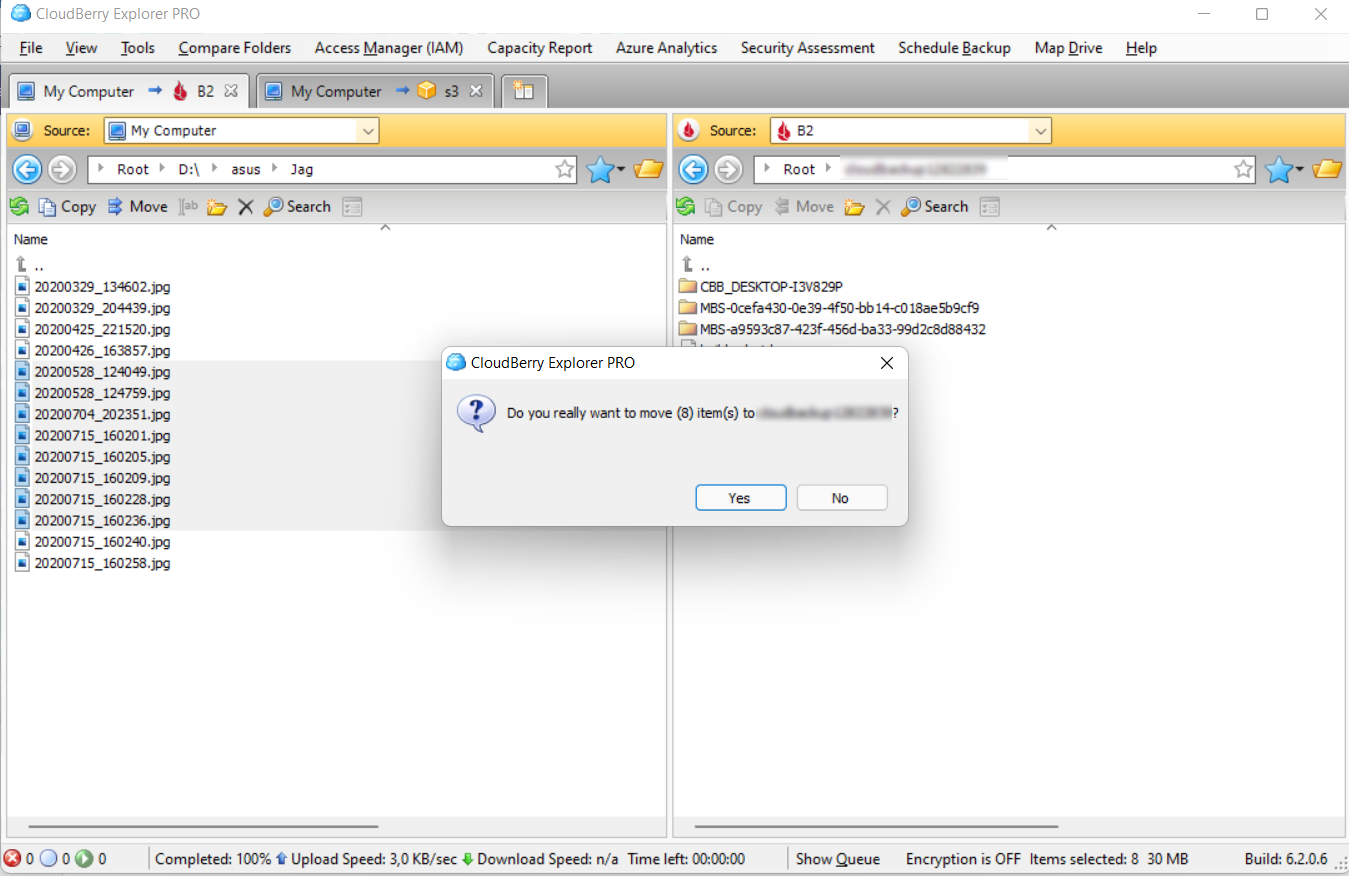
- The interface is familiar and intuitive – typically a dual-pane layout (local files on one side, cloud storage on the other, or two cloud locations). This makes copying or moving files as simple as drag-and-drop or using copy/paste commands, similar to how you’d manage local files.
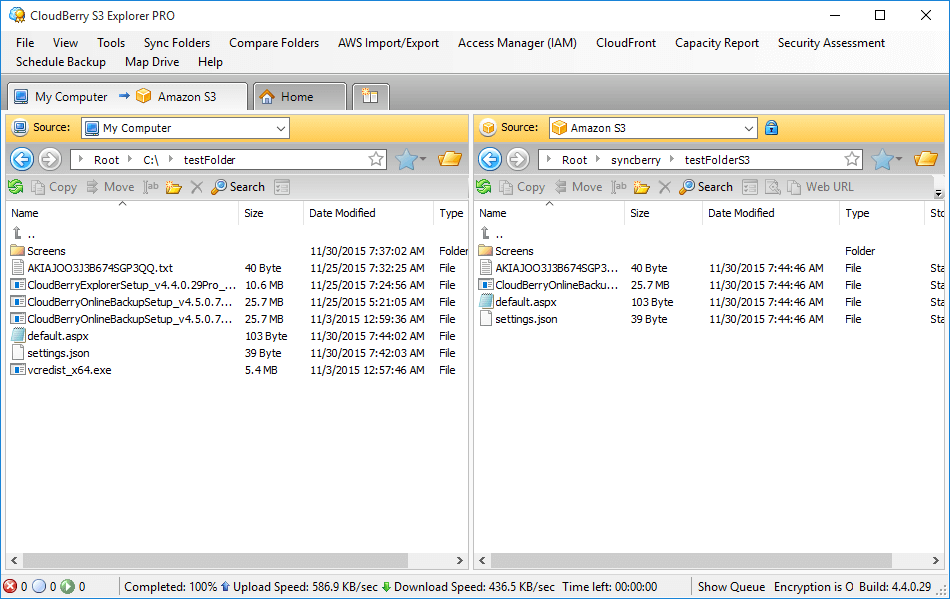
- Direct Transfers: One standout aspect is that CloudBerry Explorer transfers your data directly between your machine and the cloud, without routing through any intermediate servers. This means your data remains under your control (no third-party server processing) and transfer speeds are only bottlenecked by your network and the cloud provider – not by an extra middleman.
- It’s a desktop application (available for Windows, and a version for macOS) that you install and run locally, which then uses your cloud credentials to manage storage. All sensitive access keys or credentials you enter are used to connect directly to the cloud provider – MSP360 does not see your data, which is important for security-conscious users.
In summary, CloudBerry Explorer Freeware provides a unified, user-friendly way to work with cloud storage. Whether you’re an IT admin migrating data to the cloud, a developer managing buckets and objects, or a casual user archiving files to Amazon S3, Explorer can make these tasks easier compared to command-line tools or web consoles.
Key Features That Make Cloud File Management Easier
Let’s dive into some of the notable features of CloudBerry Explorer and how they add value:
Multi-Cloud Support in One Interface
Dealing with multiple cloud providers? CloudBerry Explorer has you covered. You can add multiple accounts from different services and easily switch between them. For example, you might have an Amazon S3 bucket, some data on Azure Blob Storage, and another account on Wasabi. Explorer’s interface lets you open connections to each and transfer files not only between local and cloud, but even from cloud-to-cloud in some cases (by downloading from one and uploading to another, or using bucket-to-bucket copy if supported). The ability to handle various storage types in one place reduces the learning curve and context switching. You don’t need to be an expert in all cloud provider UIs – if you know how to copy and move files in Explorer, you can do it on any connected storage.
File Operations and Transfer Management
Basic file operations – copy, move, delete, rename, folder creation – are all supported on your cloud storage as if it were a local drive. Resumable uploads are a particularly useful feature: if a file transfer is interrupted, CloudBerry Explorer can resume it from where it left off instead of starting over. This is great for large file uploads or unreliable network connections. Additionally, the PRO version supports multithreading, allowing concurrent transfers for faster throughput on multiple files. For free users, transfers happen one at a time, but you can queue them up in the interface. The tool provides a transfer progress window so you can monitor status and speed.
Another benefit is drag-and-drop support between Windows Explorer and CloudBerry Explorer – you can drag a folder from your desktop into the Explorer window to upload it to S3, for instance. The tool handles the behind-the-scenes API calls, so you don’t have to manually script anything.
Security: Encryption and Access Control (PRO features)
If you opt for the PRO version, client-side encryption is available. This means you can encrypt files on-the-fly before uploading them to cloud storage. The encryption is done using a password you specify, so even your cloud provider cannot read the data without that password. This is ideal when storing sensitive data in the cloud – you get an extra layer of security beyond what the cloud provider offers. The PRO edition also offers compression to reduce file sizes before transfer, saving bandwidth and storage space.
Another useful feature is the ACL Editor for Amazon S3 and other services that support Access Control Lists. Within CloudBerry Explorer, you can right-click an object and edit its permissions (ACL) visually. For example, you could make a file public or private, grant read access to specific users, etc., without writing any code or going to the cloud provider’s portal. This simplifies managing access rights to your cloud files.
Additionally, Explorer can generate pre-signed URLs for S3 objects. If you need to share a file with someone temporarily, you can create a time-limited URL directly from the interface, rather than manually constructing one via AWS CLI or SDK.
Advanced Tools and Integration
For power users, CloudBerry Explorer also includes some advanced capabilities:
- Command Line Interface & PowerShell: You can automate tasks by using Explorer’s command line commands or PowerShell cmdlets. If you have repetitive tasks (like syncing a folder to cloud daily), you can script it using these tools, combining the ease of Explorer’s engine with automation. This is very helpful for integrating cloud operations into batch jobs or advanced workflows.
- Comparing and Syncing: The interface provides ways to compare folders (between local and cloud or cloud-to-cloud) to see differences. This helps ensure you haven’t missed any files when uploading, or to verify backups. While not as elaborate as a dedicated sync tool, it gives a quick sanity check visual.
- Logs and Diagnostic Tools: If something goes wrong, Explorer has logging that can be used to troubleshoot transfer issues. There’s even a built-in function to send diagnostic information for support if needed (which is detailed in MSP360’s documentation on sending diagnostics).
Overall, these features empower you to handle just about any cloud file management scenario – from simple drag-drop transfers to automated scripts and secure file handling – using one application.
Benefits for IT Pros and Cloud Users
Using CloudBerry Explorer can bring several concrete benefits to IT professionals, developers, or any users who work with cloud storage:
- Time Savings and Efficiency: Tasks that might require multiple steps in a web interface or writing and debugging scripts can often be done in seconds with Explorer. For example, moving a batch of files from one bucket to another is as easy as selecting and dragging them in the GUI, rather than writing a script to list and copy objects. This GUI-driven approach can significantly speed up one-off jobs and reduce errors.
- Reduced Learning Curve for Multi-Cloud: Each cloud platform has its own tools and quirks. By standardizing on CloudBerry Explorer for file management, you and your team don’t have to deeply learn each platform’s storage console or CLI. As long as one knows how to use Explorer, they can work with any supported storage backend. This is particularly beneficial for teams dealing with client data across different clouds or migrating data from one cloud to another.
- Cost Savings: The core tool is free. That means you get a multi-cloud file manager without any subscription fee. Even if you need the advanced features, the PRO license is a one-time cost per computer, not a recurring expense. Moreover, the efficiencies gained (in time saved and prevention of mistakes like data loss due to manual error) can indirectly save money. And because transfers are direct, you aren’t paying any middle-man service fees or incurring extra hops that could potentially add cost.
- Security and Control: With direct transfers and optional encryption, you maintain control over your data. Some alternative solutions or web-based file managers might route your data through external servers or store your access keys online – CloudBerry Explorer avoids that. All transfers are between your machine and your cloud storage, and your credentials stay on your machine. For organizations concerned about data privacy, this is a crucial design aspect. And if you use encryption, you ensure that even if someone gained unauthorized access to your cloud storage, any encrypted files would be useless to them without the decryption key.
- Versatility for Various Use Cases: Different users leverage CloudBerry Explorer in different ways. For instance:
- A backup administrator might use it to periodically verify the contents of cloud backup storage, download certain files for audit, or clear outdated archives.
- A developer might use it to upload static web assets to an S3 bucket (and set the correct permissions and metadata using Explorer’s interface).
- A systems engineer could use it to migrate data from an on-premise server to cloud storage – by simply copying large folders via Explorer, taking advantage of resumable and multi-threaded uploads so the job completes reliably.
- A business user might not script at all, but could use Explorer to periodically move local files (like monthly report archives) to cheaper cloud storage for long-term retention. The simple GUI means they don’t have to learn cloud internals.
By accommodating all these scenarios, CloudBerry Explorer becomes like a Swiss Army knife for cloud file management tasks.
Best Practices for Using CloudBerry Explorer
To make the most of this tool, consider these tips and best practices:
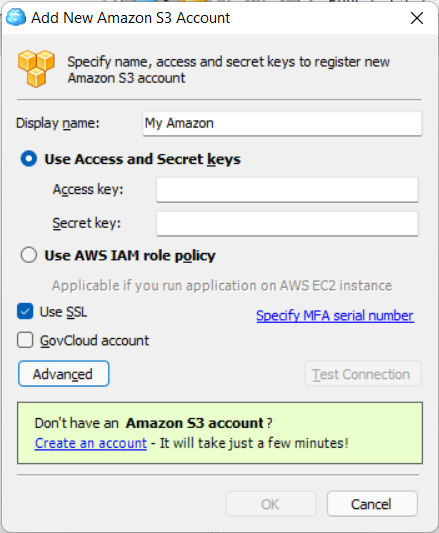
- Manage Your API Keys Securely: When adding a new cloud storage account in Explorer, you’ll need to input API keys or credentials. Treat these as you would passwords. The tool will save them (optionally encrypted) on your local system for convenience. Ensure your machine is secure and consider using the encryption option for stored credentials if available. Rotate or update keys in Explorer if you’ve changed them on the cloud side.
- Use Favorites and Shortcuts: If you frequently access certain buckets or folders, CloudBerry Explorer has a “Favorites” feature (similar to bookmark/favorite in browsers). Mark your commonly used locations so you can jump to them quickly without navigating the full path each time. This is especially helpful if you have deep folder structures or many accounts.
- Be Aware of Free vs Pro Limits: The Freeware version limits some features. For example you can only store up to 3 favorite entries in the free version, whereas Pro has unlimited favorites. Also, things like multi-threaded transfers, encryption, and scripted actions are Pro-only. If you find yourself needing those regularly (e.g., regularly transferring very large files where multithreading would help, or handling sensitive data that should be encrypted), it may be worth upgrading to PRO. Otherwise, the free version is often sufficient for many users’ day-to-day needs.
- Leverage the Community and Resources: MSP360 provides video tutorials and a knowledge base for Explorer. If you’re unsure how to do something (like setting up an Azure connection string, or using the CLI), these resources can guide you. The MSP360 forum is also a place to ask questions if you run into issues or have unique use cases.
- Test Large Operations: If you are planning to move a very large amount of data (tens of thousands of files, or multi-terabyte transfers), do a smaller test first with CloudBerry Explorer to see how it handles it and verify that your connection is stable. While Explorer is robust, extremely large jobs might benefit from breaking into chunks or verifying contents in batches. The resumable upload feature helps with large file transfers, but if you have many small files, consider compressing them into a larger archive for faster transfer (you can even use Explorer’s compression feature if you have PRO).
- Keep Software Updated: Lastly, ensure you keep your version of CloudBerry Explorer up to date. Updates often include support for new cloud regions or services, performance improvements, and security fixes. For instance, new AWS regions or new storage classes (like Amazon S3 Glacier Instant Retrieval) have been added in past updates, and staying current ensures you can access all those new features from your Explorer interface.
By following these practices, you’ll ensure a smooth experience and get maximum utility from the tool.
Conclusion and Next Steps
CloudBerry Explorer is a powerful yet approachable solution for anyone looking to simplify cloud storage management. It brings a host of technical capabilities – multi-cloud access, direct and secure file transfers, advanced features like encryption and scripting – and wraps them in a familiar interface. The result is that tasks which once might have required specialized knowledge or tedious manual effort can now be handled with ease.
If you’re tired of juggling multiple cloud consoles or writing complex scripts for routine file operations, CloudBerry Explorer could be the game-changer you need. It’s especially useful for IT administrators, MSPs, and developers who work with data across various cloud platforms, but even casual cloud users will appreciate the convenience it offers.
Ready to take control of your cloud files more efficiently? You can get started by downloading CloudBerry Explorer Freeware at no cost. Try it out with your own cloud accounts and experience the difference in managing your data. And if you find the advanced features beneficial, consider upgrading to the PRO version for the full feature set – but that’s optional and only if you need it.
Streamline your cloud management workflow today with CloudBerry Explorer and spend less time wrestling with cloud interfaces and more time on the work that matters. Download CloudBerry Explorer and simplify your multi-cloud file management now.
- Cloud file manager for Amazon S3, Azure, Google Cloud, Openstack, and S3-compatible storage
- Encryption and compression
- CLI